Use Notion AI to automate databases
Learn how to automatically generate, categorize, and refine database content in Notion.
2024-12-05
Welcome to the fifth lesson of our course on Using Notion AI for business workflows.
Managing large databases in Notion can be a tricky and time-consuming balancing act. But Notion’s AI database properties automate repetitive tasks to make database maintenance much easier.
In this tutorial, we’ll cover each of the AI-powered database properties Notion AI has to offer, using a content refinement system as our primary example. You'll learn how to use these AI capabilities in your existing Notion databases and adapt them to your specific needs.
In this tutorial, you'll learn:
- How to set up AI-powered database columns in Notion
- Configure custom AI prompts
- Create a self-maintaining content refinement system
- Implement automated categorization and summarization
Let's dive in!
Step 1: Setting up your database foundation
Before diving into AI properties, we need to create a solid foundation for our automated system. Remember: while we’re creating a content refinement database for this tutorial, you can adapt the same principles for your own business workflows - from project management to customer support tickets and everything in between.
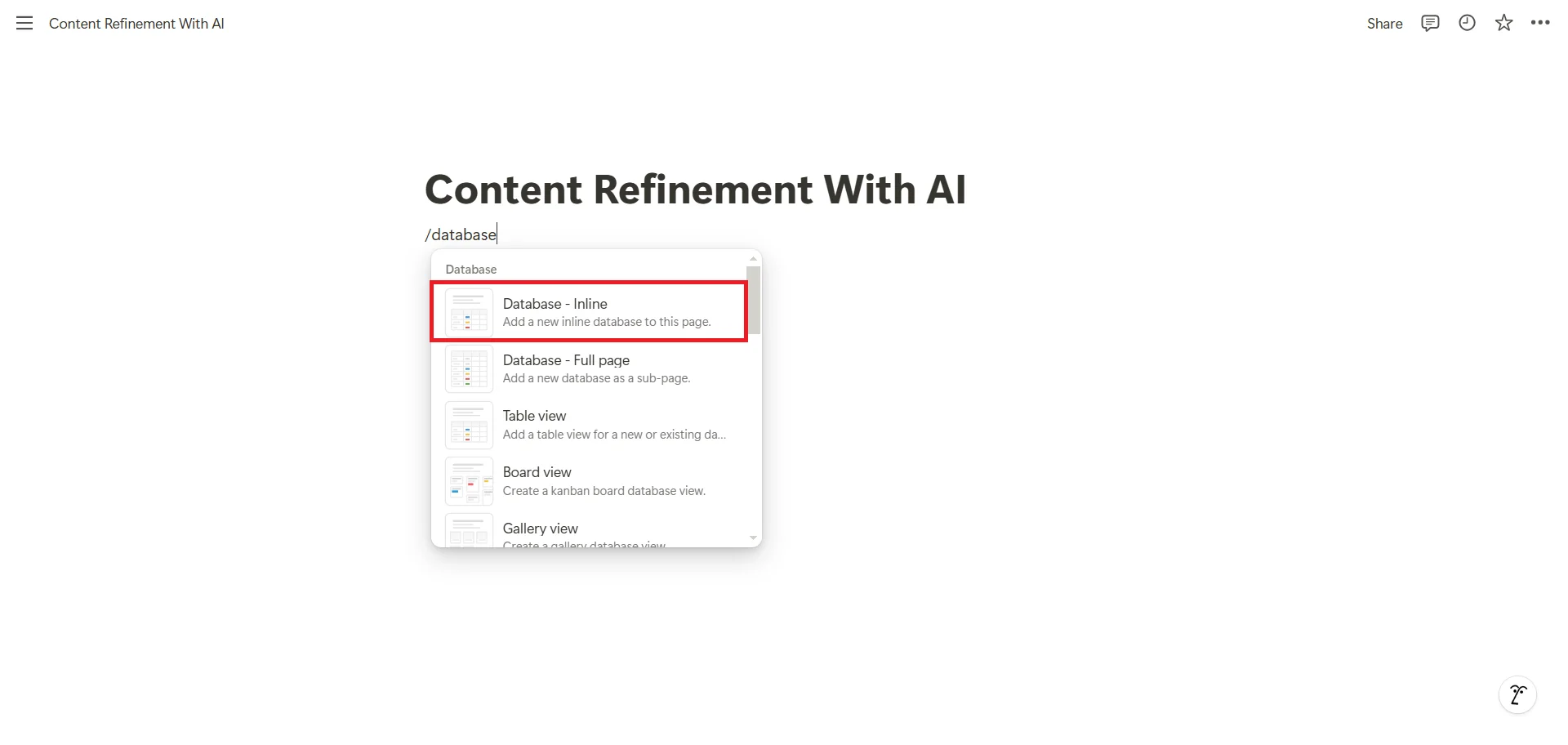
Open Notion and create a new page. Type "/database" and select "Table - Inline" from the menu.
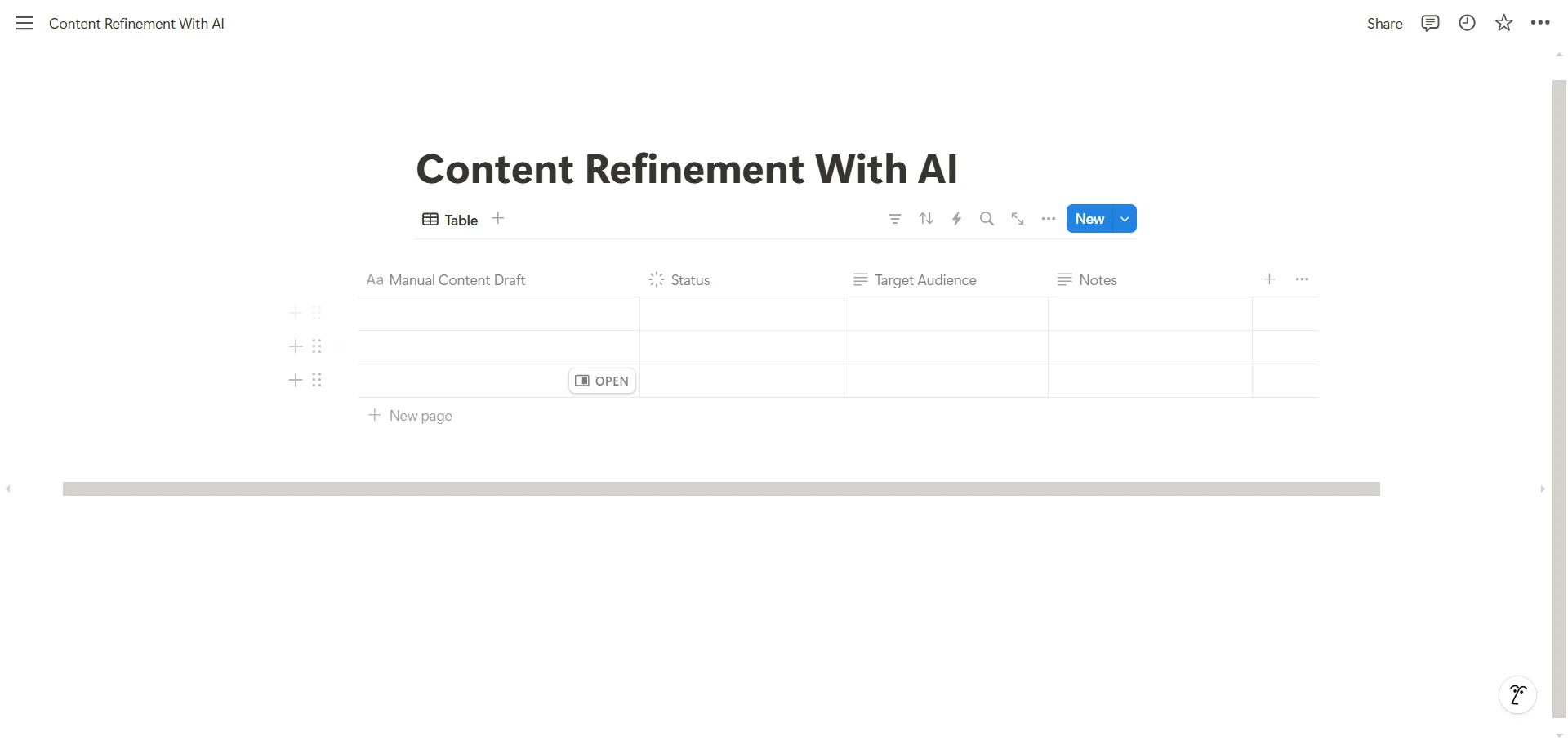
Let's set up our essential manual input columns:
Start with a "Manual Content Draft" column using the Text type. This will be your primary content input field. For a content refinement system, this might be your rough draft; for a support ticket system, it could be the initial ticket description.
Add a "Status" column using the Status type. This helps track progression through your workflow.
Create a "Target Audience" text column. This field helps Notion AI understand the context and tone needed for refinements. For content, this might be "Technical developers" or "Marketing executives." For support tickets, it could be "Enterprise clients" or "Small business users."
Finally, add a "Notes" text column. This is our direct line of communication with Notion AI - use it to provide specific instructions or context that should influence the AI's output.
Step 2: Understanding AI property types
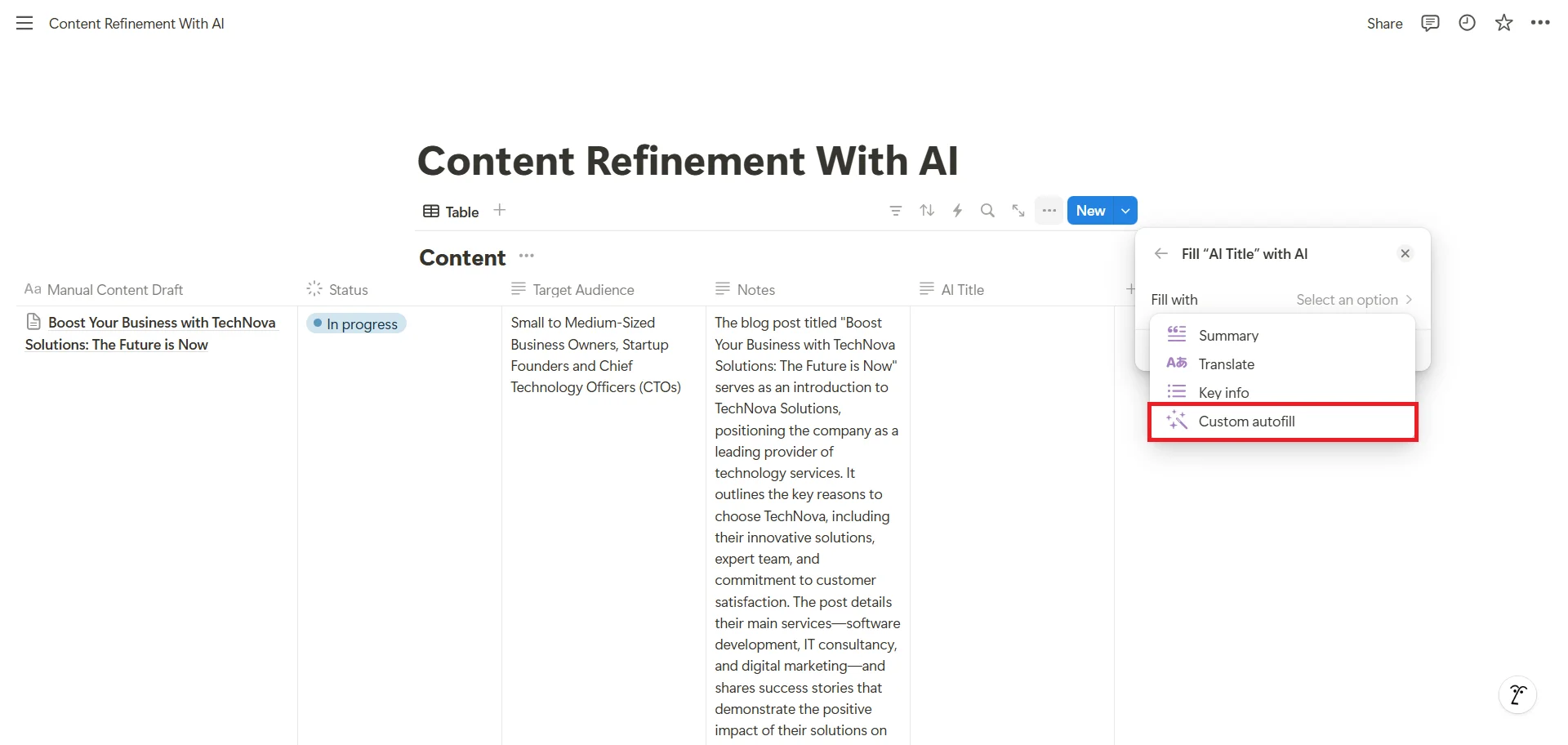
Before we build our automated system, let's understand the tools at our disposal. Notion offers four distinct types of AI properties, each serving a specific purpose in your database workflows:
- Custom Autofill ✍️
Think of this as your most flexible AI assistant. It can be programmed to perform any task - from generating titles to analyzing content to creating sophisticated outputs based on multiple inputs.
- Summary 📋
This property type excels at distillation - taking lengthy content and extracting its essence. It's particularly valuable when you need to quickly understand the core message of a piece of content or when creating social media previews.
- Key Information 🔍
While Summary provides a narrative overview, Key Information acts more like an analyst, pulling out specific data points, facts, or action items. It's perfect for creating quick-reference points or extracting actionable insights from longer content. This is especially useful for meeting notes or complex documents where you need to highlight critical takeaways.
- Translate 🌏
This property type brings your content to a global audience. It doesn't just translate words - it maintains tone, context, and meaning across languages. This is invaluable for teams working across regions or businesses looking to scale internationally without maintaining separate databases for each language.
Step 3: Building an intelligent AI property sequence
Now we'll implement our AI properties in a strategic order that creates a powerful content enhancement pipeline. Each property builds upon the insights generated by previous ones, creating a sophisticated content refinement system.
1. AI Title Generation
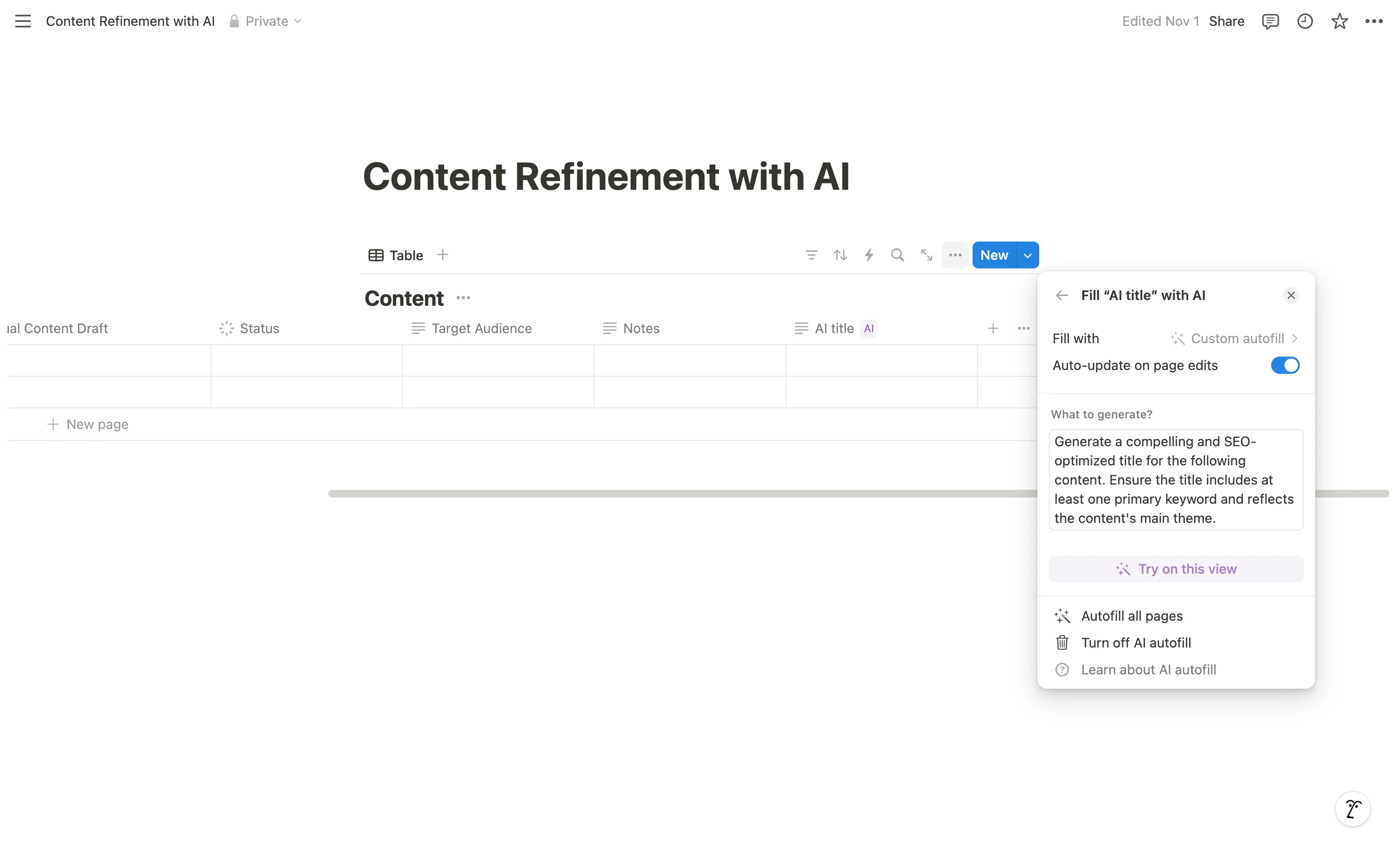
Start by adding an 'AI Title' property, select Text type, with Custom Autofill enabled. This property helps generate titles that are both attention-grabbing and optimized for search engines.
Use this prompt:
Generate a compelling and SEO-optimized title for the following content. Ensure the title includes at least one primary keyword and reflects the content's main theme.
2. Category Selection
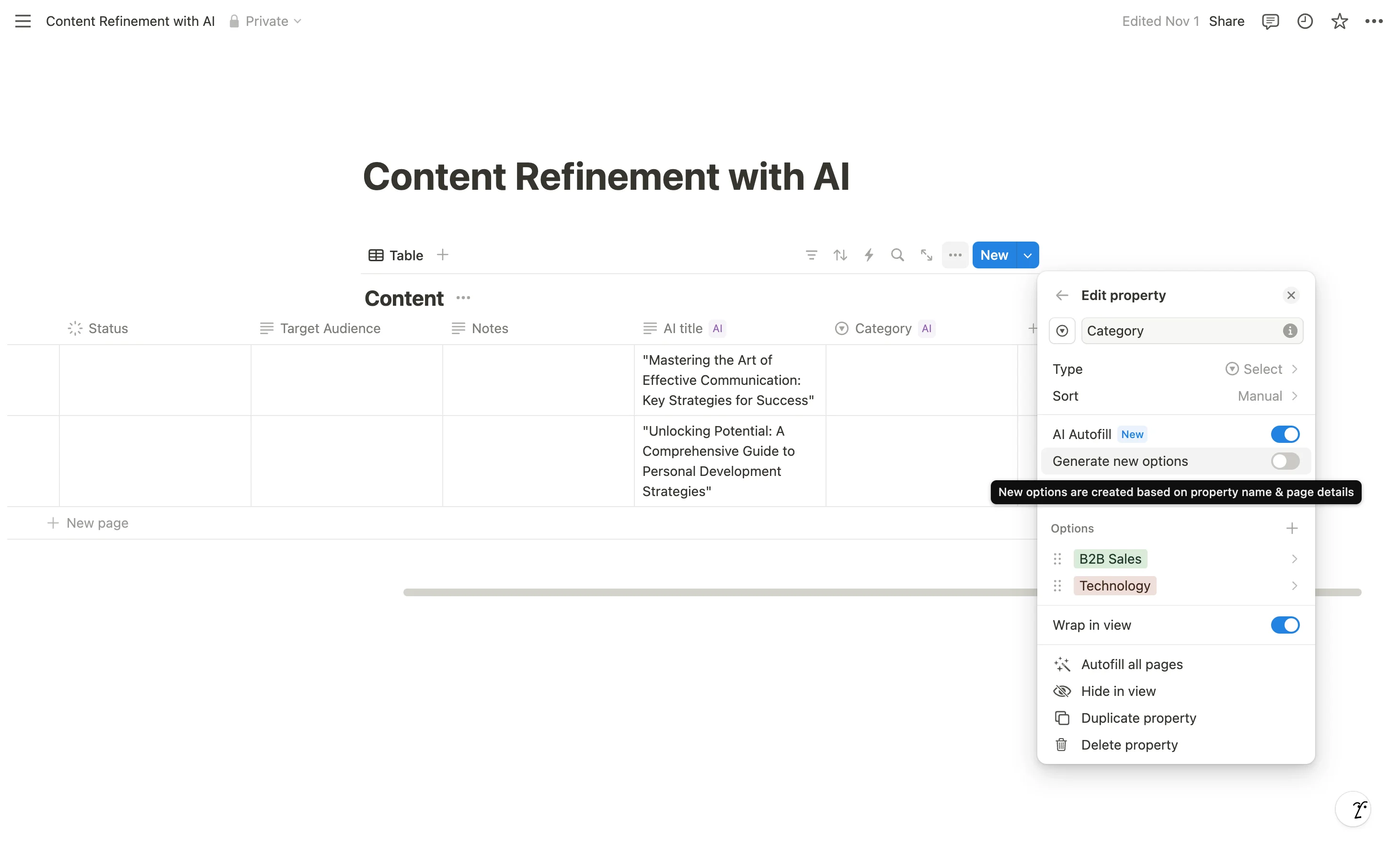
Similarly, create a "Category" column using the Select type. This property will automatically classify your content, ensuring consistent categorization across your database.
First, add some initial categories that make sense for your content. Then enable AI autofill and consider whether to toggle "Generate new options." This choice depends on your needs:
- Enable it if you want AI to create new categories as it discovers new content types
- Leave it off if you need to maintain a strict category taxonomy
3. SEO Keywords
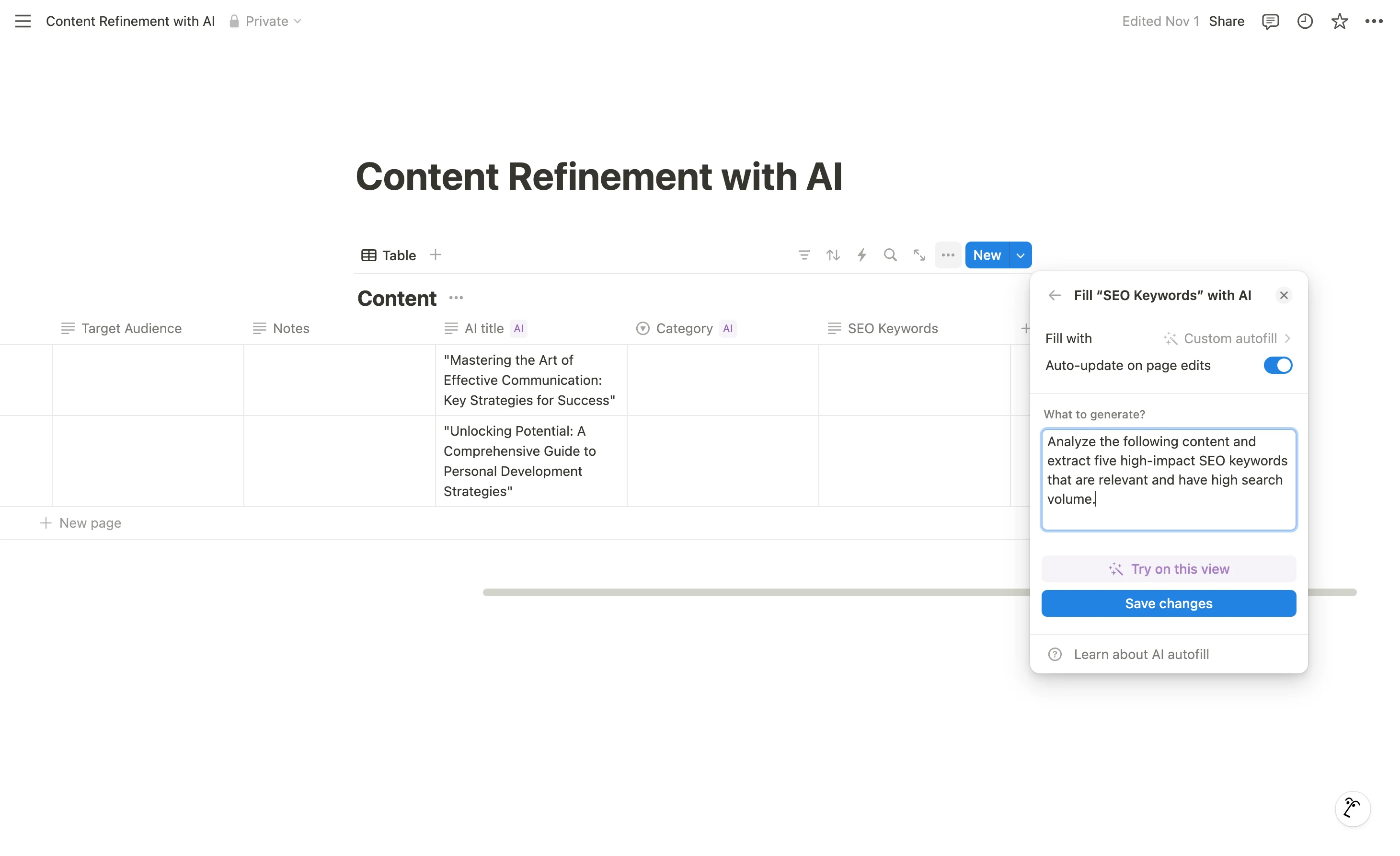
Add a new "SEO Keywords" column. Click the "+" icon, select Text type, and enable AI Custom Autofill. This property identifies the most valuable keywords for our content.
Use this prompt:
Analyze the following content and extract five high-impact SEO keywords that are relevant and have high search volume.
4. Automated Translation (Optional)
If you serve multiple markets, you can create "Translation" columns using the AI Translate type for each target language. This property maintains your content's impact across language barriers. Just choose what to translate and the target language of the content you want to translate in.
5. AI Refined Draft
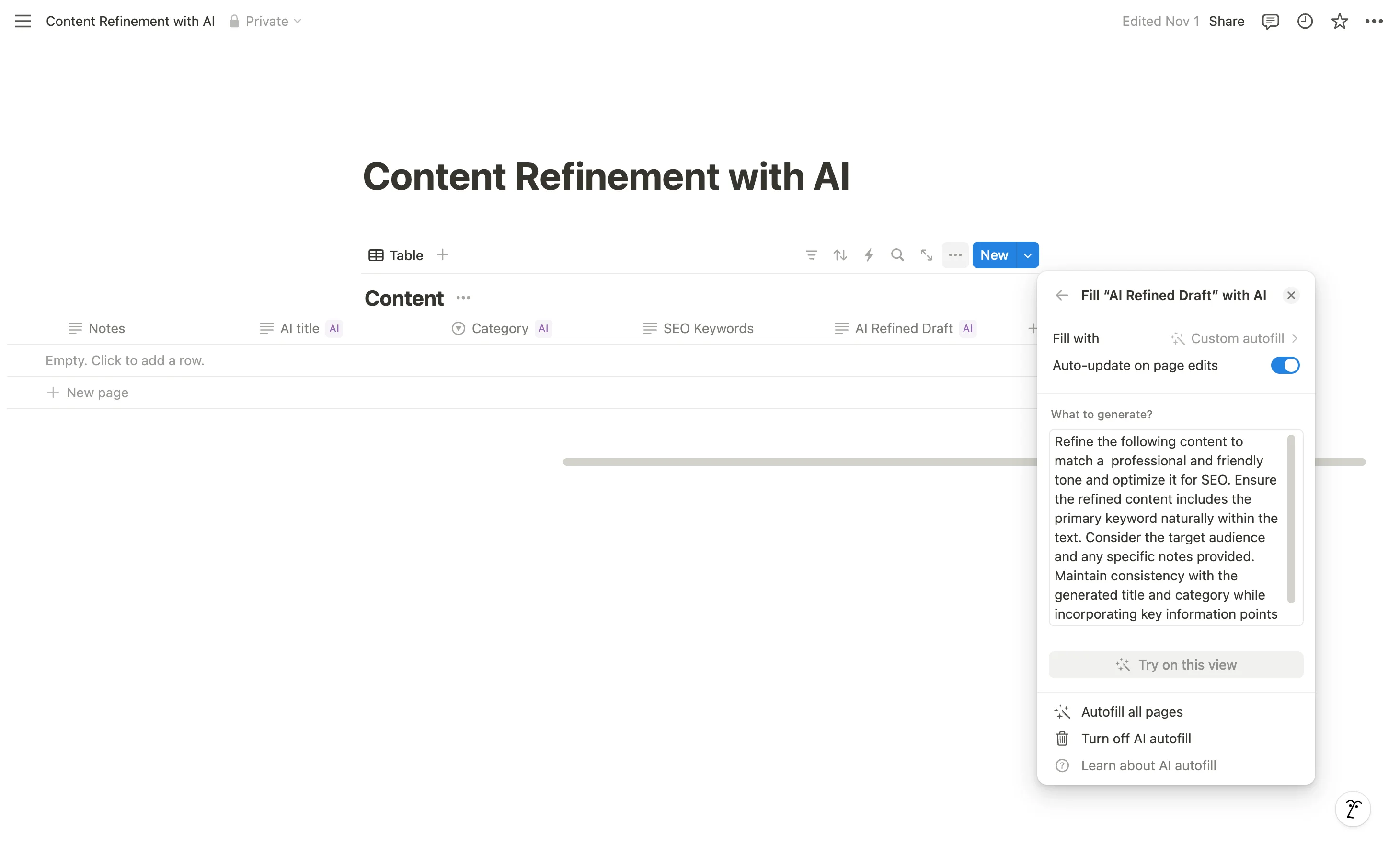
Finally, create the "AI Refined Draft" column using Custom Autofill. This is our masterpiece property that synthesizes all previous AI insights into a polished final version.
Configure it with this prompt:
Refine the following content to match a [desired tone, e.g., professional, friendly, casual] and optimize it for SEO. Ensure the refined content includes the primary keyword naturally within the text. Consider the target audience and any specific notes provided. Maintain consistency with the generated title and category while incorporating key information points naturally.
Step 4: Testing and optimizing your AI-enhanced database
It’s time to put our system to the test. Let’s add some sample content to the Manual Content Draft field and see how our database properties work.
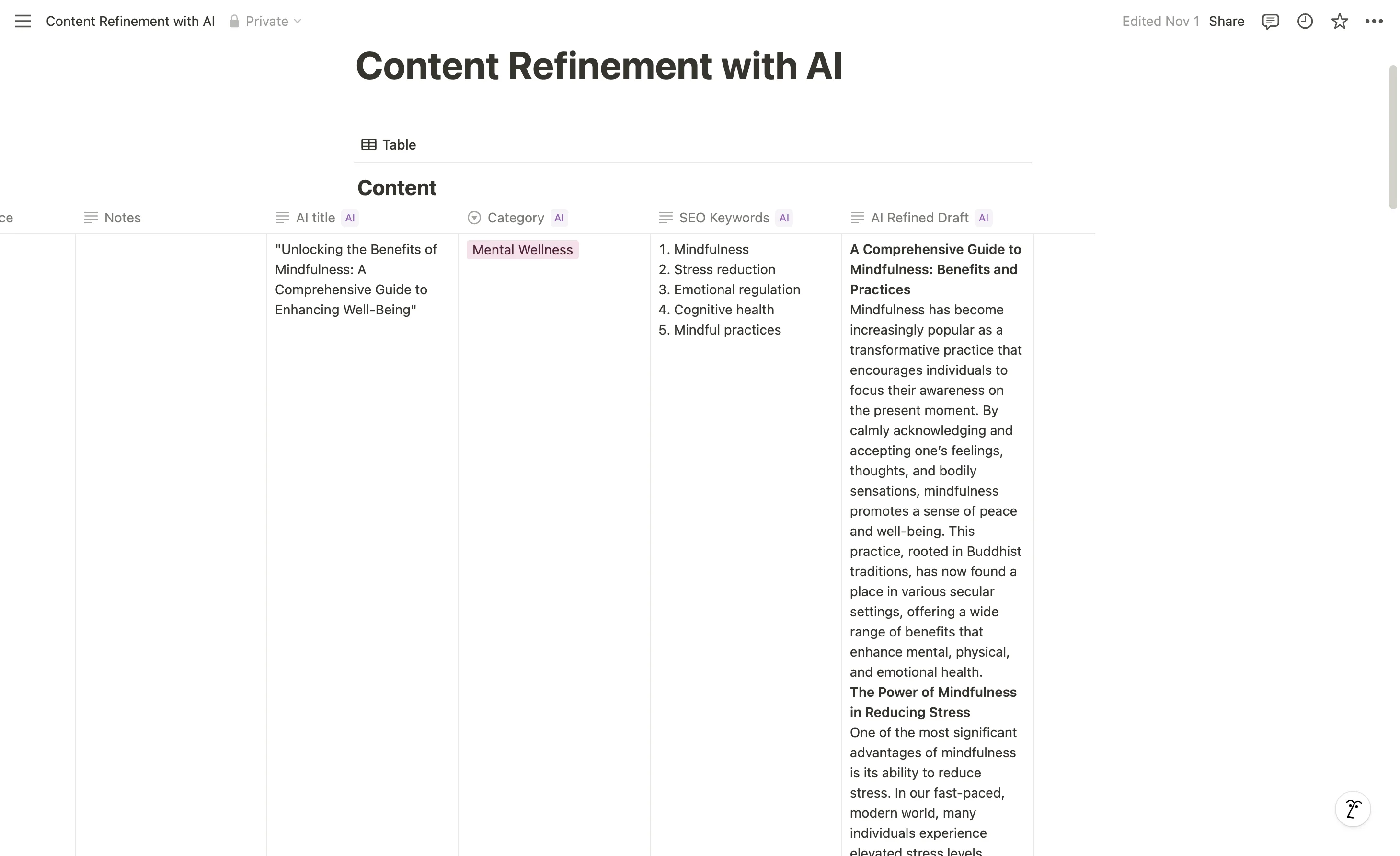
Notion AI may take some time to generate and update all AI properties, or you can manually trigger it by clicking the property name and selecting the 'Autofill all pages' option.
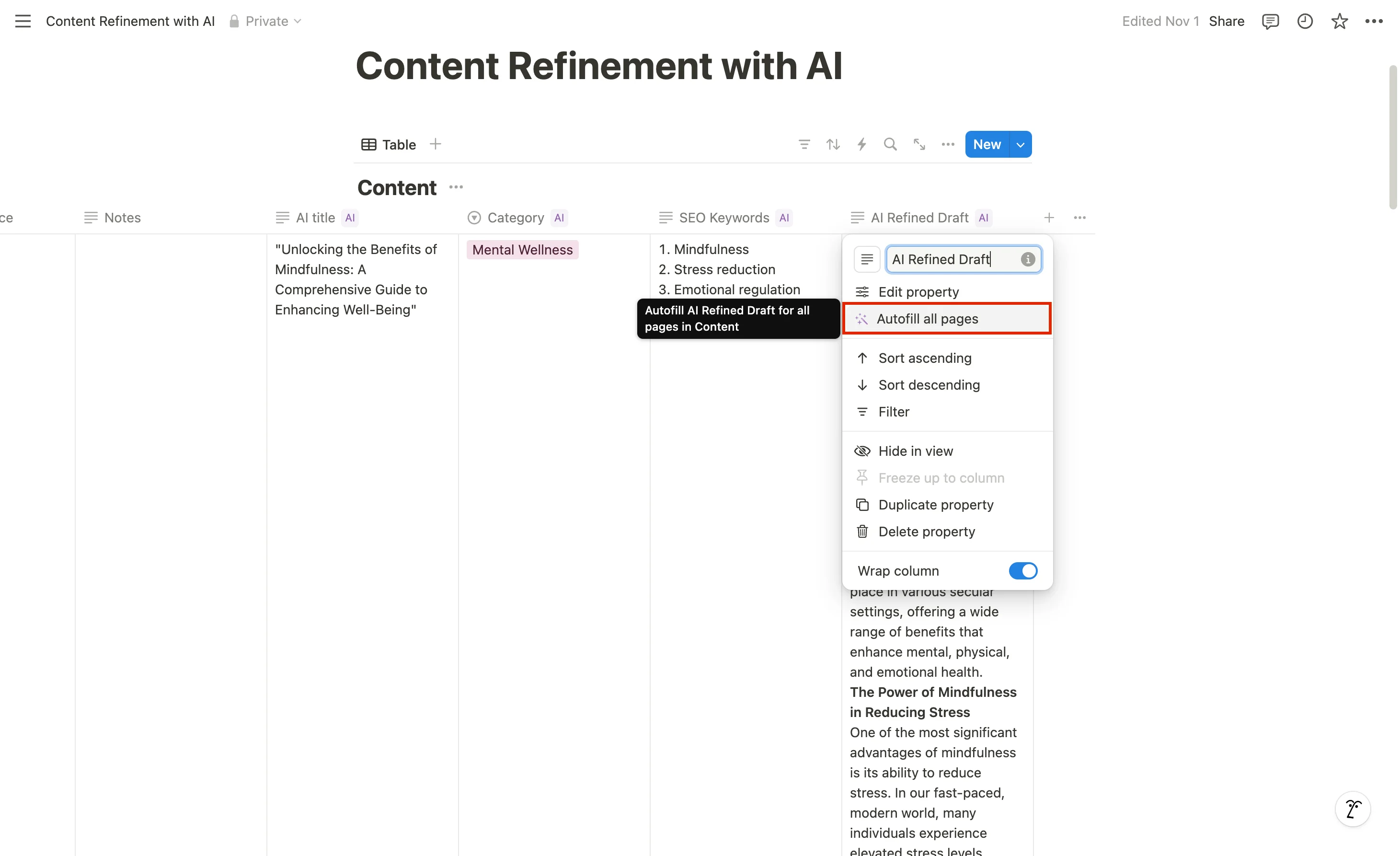
Take a moment to review each property's output. You'll see how each builds upon the previous ones, creating a sophisticated content enhancement pipeline.
Practical applications across business functions
The power of this system lies in its ability to maintain consistent quality across your entire database while significantly reducing manual effort. Whether you're managing blog posts, support tickets, or project documentation, these AI properties work together to ensure high-quality, optimized content with minimal human intervention.
Customer Support Ticketing
- AI Summary Property: Automatically generate concise ticket summaries from lengthy customer emails, making it easier for your team to quickly understand issues during handoffs
- Custom Autofill for Priority: Let AI assess ticket urgency based on content, customer tier, and impact
- Key Information: Automatically extract product names, error codes, and specific customer requests
- Custom Autofill for Response: Generate initial response drafts based on similar past tickets and your company's tone of voice
Project Management
- Custom Autofill for Risk Assessment: Generate potential risks and challenges based on project descriptions and timeline
- Summary Property: Create executive-friendly status updates for stakeholder communications
- Key Information: Extract action items, deadlines, and dependencies from meeting notes and updates
- Custom Autofill for Status: Suggest project health indicators based on progress and milestone completion
Content Calendar
- Custom Autofill for Social Copy: Generate platform-specific social media posts adapted to each channel's best practices
- Key Information: Extract main takeaways and key statistics for quick reference
- Custom Autofill for Content Ideas: Suggest related topics and potential follow-up pieces based on existing content
- Summary Property: Create quick content briefs from rough concepts for your creative team
In the next and final tutorial of this course, we’ll explore additional ways to use Notion AI, particularly in project management and collaboration, to showcase its versatility across various use cases.
This tutorial was created by Tanmay.