Using the copilot mobile app
Learn about the different features you can access, and how to work with them, in the Copilot mobile app.
2024-12-06
This tutorial is part four of our “Learn how to use Microsoft Copilot” course. We’ll be exploring how you can use the Copilot mobile app to supercharge your personal productivity.
In this tutorial we'll cover how to:
- Catch up on the news
- Use pre-made prompts
- Chat with Copilot
You’ll need either:
Catch up on the news
To get started, download the Copilot app on your mobile phone. You’ll land on the home screen where you can interact with pre-made components or message Copilot in the input field at the bottom of the screen.
We’ll get started with catching up on the news via the Copilot Daily widget. To do this, click the top component on the homepage.

This will open an audio-first news digest that you can toggle through via the playback buttons at the bottom of the screen.
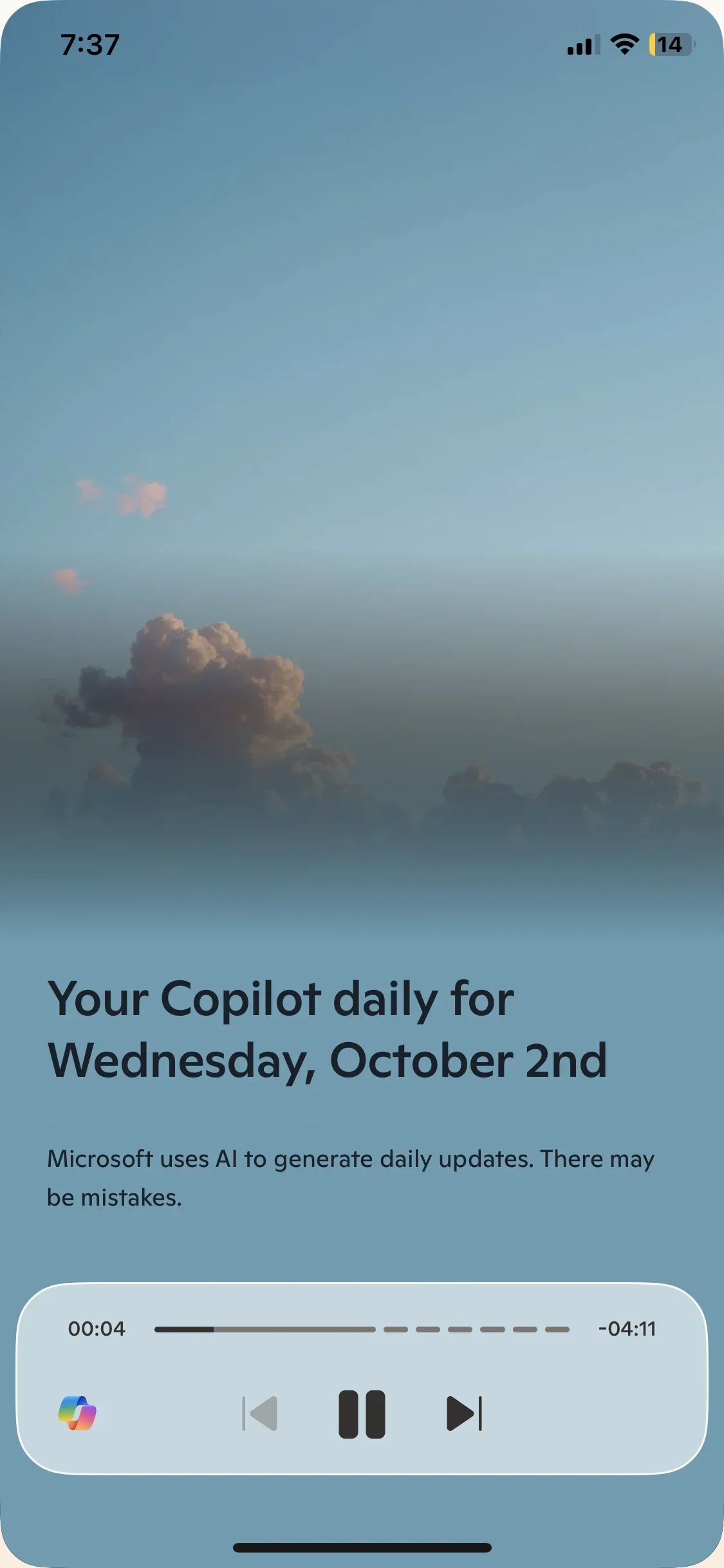
On any of the news stories, you can click the news source bubble, like Reuters in this example, to pull up the underlying news article.

A pop-up will appear with related articles. You can then click any news article from the pop-up.

And read the full news story within the app.

Use pre-made prompts
The Copilot mobile app also has pre-made prompts that you can use to jumpstart conversations with Copilot. Back on the home feed, you can click any of the other components, and it’ll start a structured conversation with Copilot.
For example, we’ll click on the “Learning how to reduce anxiety” component.
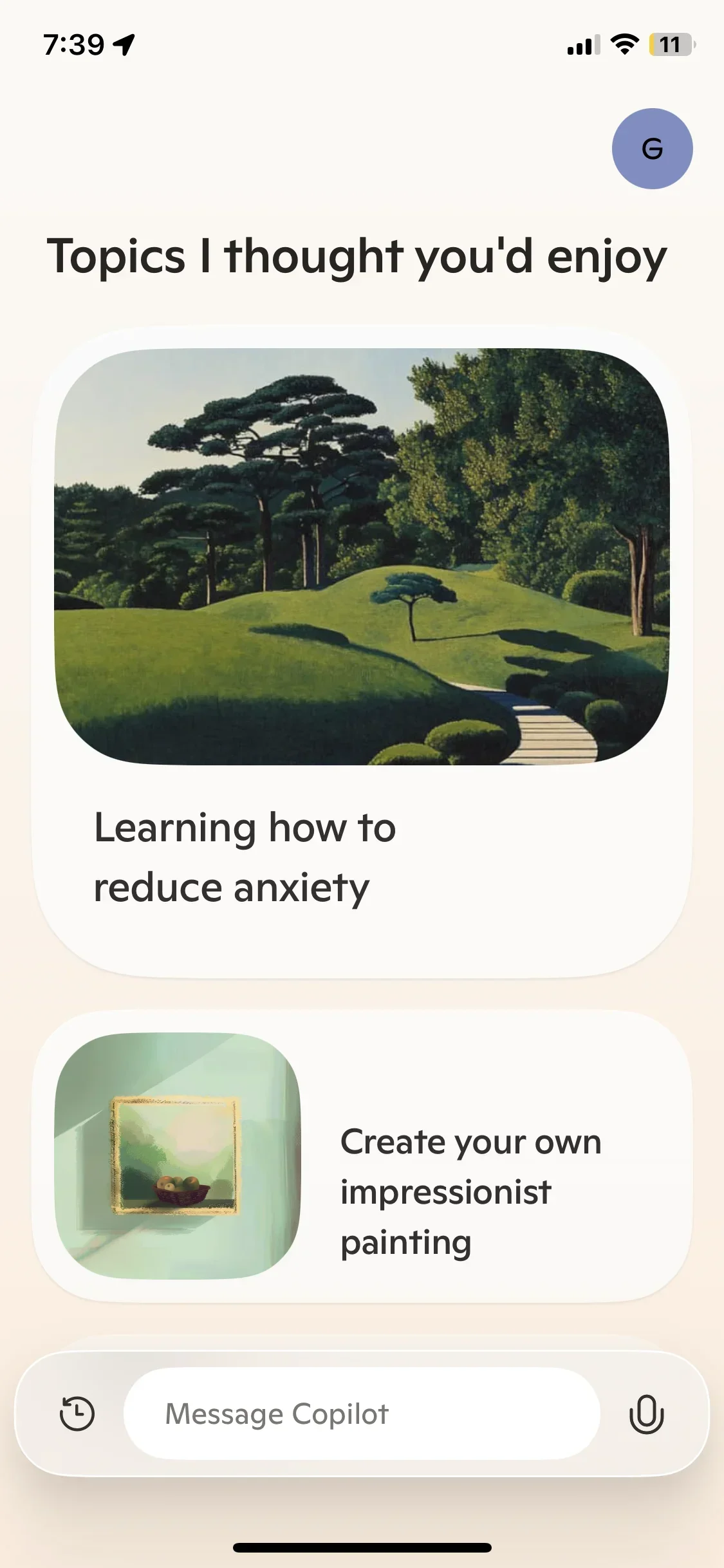
It’ll open a conversation thread with Copilot with a pre-loaded prompt.

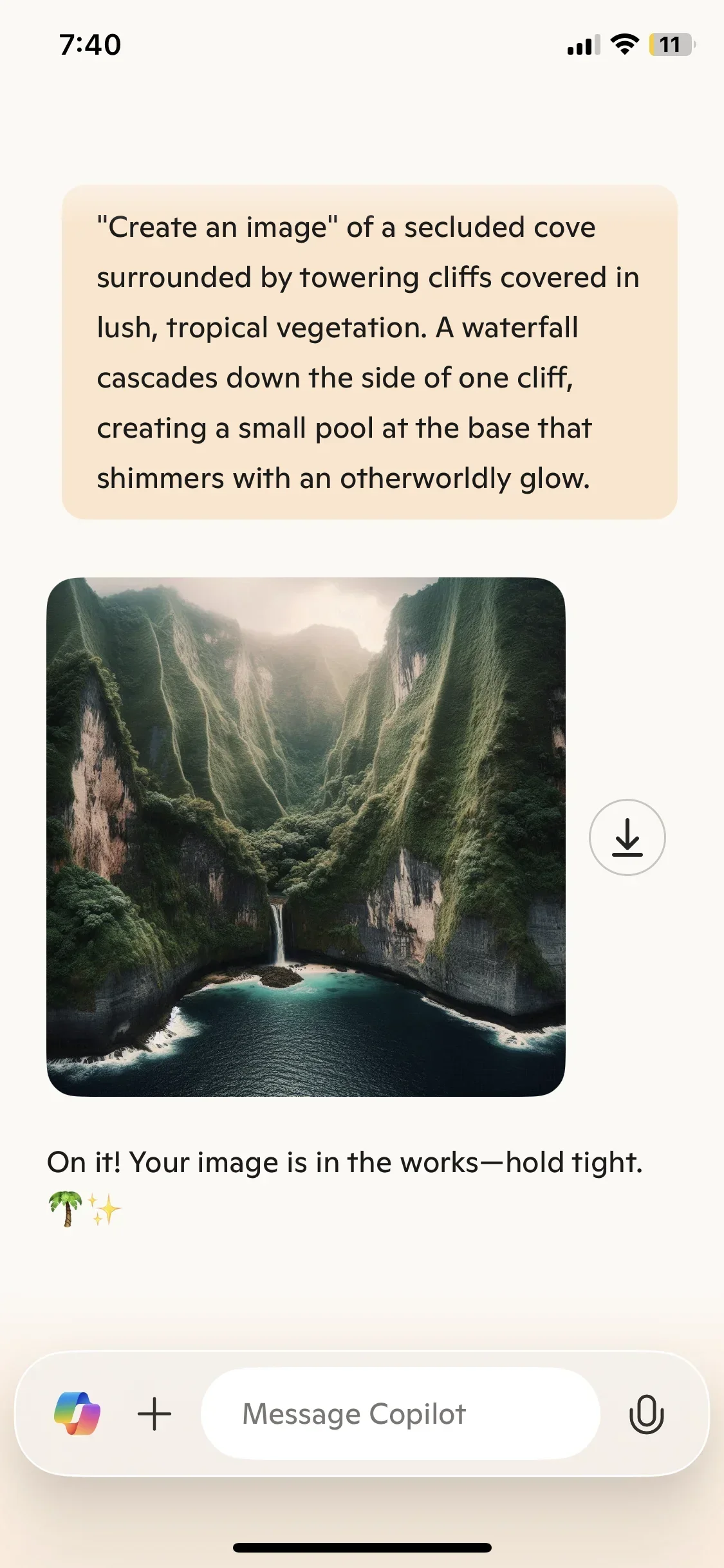
This works with image generation too. For instance, we’ll click on the “Create an image of a tropical island” component.
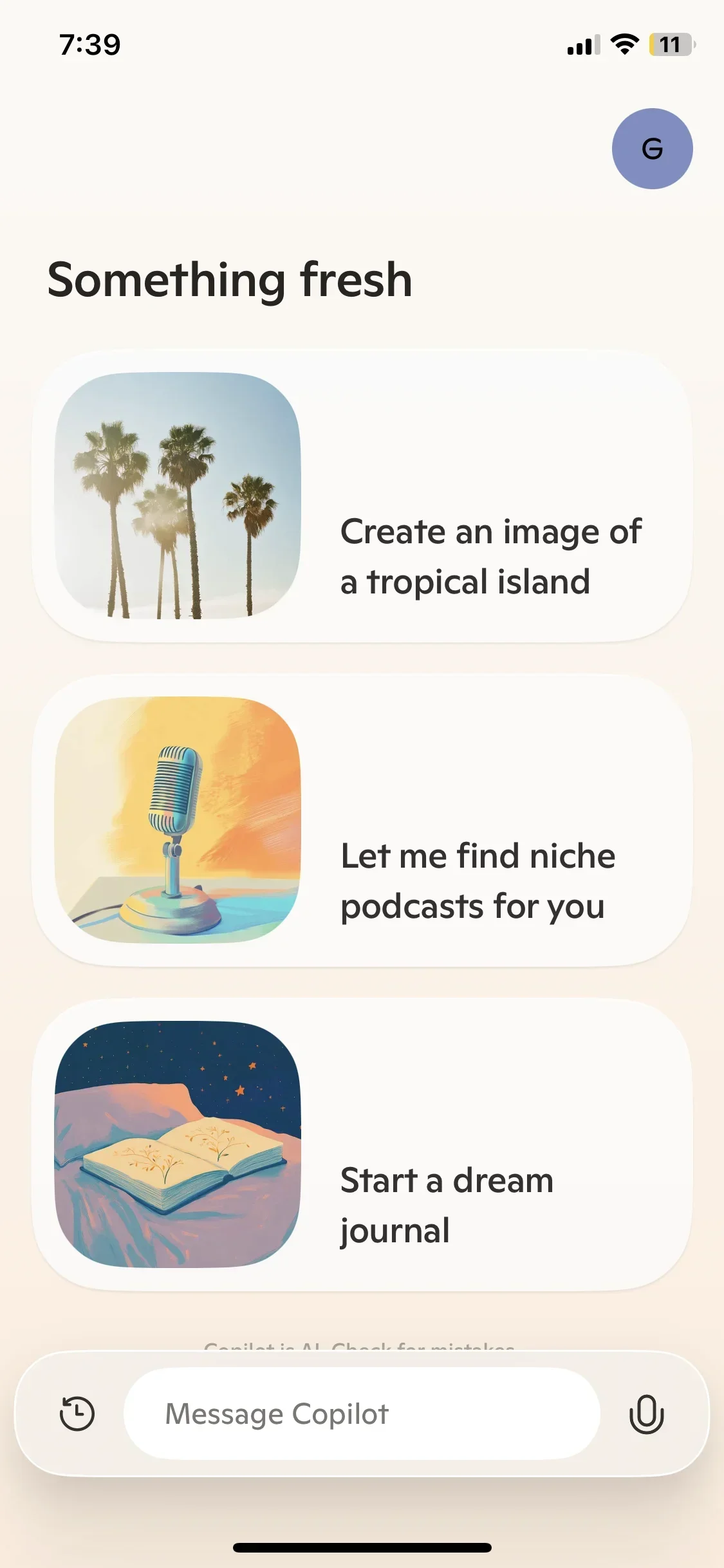
And Copilot will generate this image in a new thread.
Chat with Copilot
You can chat with Copilot like most other AI assistants by entering any text into the “Message Copilot” input field.
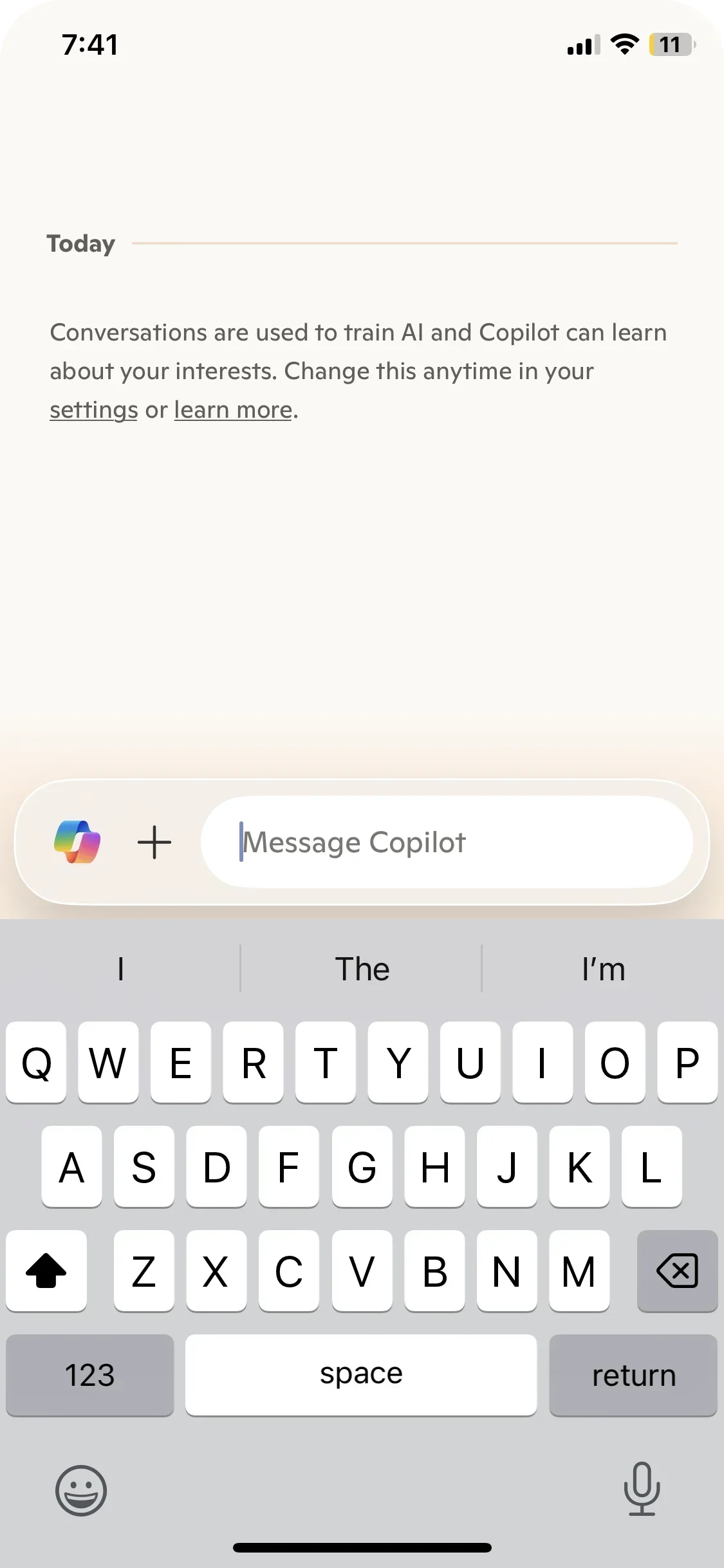
In addition, you can voice chat with Copilot. The experience is similar to the advanced voice mode in ChatGPT but even better! The latency is minimal, making the conversation feel quite human-like. To get started with voice mode, click the plus button in a new thread with Copilot.
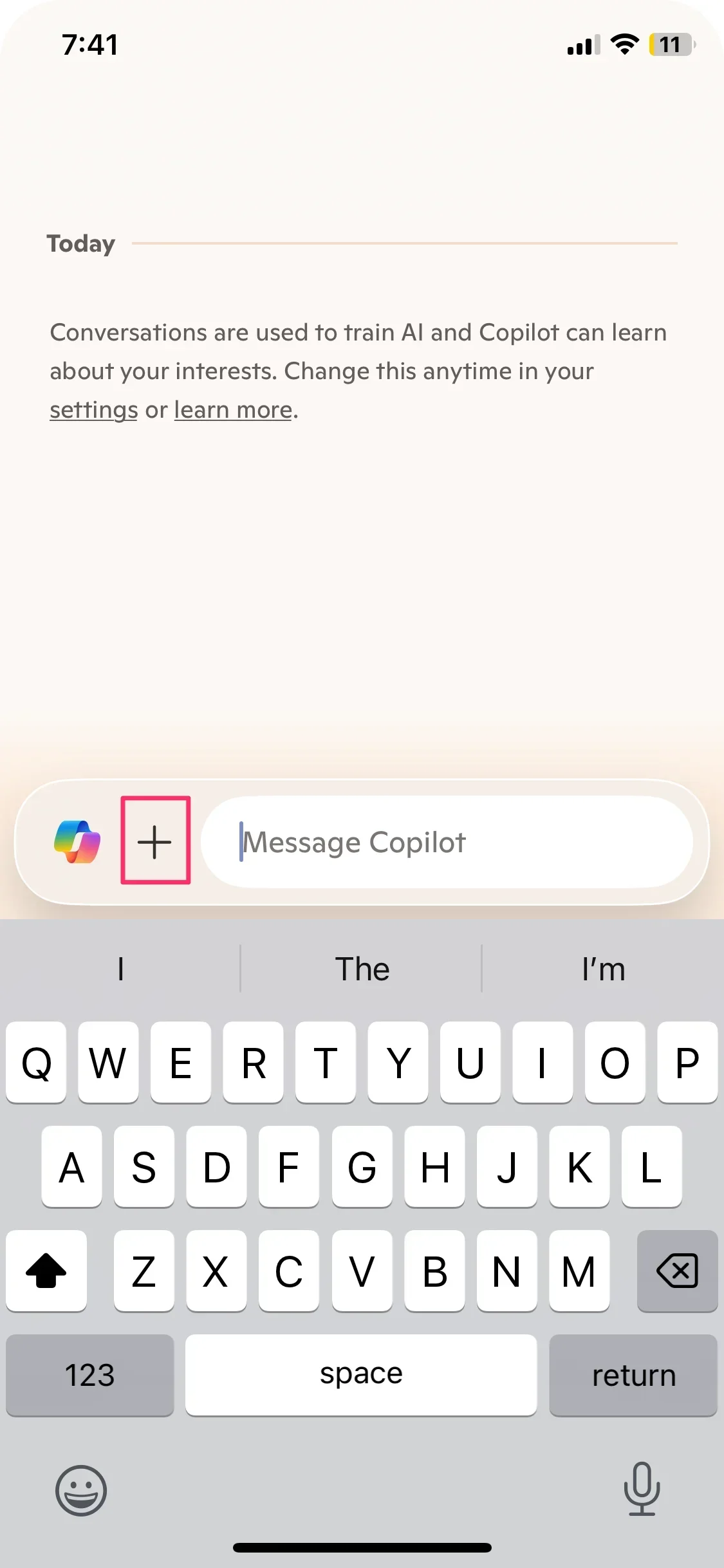
Then click the “Talk” button to enter the advanced voice mode.
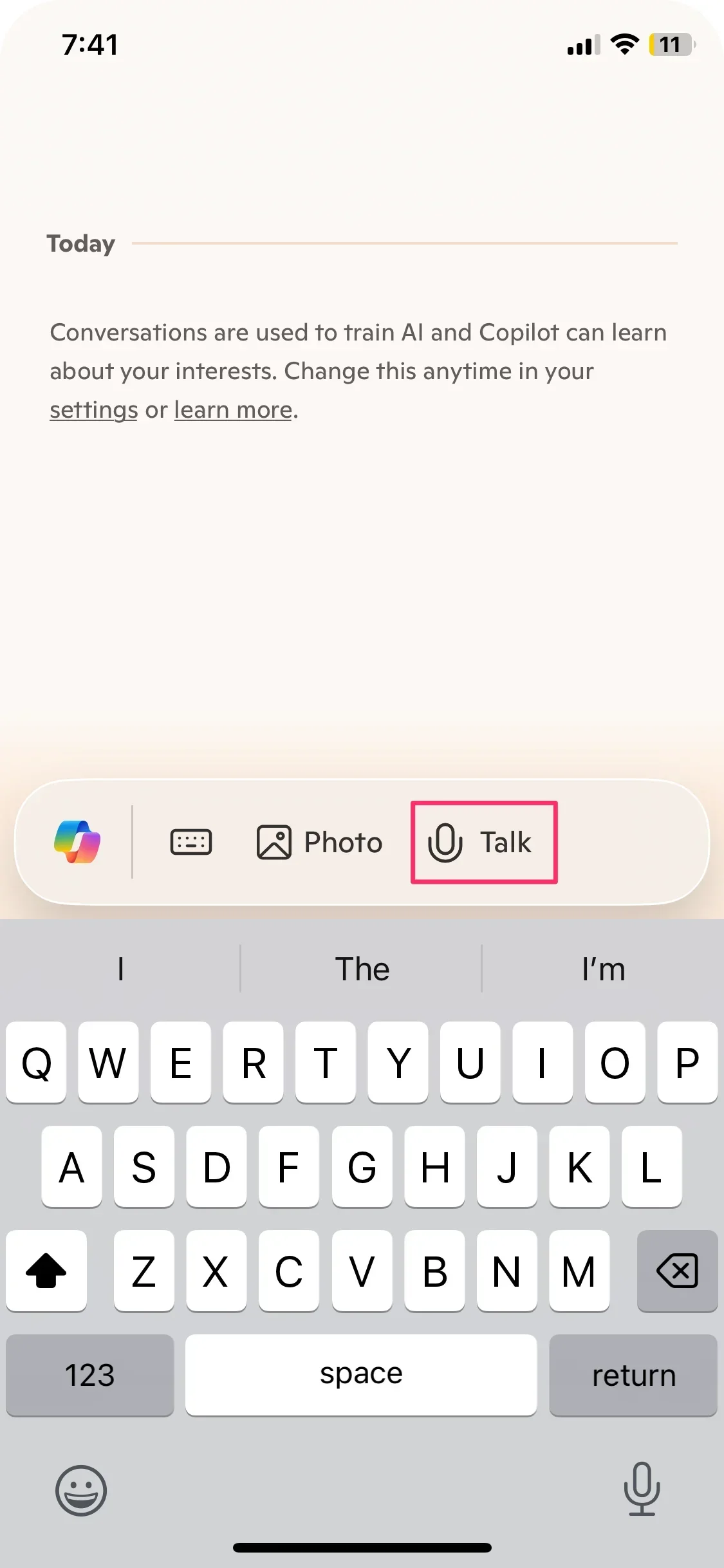
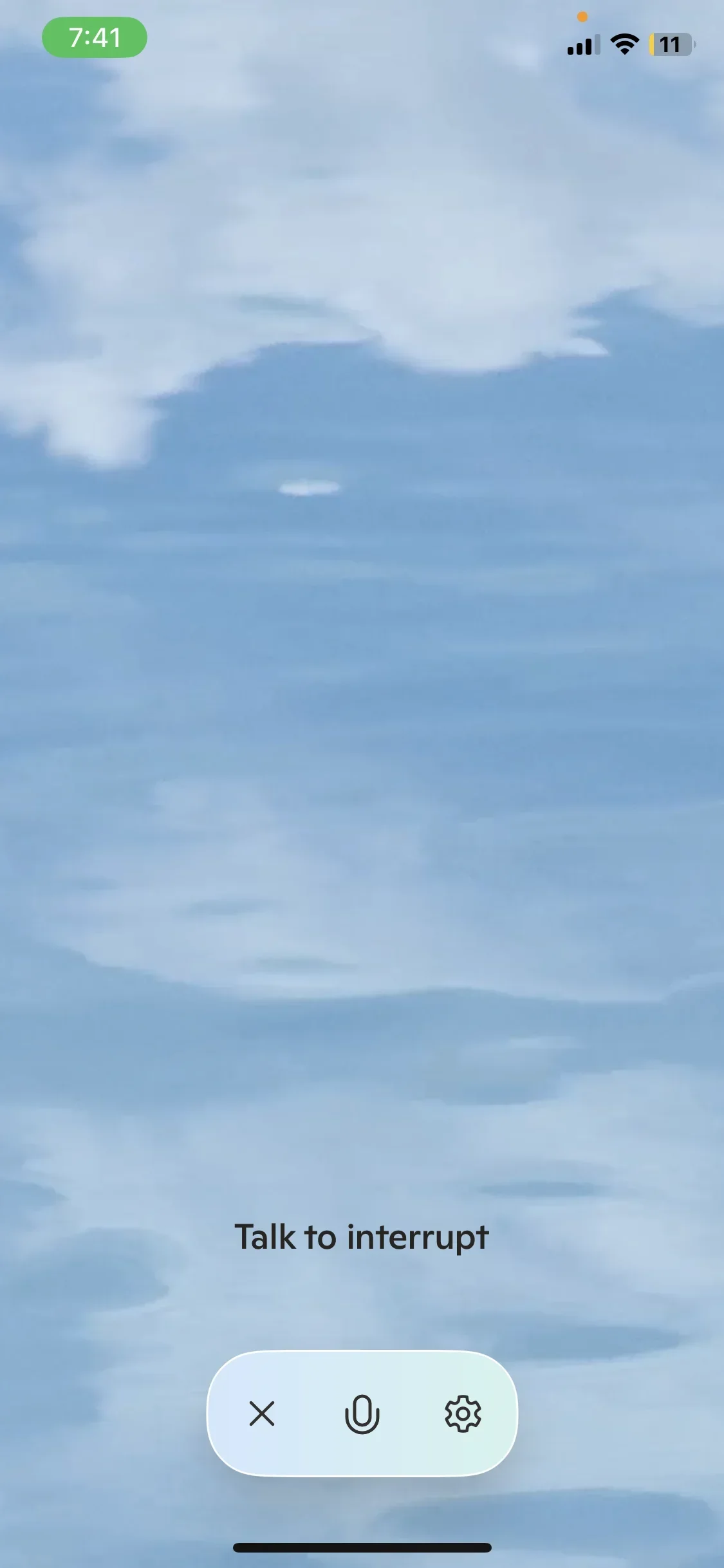
This will take you to a hands-free experience where you can talk back and forth with Copilot in a conversational manner.
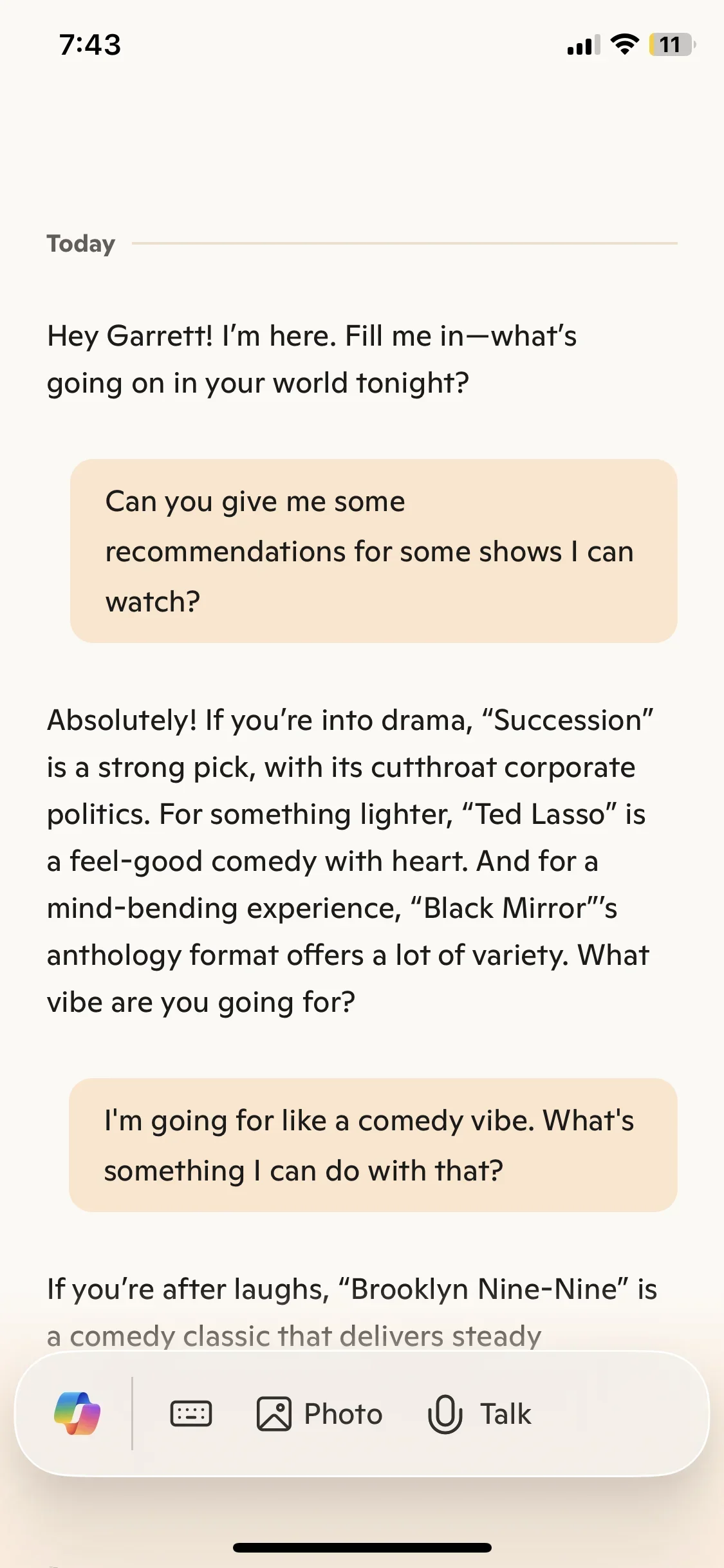
When you finish your conversation, you’ll land on a Copilot thread that has transcribed your entire conversation for further review.
And that’s it! You now know the ins and outs of working with Copilot in the mobile app.
In the next tutorial, we'll dive deeper into using Microsoft Copilot for more advanced work-related tasks and collaboration.
This tutorial was created by Garrett.