What are GPTs and how do I create one?
Explore the mechanisms of GPTs and learn the process to create your own.
2024-12-08
Generative Pretrained Transformers (GPTs) are machine learning models designed for natural language processing tasks. Within ChatGPT, you can think of GPTs as niche versions of ChatGPTs. There are GPTs for sales, legal, writing and even drawing. They even might perform a certain task within its subject matter.
If you have tasks that you perform again and again that ChatGPT can help with, you will probably benefit from creating a custom GPT. You can define certain parameters that the GPT must operate within every time you interact with it. For example, documents should reference, the tone and style of its responses, and the types of tasks it should perform.
Some examples of where and how custom GPTs might be useful:
- Customer support: You can train a custom GPT with your company and product knowledge, then have your support team use it to quickly find accurate answers to customer inquiries.
- Content creation: Businesses or content creators can use a custom GPT to generate blog posts, articles, or social media content that aligns with their brand’s tone and style, and even according to specific templates or layouts. It can also be used to draft personalised emails, newsletters, or marketing copy.
- Internal knowledge base: Companies can create custom GPTs that serve as an internal knowledge base, helping employees quickly access company policies, procedures, or other relevant information. This can be particularly useful for onboarding new staff or providing ongoing support.
- Education and training: Educational institutions or organisations can develop custom GPTs to help with tutoring, providing explanations or practice problems tailored to a specific curriculum. It can also be used to create interactive learning modules for students or employees.
- Project management: A custom GPT can help with project planning and scheduling. If you add new documentation and details to the GPT as your project progresses, it will have an up-to-date overview of the whole project. It can then help adjust schedules dynamically when there are changes in scope or resources, ensuring that the project stays on track.
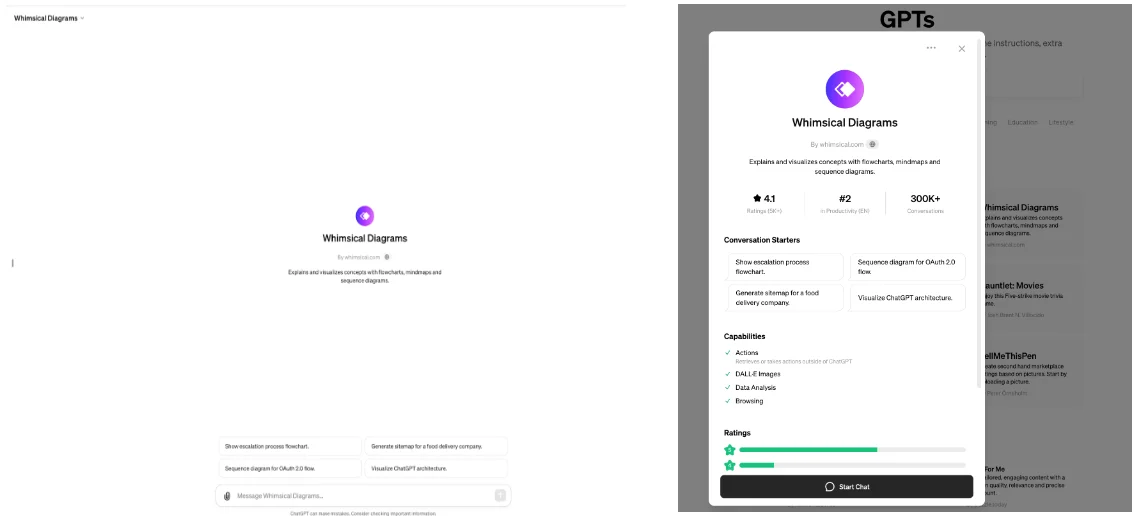
When you're in ChatGPT, you can click 'Explore GPTs' to browse GPTs built by others. When you click on a GPT, you will get an overview of its capabilities, ratings, description and more. Each GPT lists its capabilities - this is important to consider based on what you are hoping to accomplish with the GPT. For instance, some GPTs have web browsing capabilities while others do not.
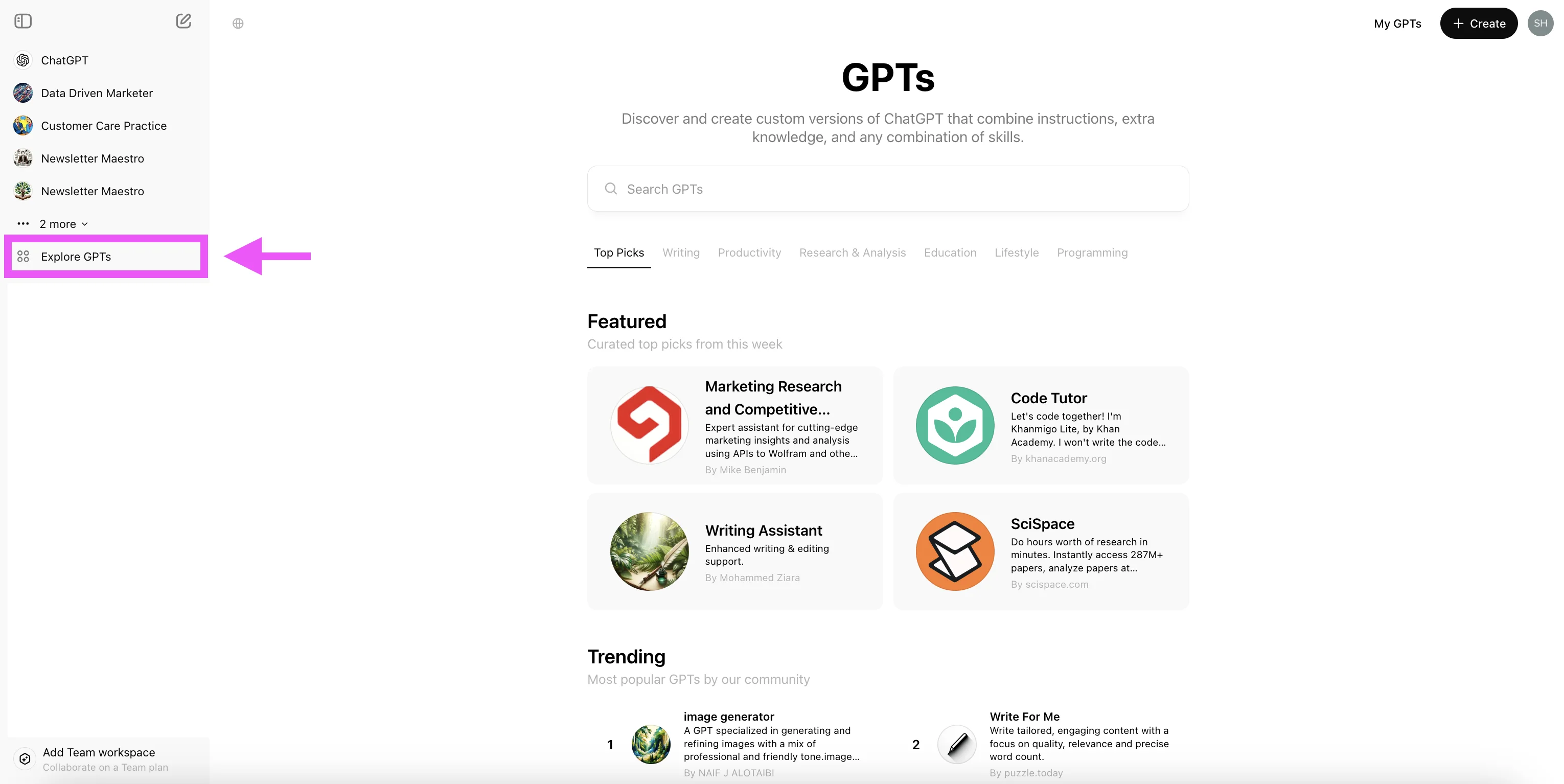
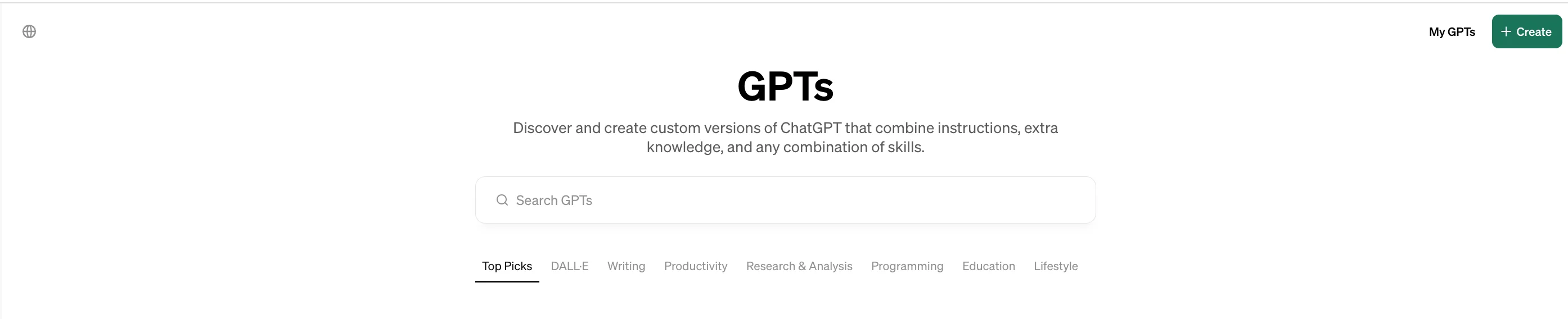
You can also create your own GPT. To get started, within the Explore GPTs window, click +Create.
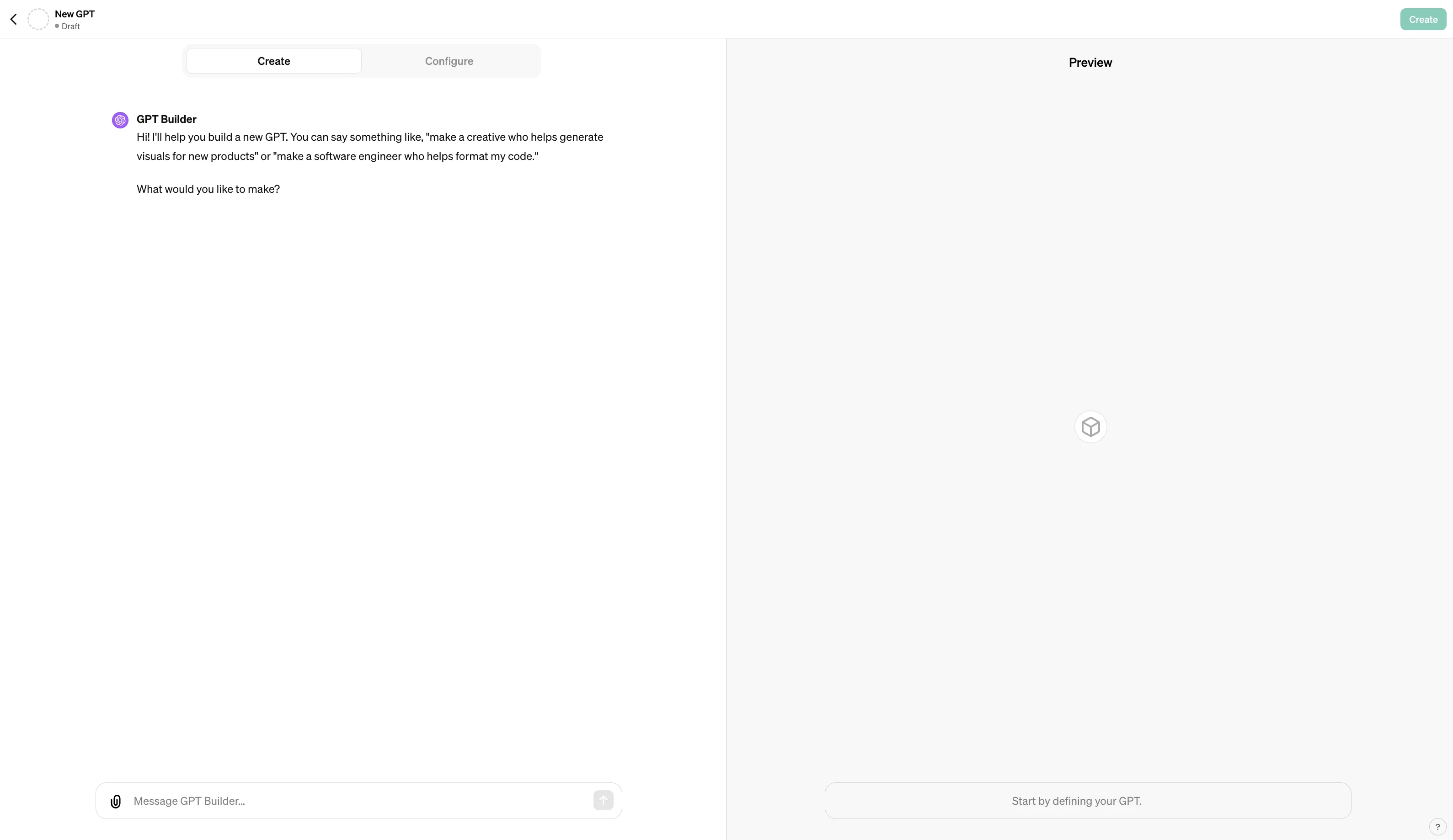
Next, using prompts, you can create your GPT by defining what it does.
On the Configure tab, you can set the name, avatar, description, instructions, upload files for its knowledge base, define its capabilities and set actions.
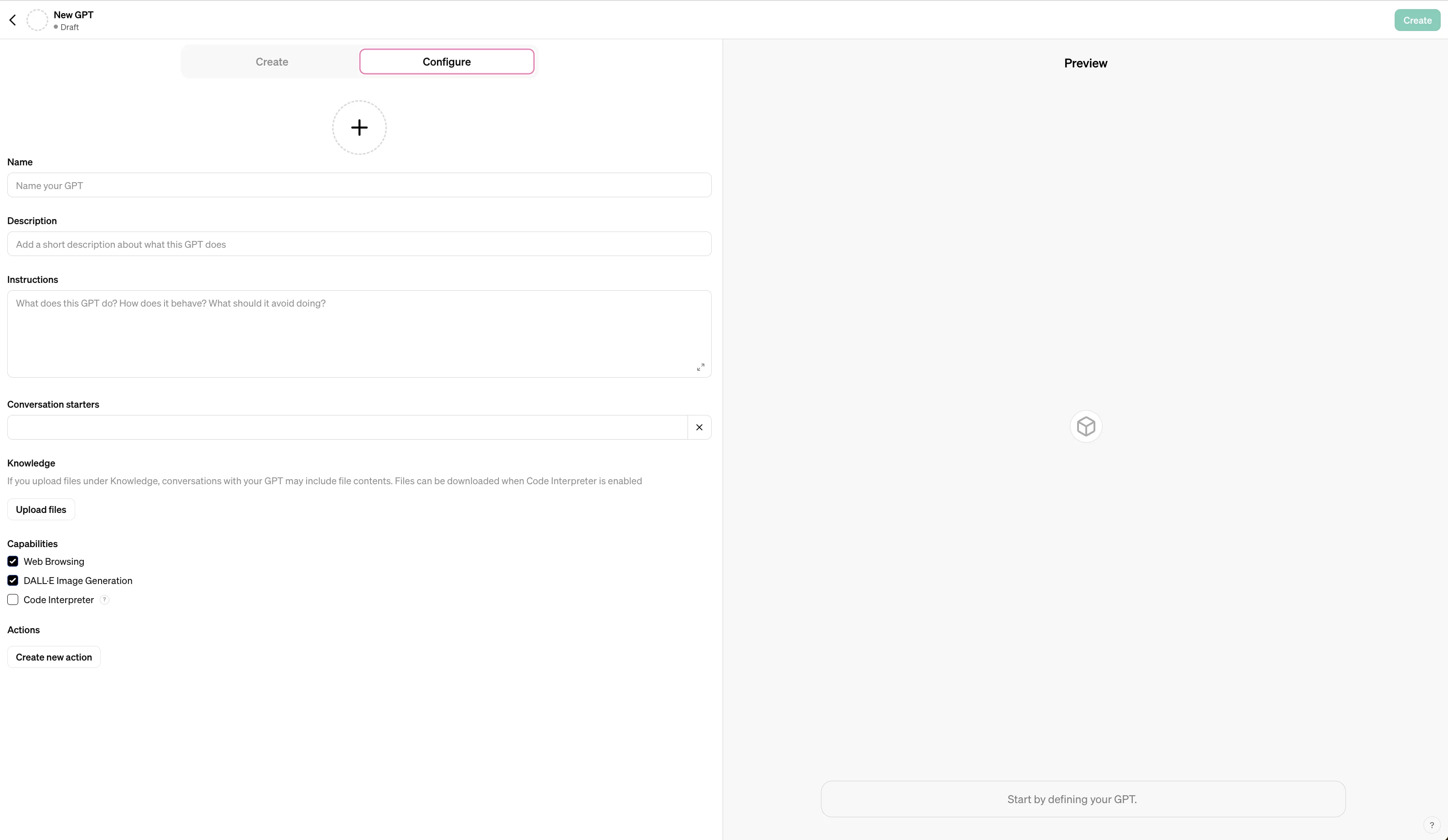
The Instructions box is where you can define guidelines, behaviors, and functionalities of your GPT. Conversation starters show up on the preview of a GPT and when you start a chat with it. These are prompts to help users start a conversation with your GPT.
The ‘Knowledge’ field is where you can upload up to 20 additional files, such as specialized knowledge, to your GPT - remember what you upload can show up in the GPTs output.
‘Capabilities’ is where you define what your GPT can do like browse the web, do data analysis, and so on. ‘Actions’ is where you define third-party API calls.
By using the ‘Create’ tab, you can use a prompt to fill in information like the description, instructions, and conversation starters for you.

It will even generate a profile picture for your GPT:
.webp)
Once you are done setting up your GPT, hit ‘Create’ and choose how you want to share your GPT. To publish your GPT to the GPT Store, you will want to ensure your Builder Profile is verified in your profile settings.
That’s it! Now, you are all set to create custom GPTs for the various hats you wear in your job or even at home.
If you want to learn how to create GPTS for specific functions, you might like these tutorials: