Sora is here: Is this the future of AI video generation?
Everything you need to know about OpenAI's new text-to-video AI model.
Published 2024-12-18
This post was originally posted Dec 10, 2024. Last updated Dec 18, 2024.
The waiting is over, folks! OpenAI has finally launched Sora for the masses.
Right now, new users are blocked from creating an account due to high demand. But we’ve got access (yay) and have been playing with the features all day. We’ll walk you through everything we know.
Update on Dec 11: The block has been lifted and new users can now create accounts (depending on your geographical location). Run, don't walk!
Update on 18 Dec: We've published our first Sora tutorial - Create a short trailer using Sora. Go check it out.
What’s Sora?
It’s OpenAI’s highly-anticipated new text-to-video model that lets you create (pretty insane) videos from written prompts. OpenAI first introduced Sora back in Feb this year, but it was in a limited access “research preview” phase, while they trained and fine-tuned the model ready for general release.
Sora Turbo is the new model, released as part of 12 Days of OpenAI—where the company make announcements on new releases and updates for 12 days running. See the Ben’s Bites live recap here.
Prompt: Global reach expands business while impacting local communities.
How do I access Sora?
The platform is accessible via Sora.com for subscribers in the United States and several other countries. At the time of writing, availability in Europe and the UK is still pending.
If you’re one of the lucky ones that has access already, you’ll need a paid ChatGPT account to use Sora—either ChatGPT Plus ($20/month) or ChatGPT Pro ($200/month).
Plus subscribers:
- Can generate up to 50 priority videos
- At 720p resolution
- With a 5-second duration limit
Pro subscribers:
- Get unlimited video generations with up to 500 priority videos
- At 1080p resolution
- Extended 20-second durations
- Watermark-free downloads
- Can run up to five simultaneous generations
Platform walkthrough
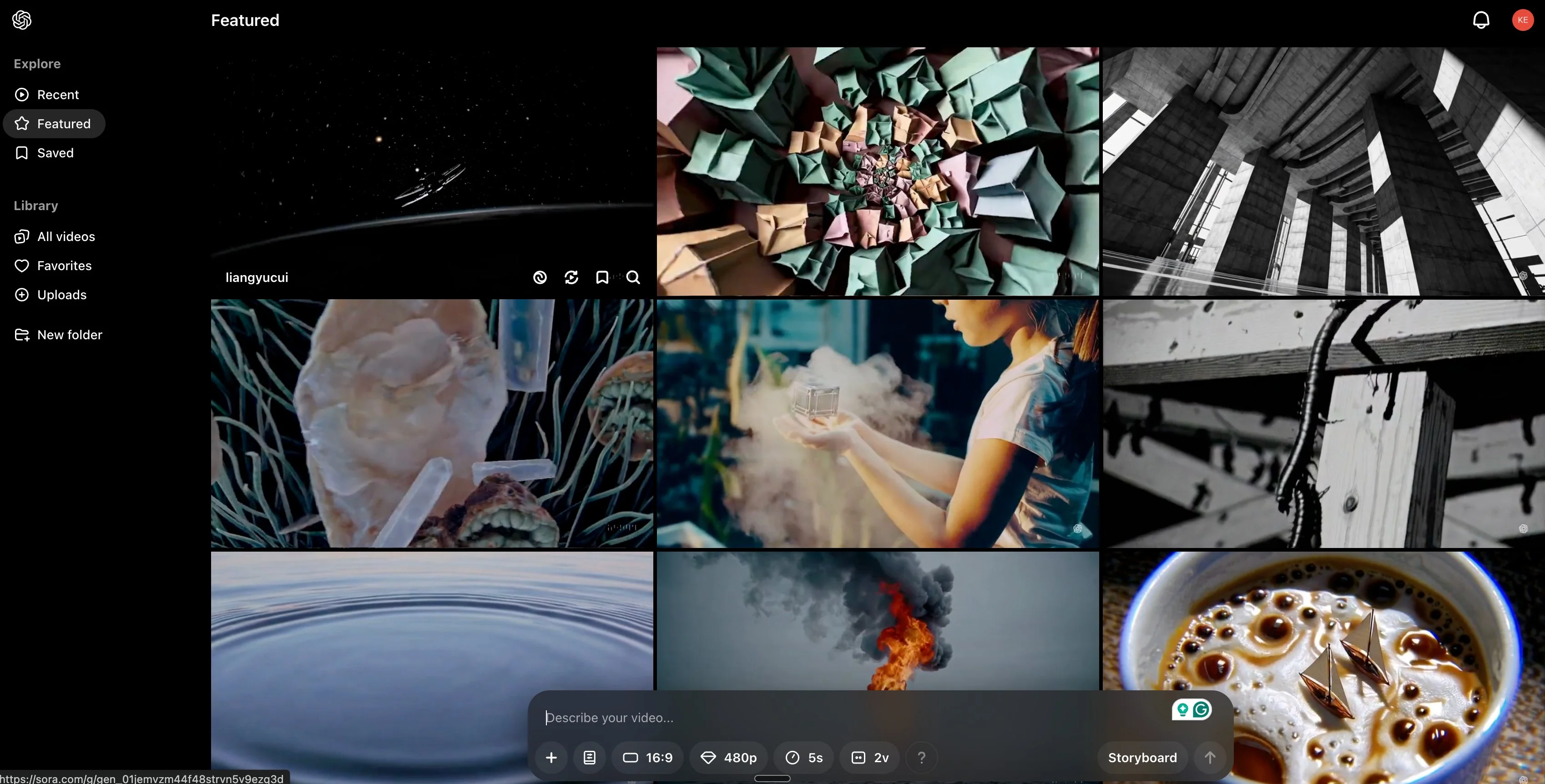
OK now to the good stuff. After logging in, we come to the main dashboard interface:
1. Creating videos
Here we can type anything in the “Describe your video” panel to generate a video. We can further customise our prompts with these settings directly below the prompt box:
- Style
- Resolution
- Duration
- Change the number of clips a single prompt generates
- See how many credits a video generation will use
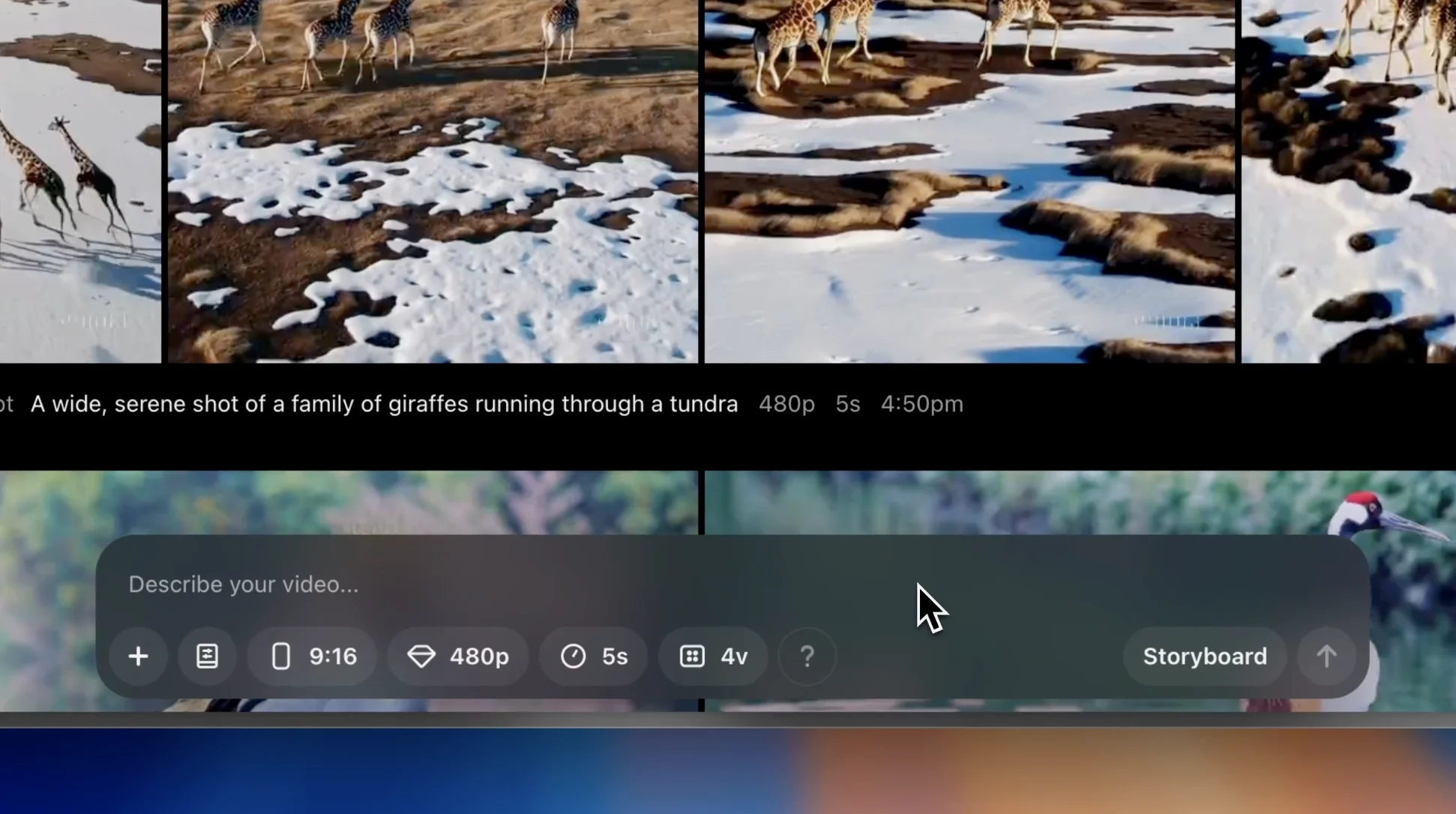
After typing a prompt and hitting enter, we wait a while and videos generate in the panel above. Hovering over them lets us preview the content. Scrolling over the videos lets us scrub forwards or backwards.
2. Editing and extending a video
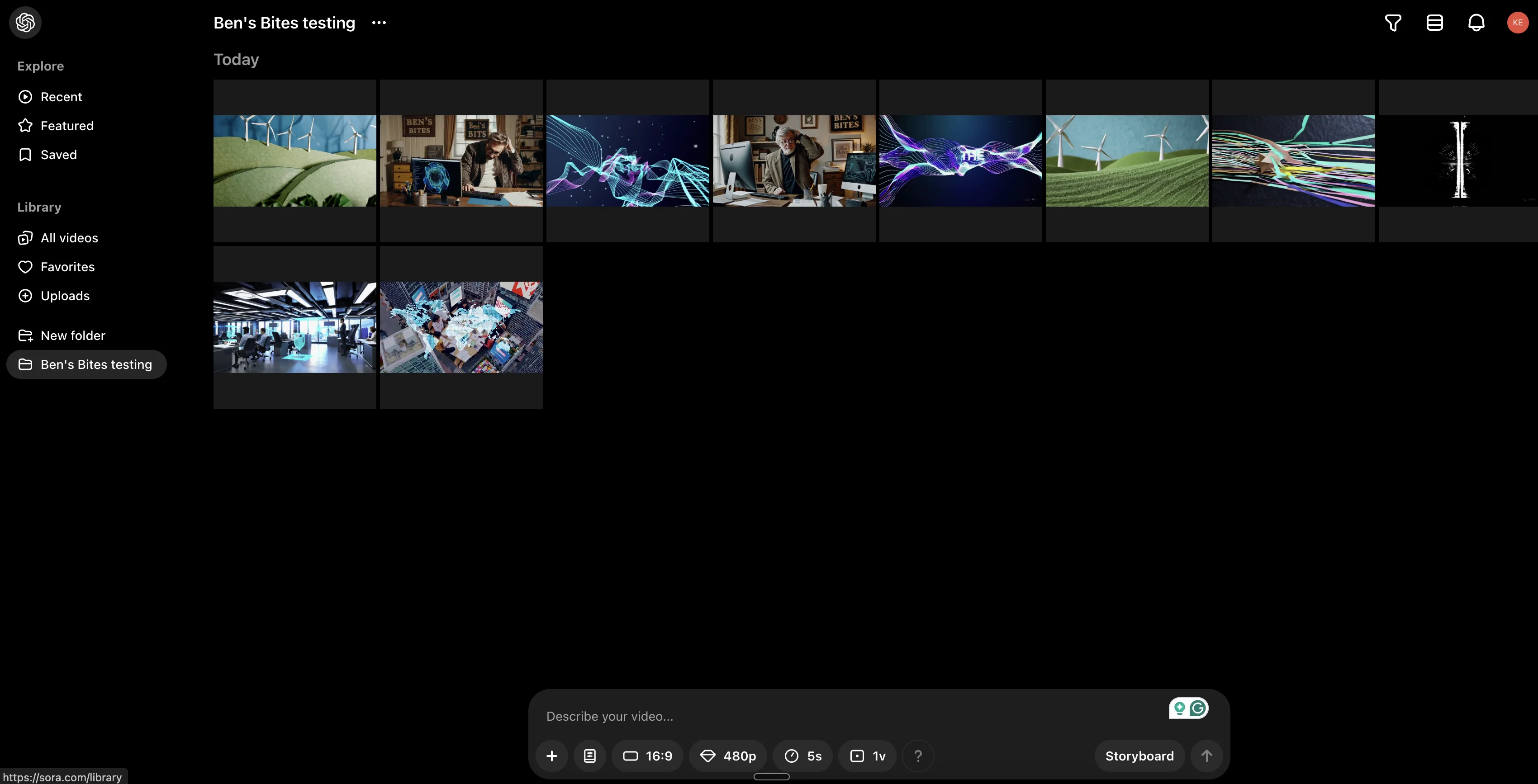
From here, if we click on any video we've generated, we’re taken to the lightbox where we can edit the video using a variety of settings.
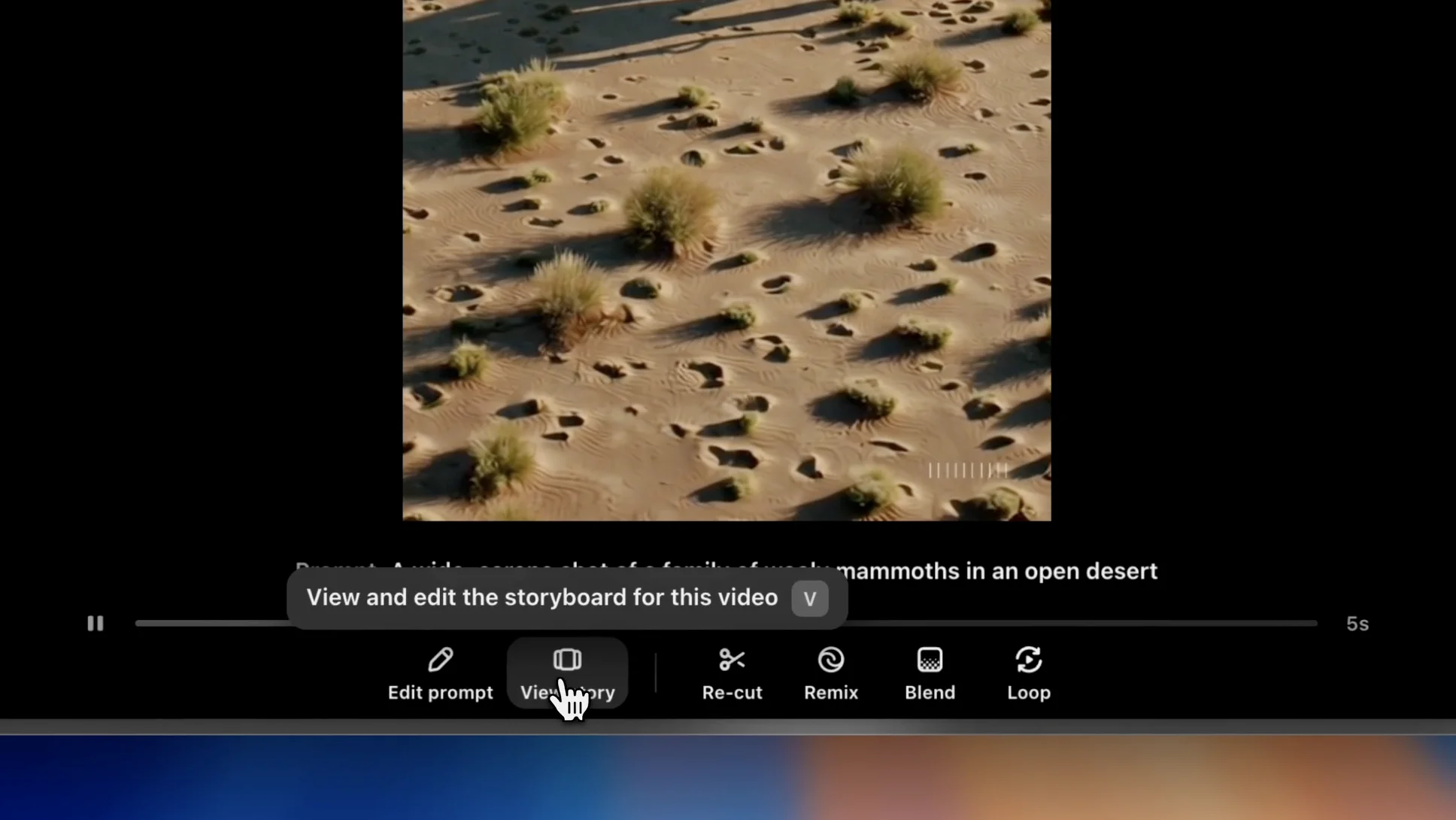
Clicking ‘re-cut’ lets us trim and extend the video—a super helpful feature if you want to make the video longer without losing continuity. You can choose specific moments in the video to extend, or remove.
‘Remix’ lets us use natural language prompts to change any elements of the video and turn it into a new video.
The ‘Blend’ feature takes this video and another one we choose, and creates a seamless transition between both.
‘Loop’ is pretty self-explanatory.
3. Image animation
Instead of creating a video from scratch, you can also upload a static image and have Sora animate it. Use the plus (+) icon in the prompt panel to start.

In seconds, Sora turned this static image:

Into this short animation:
4. Storyboards
Perfect for longer narratives, this feature lets you string together multiple prompts to create a cohesive story.
If we click ‘Storyboard’ in the prompt panel, we're taken to an interface where we can create multiple cards with different prompts for each. This is ideal for building a video that has different sequences that are all part of the same scene or story.
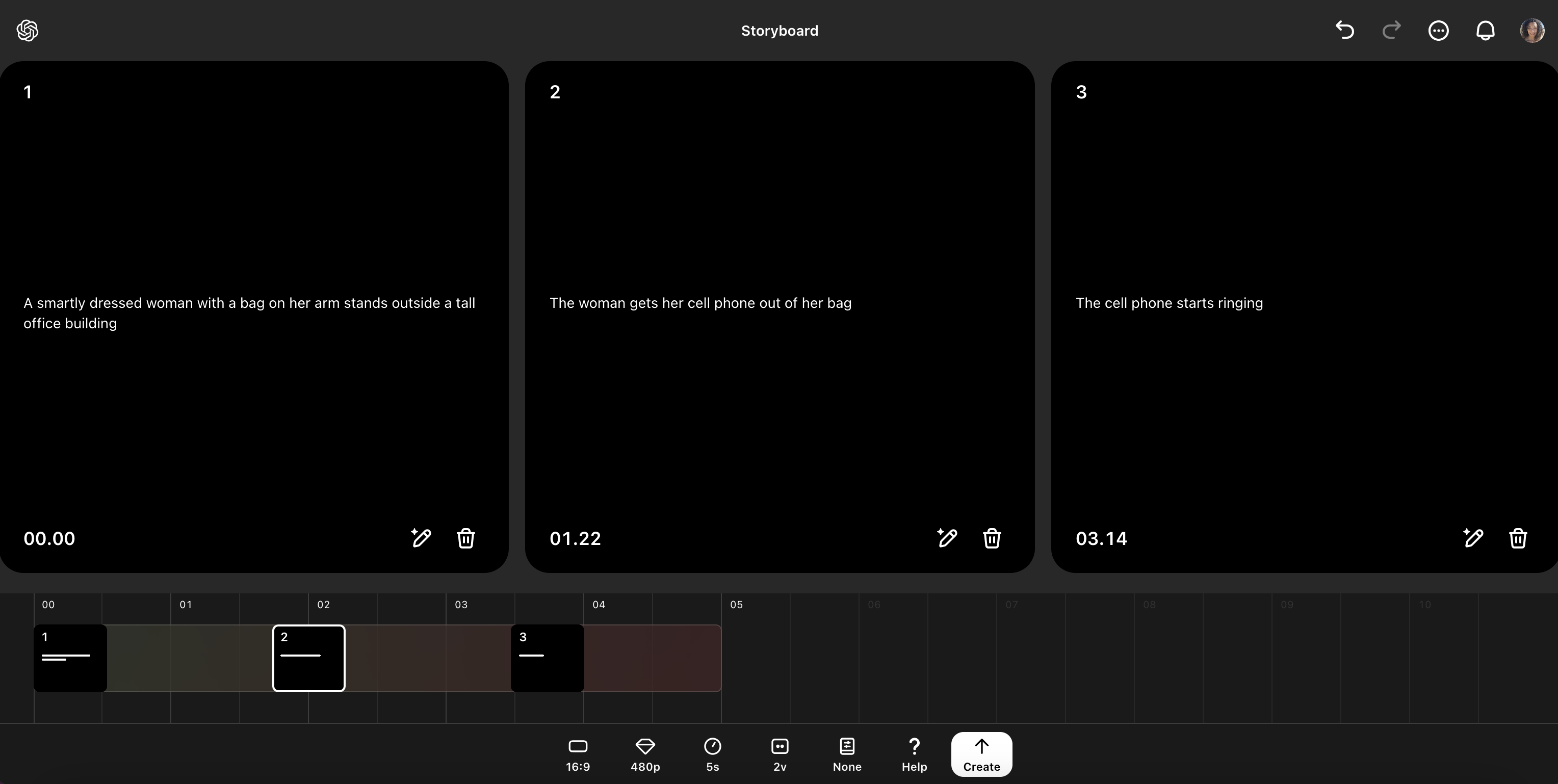
Here's how Sora interpreted those three prompts above:
What can I use Sora for?
At first glance, it looks like Sora’s great for playing around with fun videos and demonstrating the AI capability—but how can people actually use it? We have a few ideas.
Unique stock footage
Wherever you would use stock footage, Sora is an easy, accessible way for anyone to quickly create video content. Think short clips used in marketing videos, workplace presentations, training videos, or testimonial videos that are spliced with stock footage clips.
Finding creative ideas
If you're not sure exactly what footage you need for a video project, Sora can help you explore different visual concepts and styles. Generate a few variations of a scene to see what works best, then use that as inspiration when filming or directing your actual footage. This is especially useful for storyboarding or pre-visualization in creative projects.
Paid ads and video shorts
Generating lots of short clips for ads and shorts for YouTube, TikTok etc can be challenging. Sora is an ideal way to spin up quick videos that you can overlay with text, music, voiceovers etc.
What you can’t do
It’s fair to say Sora offers some impressive capabilities. But there are restrictions, too. Here’s what you currently cannot do with the tool.
- No adult content: Not even worth trying it; the platform strictly prohibits generating explicit, adult, or violent/disturbing content.
- Age restrictions: You can’t create content involving or depicting minors.
- Real people: Currently, the ability to generate videos featuring real people is limited while OpenAI refines their deepfake prevention systems.
- Protected content: No generating videos featuring copyrighted characters, logos, or branded content.
- Commercial use: Proceed with caution if you create anything to be used commercially. Review OpenAI's terms of service regarding commercial rights.
- Original works: You can’t deliberately copy or recreate specific artists' styles or known works without permission.
If you have access to Sora, share what you’re creating in the Ben’s Bites community Slack—we’d love to see!