Collaborate on content in Loop and Whiteboard with Copilot
Learn how to partner with Copilot to go from idea to visualized brainstorm that you can share around your company.
2024-12-09
Welcome to the fifth lesson of the Learn advanced Copilot 365 features course!
In this lesson, we’ll work with Microsoft Whiteboard and Loop to create visualized brainstorm artifacts and share them with colleagues. Copilot is built into every step of these workflows, so you don’t need to be a designer or writer to create highly visual content.
Steps we’ll cover in this tutorial:
- Create a Whiteboard with Copilot
- Categorize and summarize Whiteboard content
- Share and refine content in Loop
- Create brainstorm content in Loop with Copilot
- Summarize the content in OneDrive
You’ll need:
- Microsoft 365 Business Account
- Copilot 365 Subscription
Let’s get into it!
Create a Whiteboard with Copilot
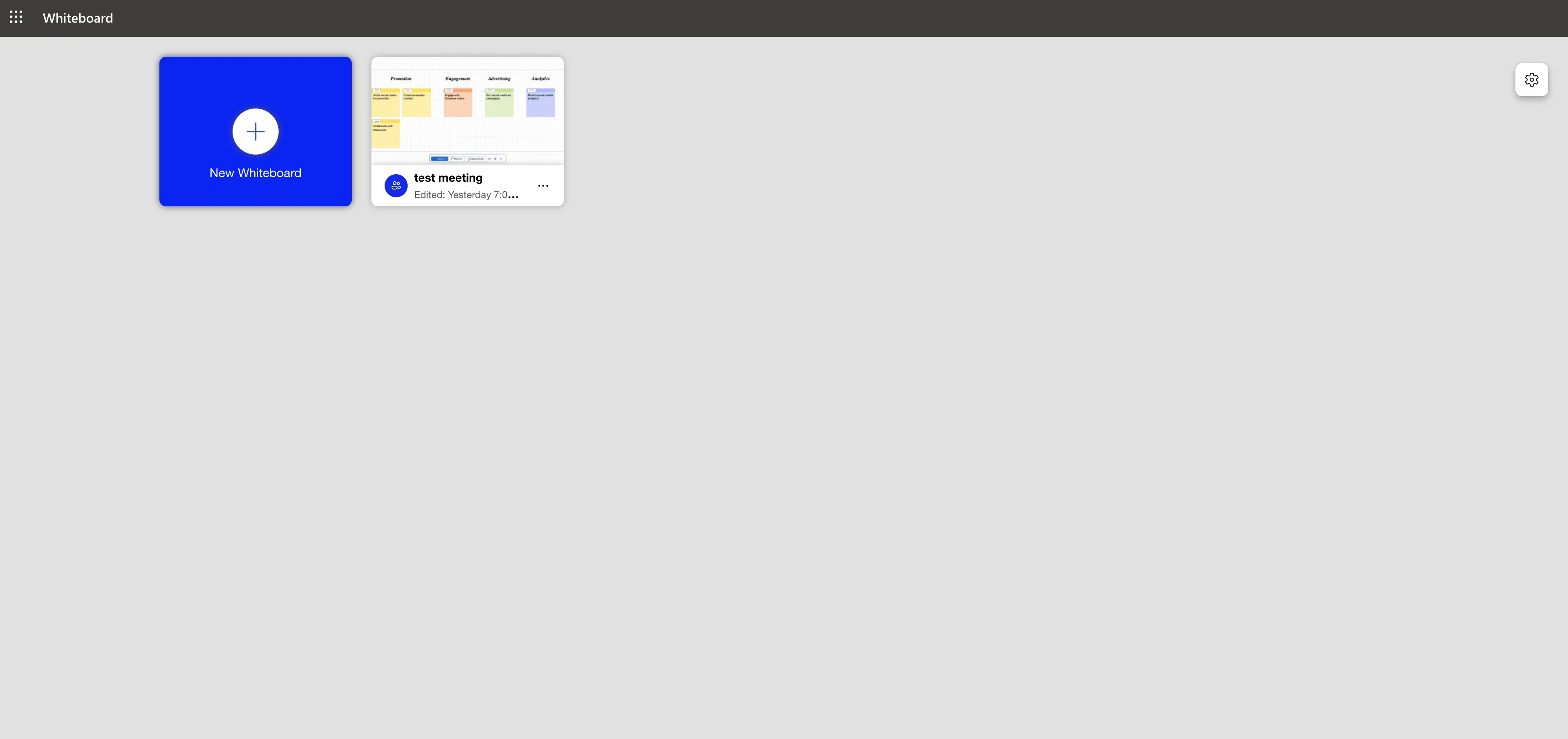
To get started, go to your Whiteboard dashboard and click the “New Whiteboard” button.
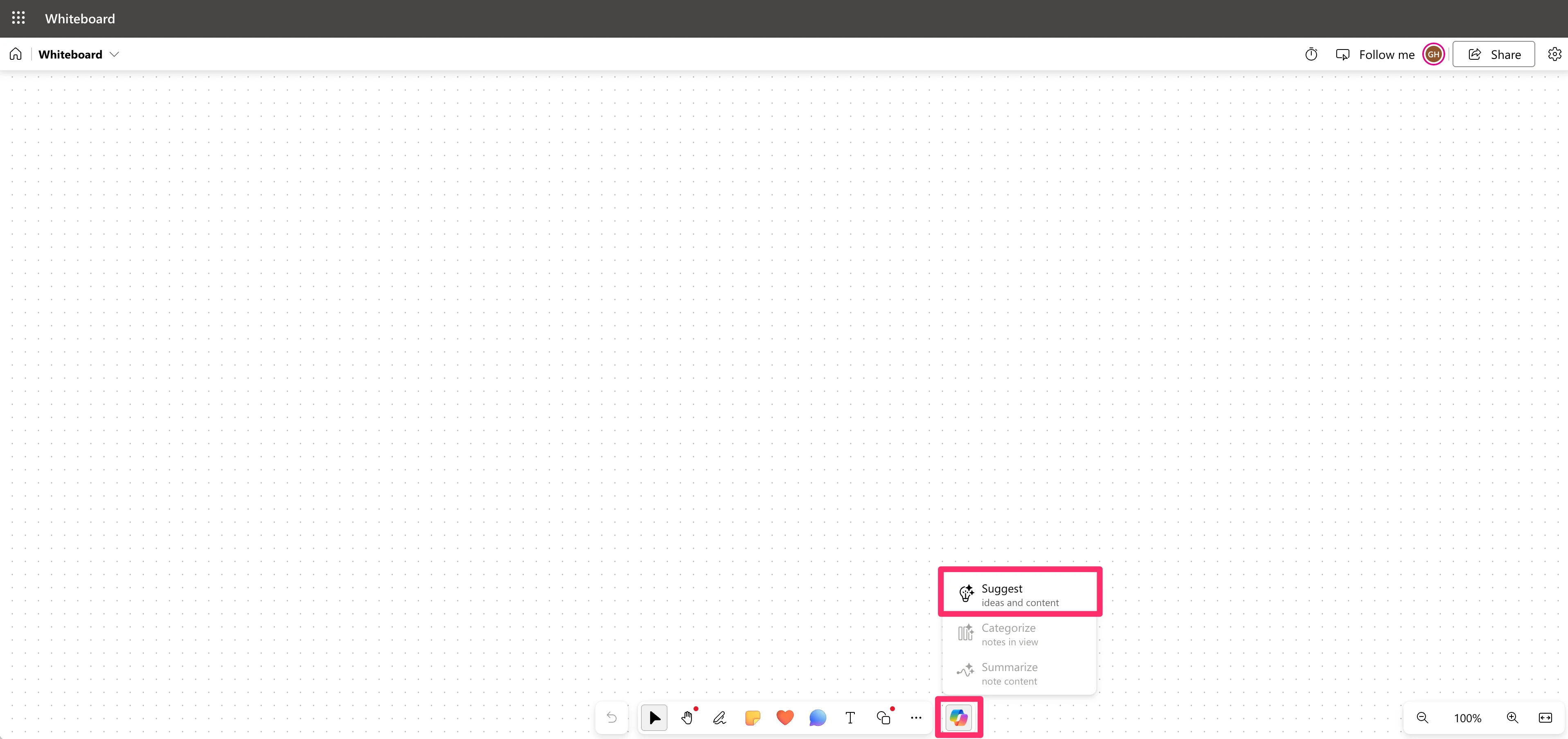
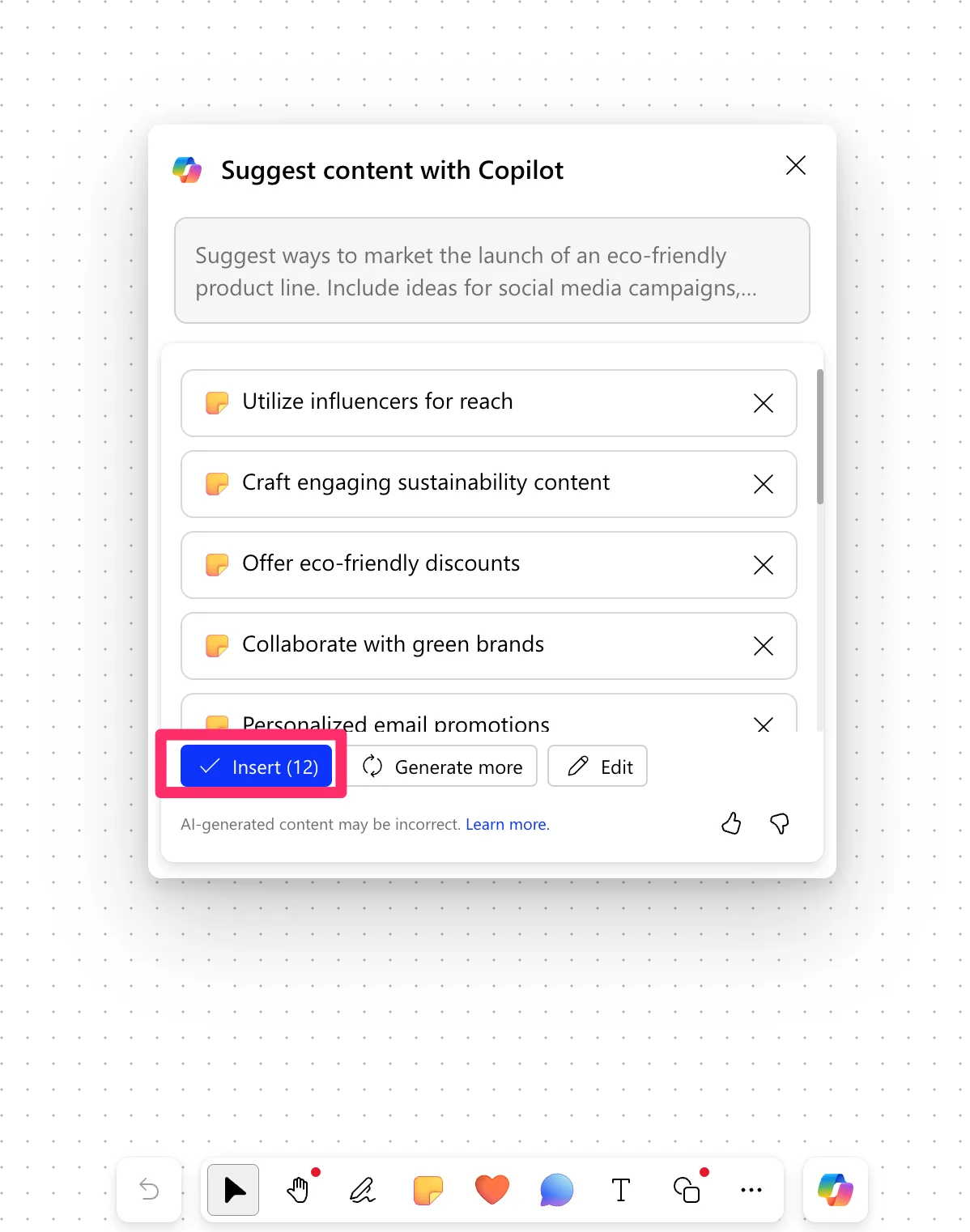
Now, we can work with Copilot to create a set of stickies for an idea. To do this, click on the Copilot icon at the bottom of the page and click the “Suggest” option in the pop-up window.
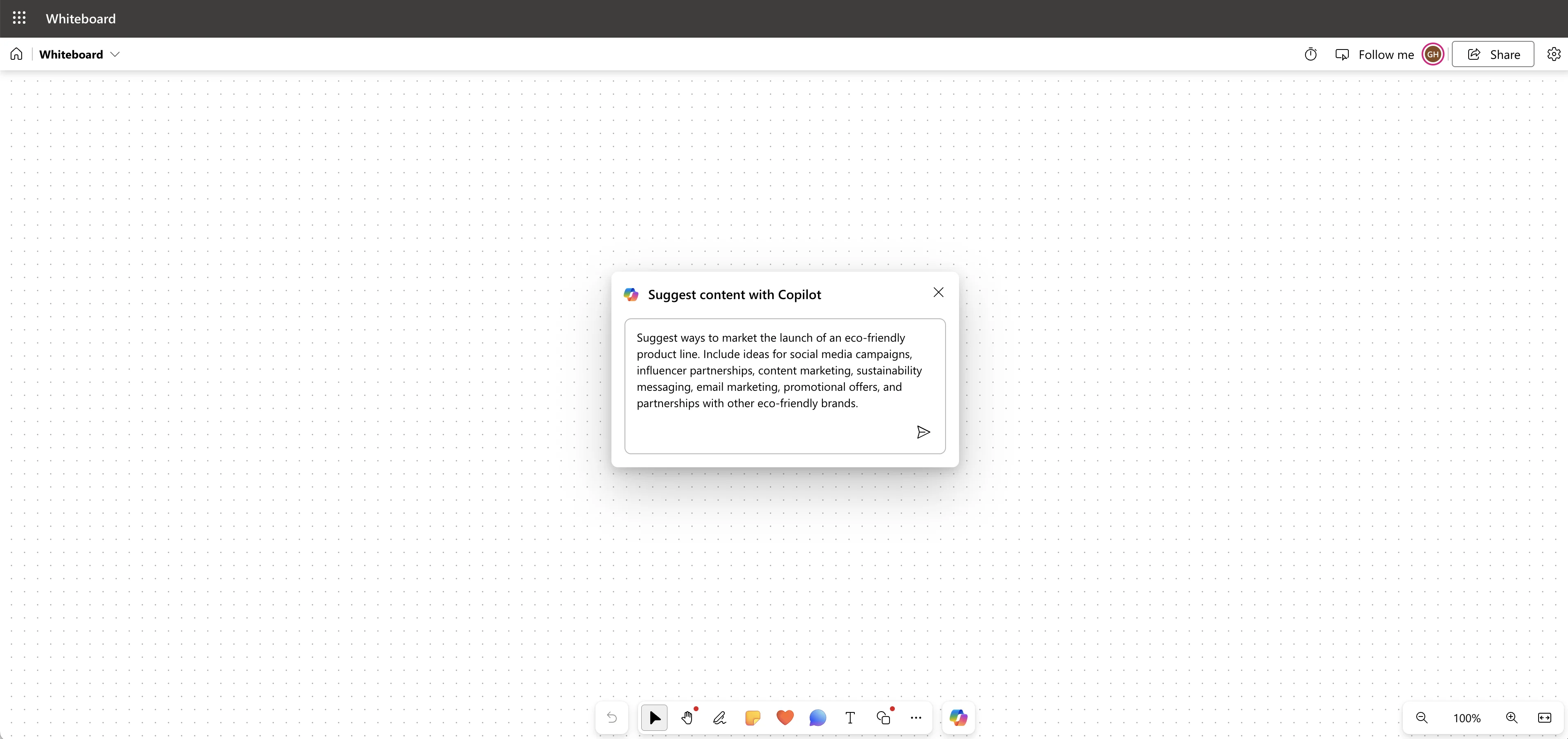
We’re going to ask Copilot to suggest some ways to market a product line launch.
Sample Prompt:
Suggest ways to market the launch of [insert product description]. Include ideas for social media campaigns, influencer partnerships, content marketing, sustainability messaging, email marketing, promotional offers, and partnerships with other [insert product vertical] brands.
Copilot will come back with suggested sticky notes for your Whiteboard. You can review, edit, remove, or generate more sticky notes on this screen. We’re going to click the “Generate more” button to have Copilot generate more sticky notes.
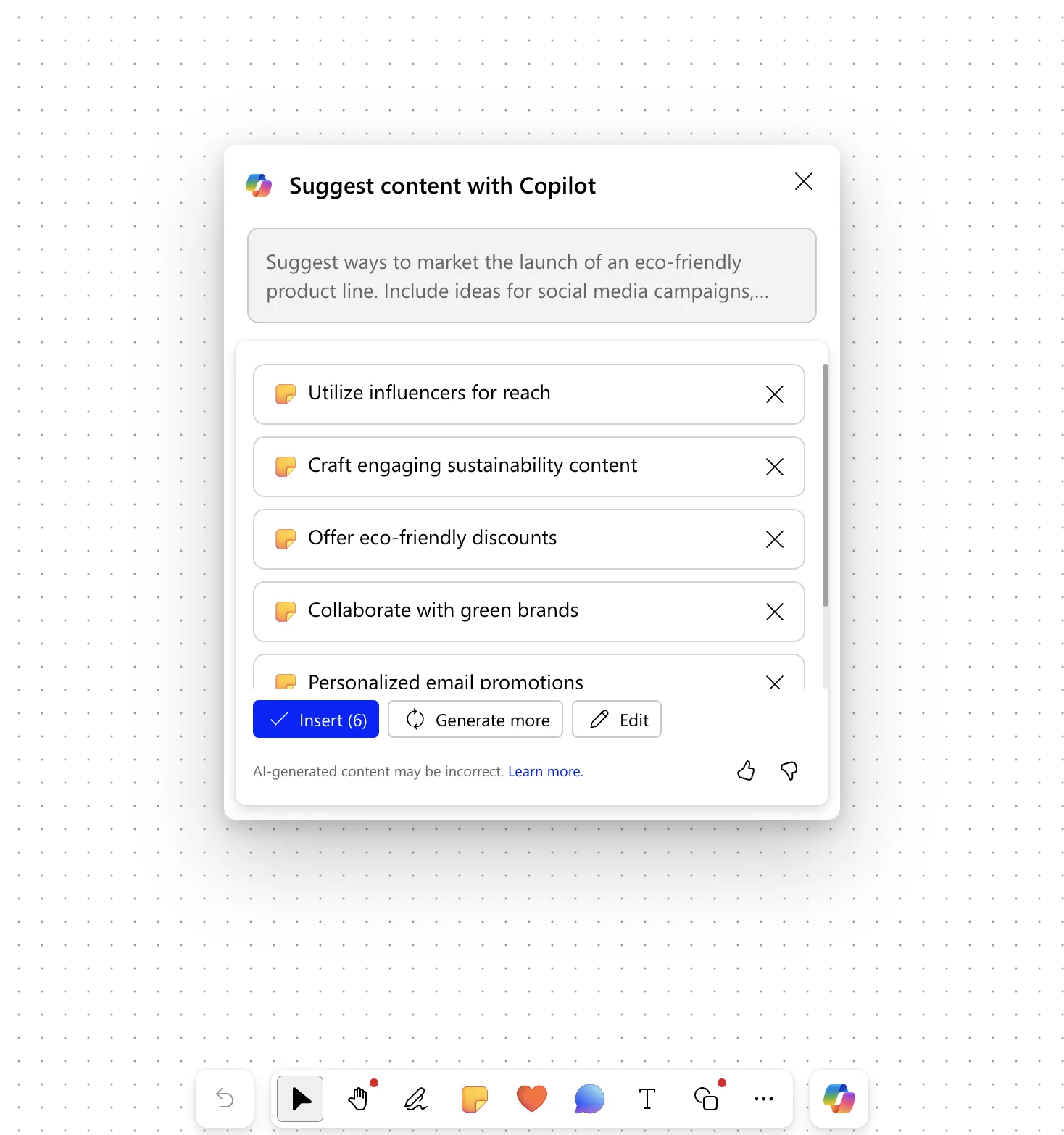
Then, we’ll click the “Insert” button to add them to our canvas.
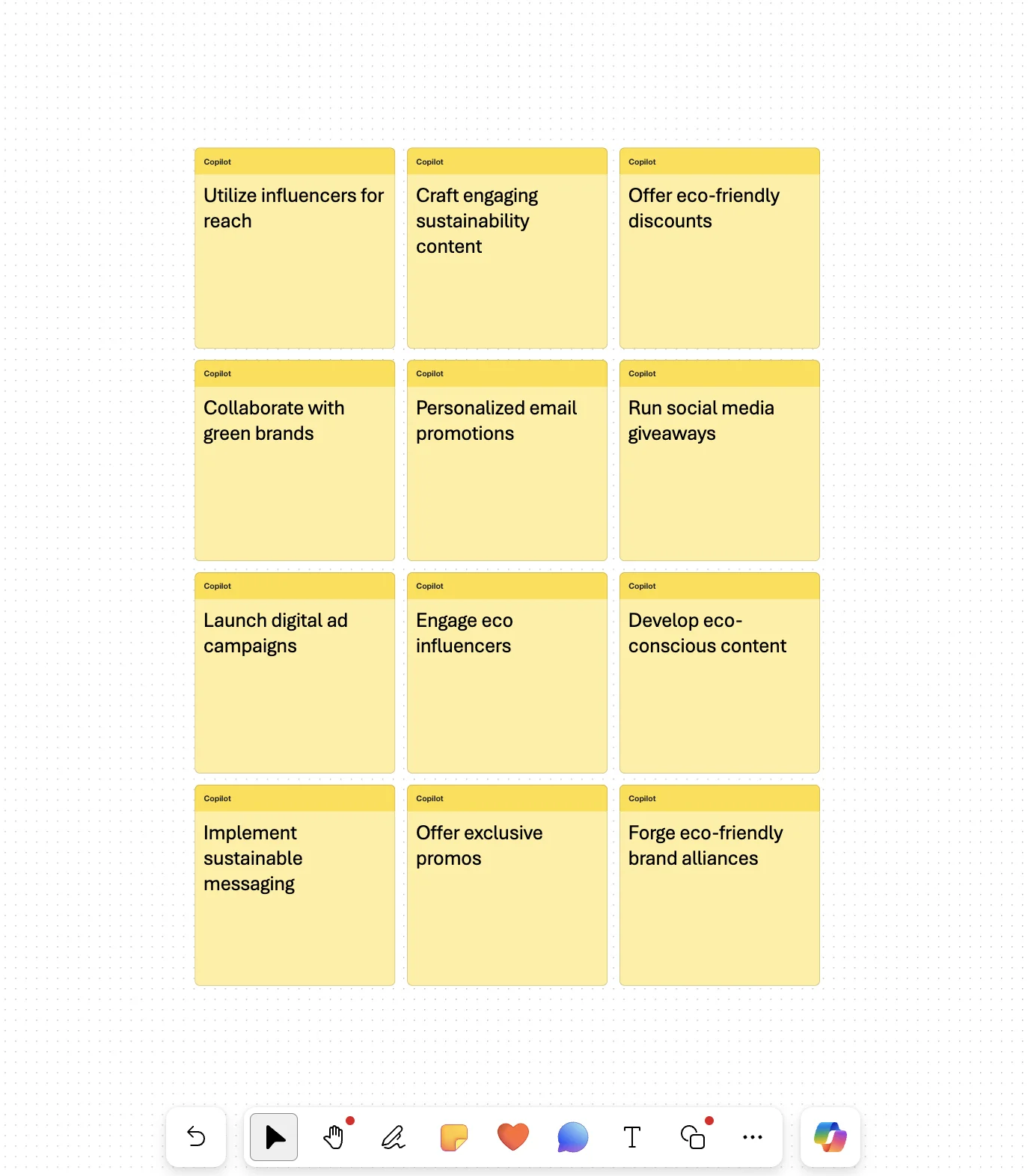
Copilot will add the sticky notes in an unsorted grid on the canvas.
Categorize and summarize Whiteboard content
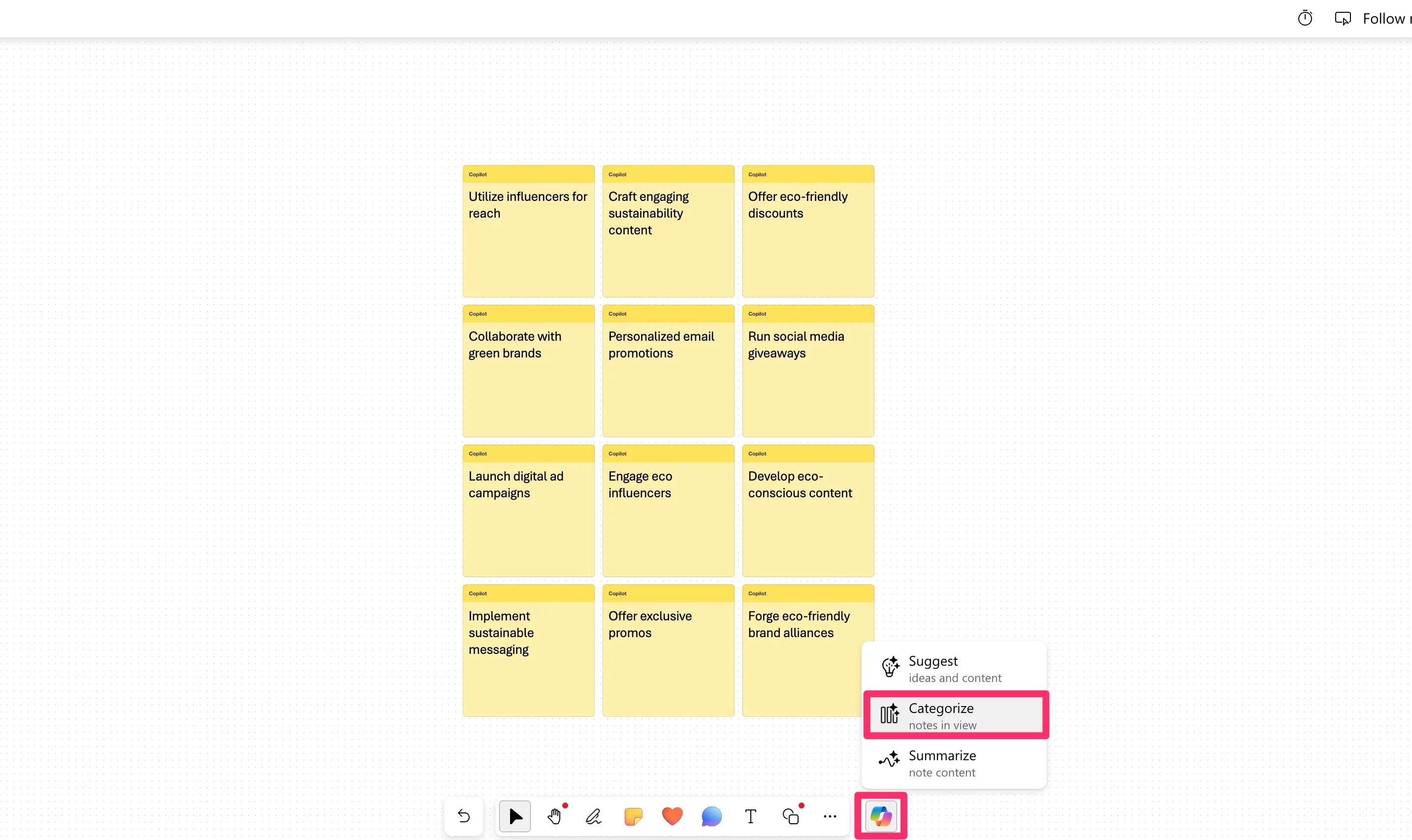
With sticky notes added to our canvas, we can work with Copilot to categorize and summarize the content. To do this, click the Copilot icon at the bottom of the screen and select the “Categorize” option.
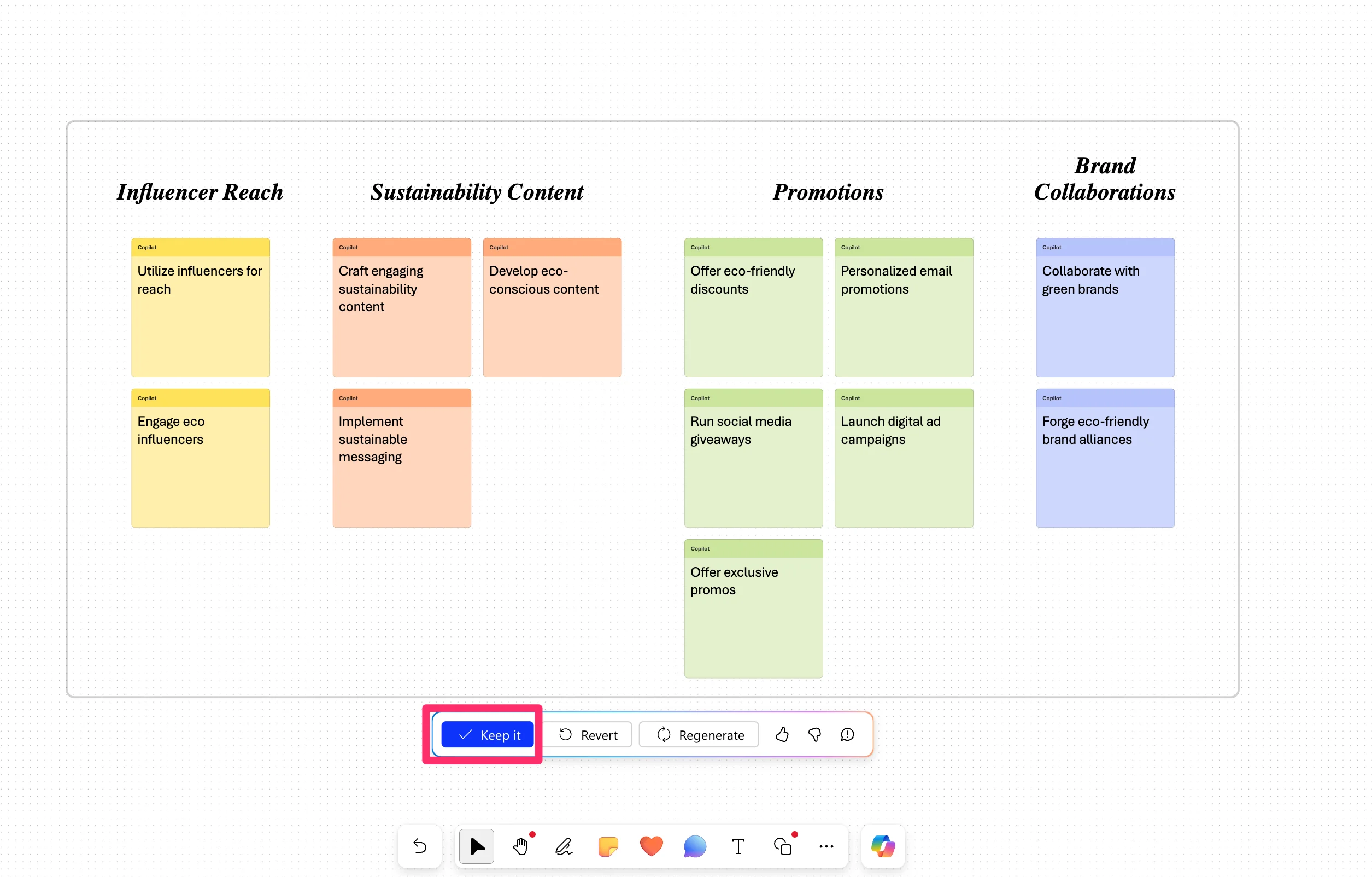
Instantly, Copilot will categorize the sticky notes into buckets. Click the “Keep it” button to keep the new visualization.
Then, we can summarize the content. Click the Copilot icon again and this time select the “Summarize” option.
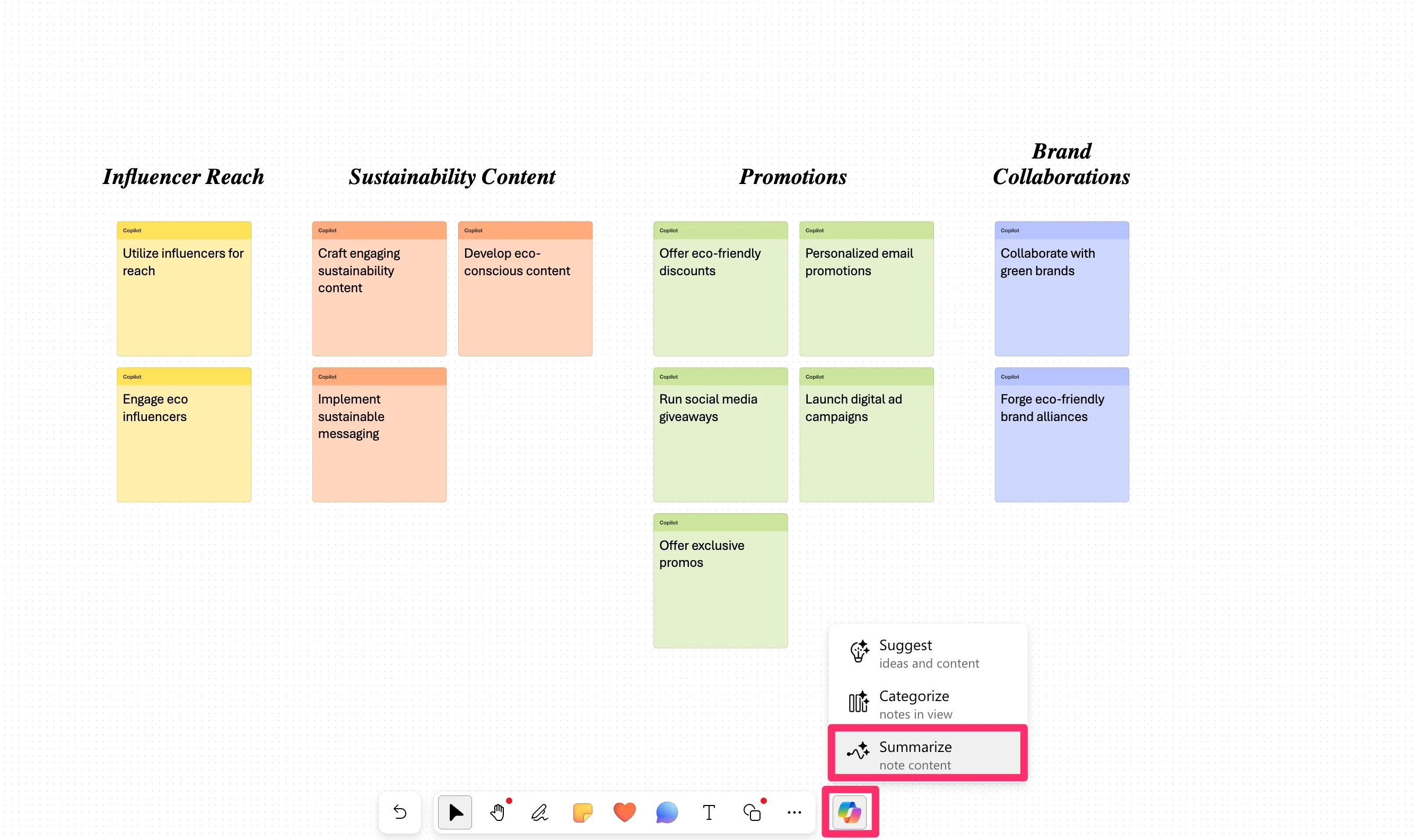
Copilot will summarize all of the sticky notes into a consolidated, embedded Loop page in the canvas.
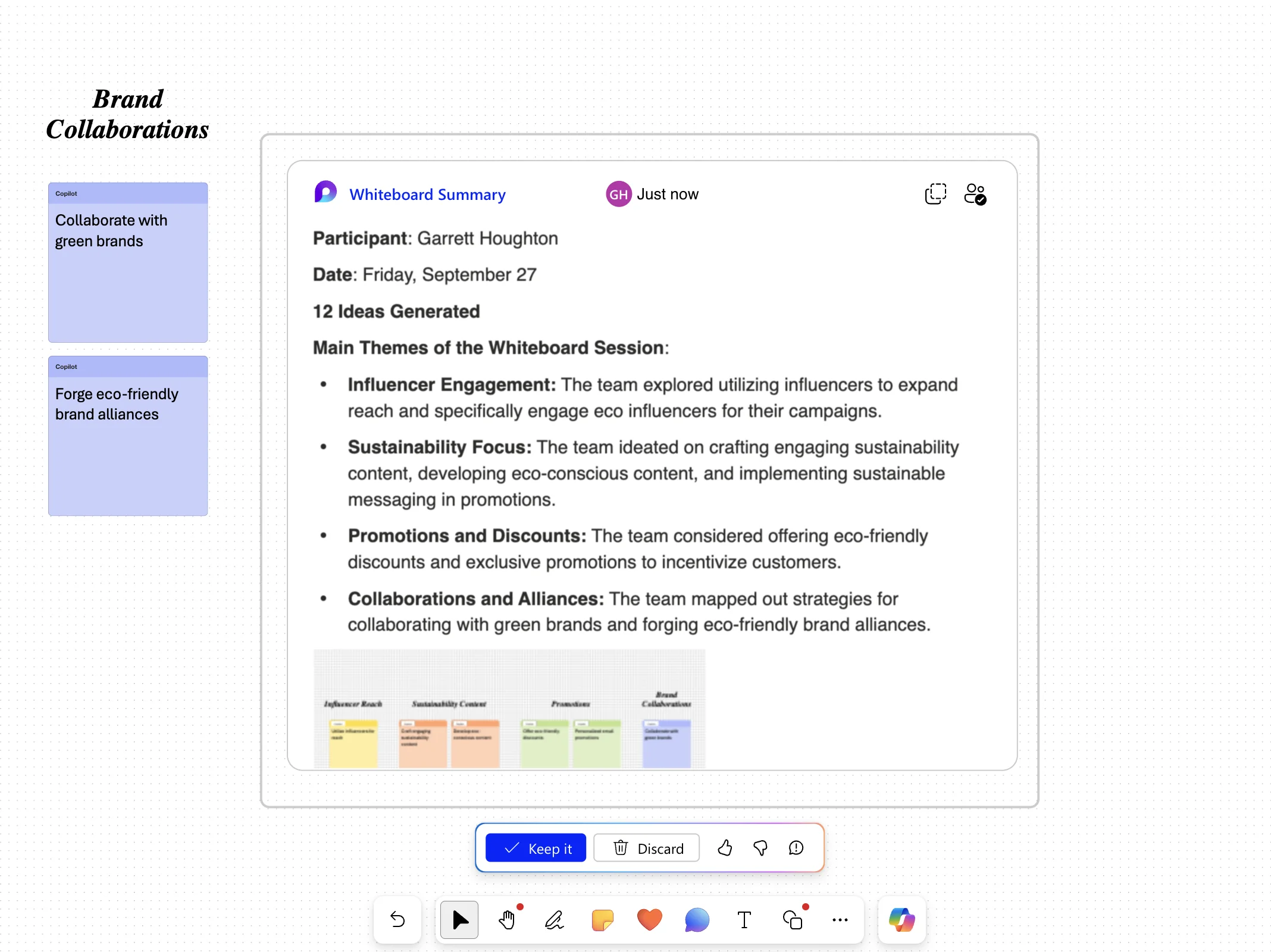
Share and refine content in Loop
We can share and refine the Loop page by clicking on the document hyperlink in the top left corner of the embedded widget.
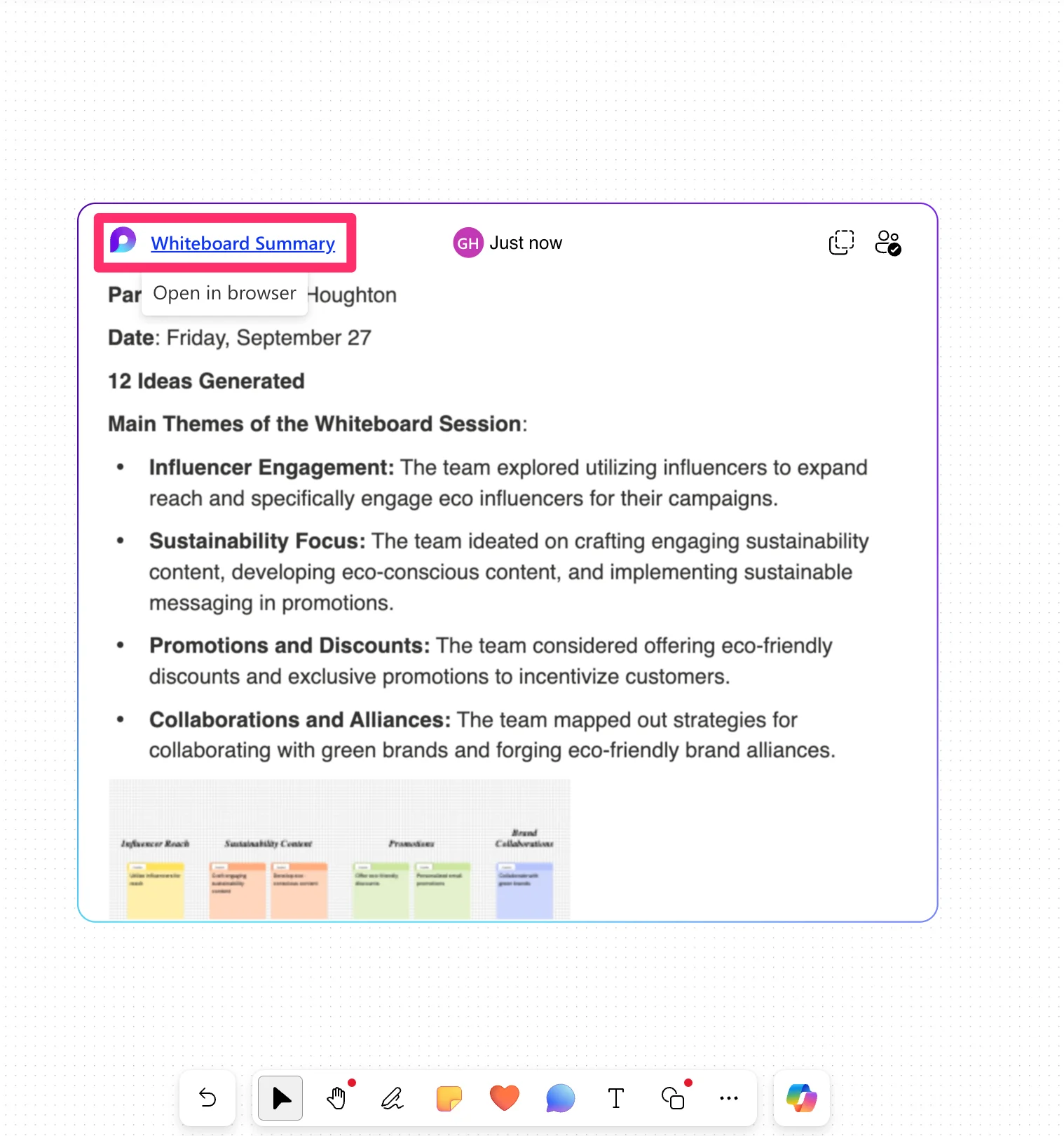
This will take us to Loop where we can edit, refine, and share the document. Click the “Add to workspace” button to add the document to your workspace.
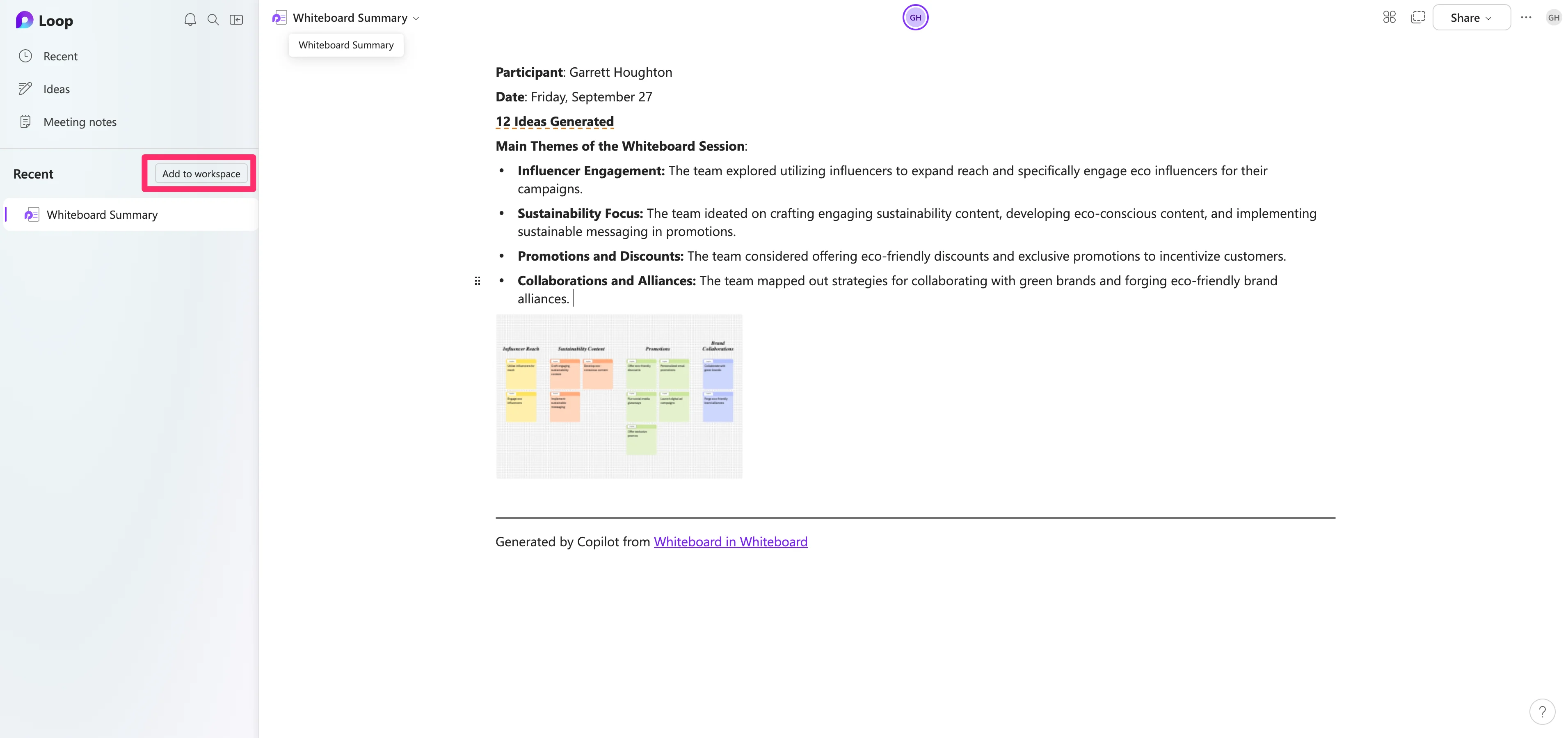
Create brainstorm documents in Loop with Copilot
With our whiteboard summary added, we can create another document in our Loop workspace to brainstorm ideas for our marketing launch. To do this, click the “+” button on the left side navigation, click the Copilot icon on the page, and prompt Copilot with a brainstorm request.
Sample Prompt:
Brainstorm strategies to market the launch of an [insert product description] product line. Include ideas for social media campaigns, influencer partnerships, content marketing, sustainability messaging, email marketing, promotional offers, and partnerships with other [insert product vertical] brands.
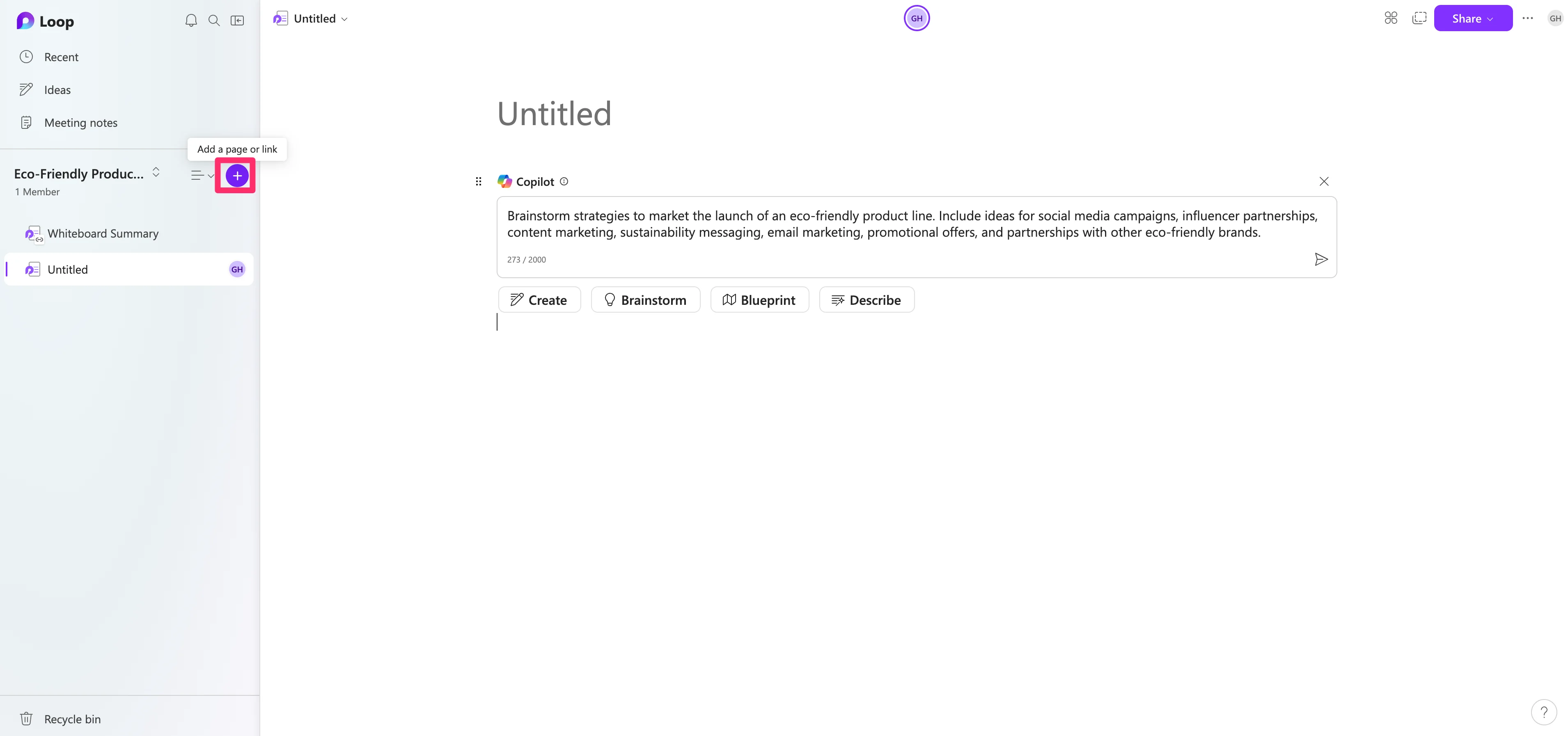
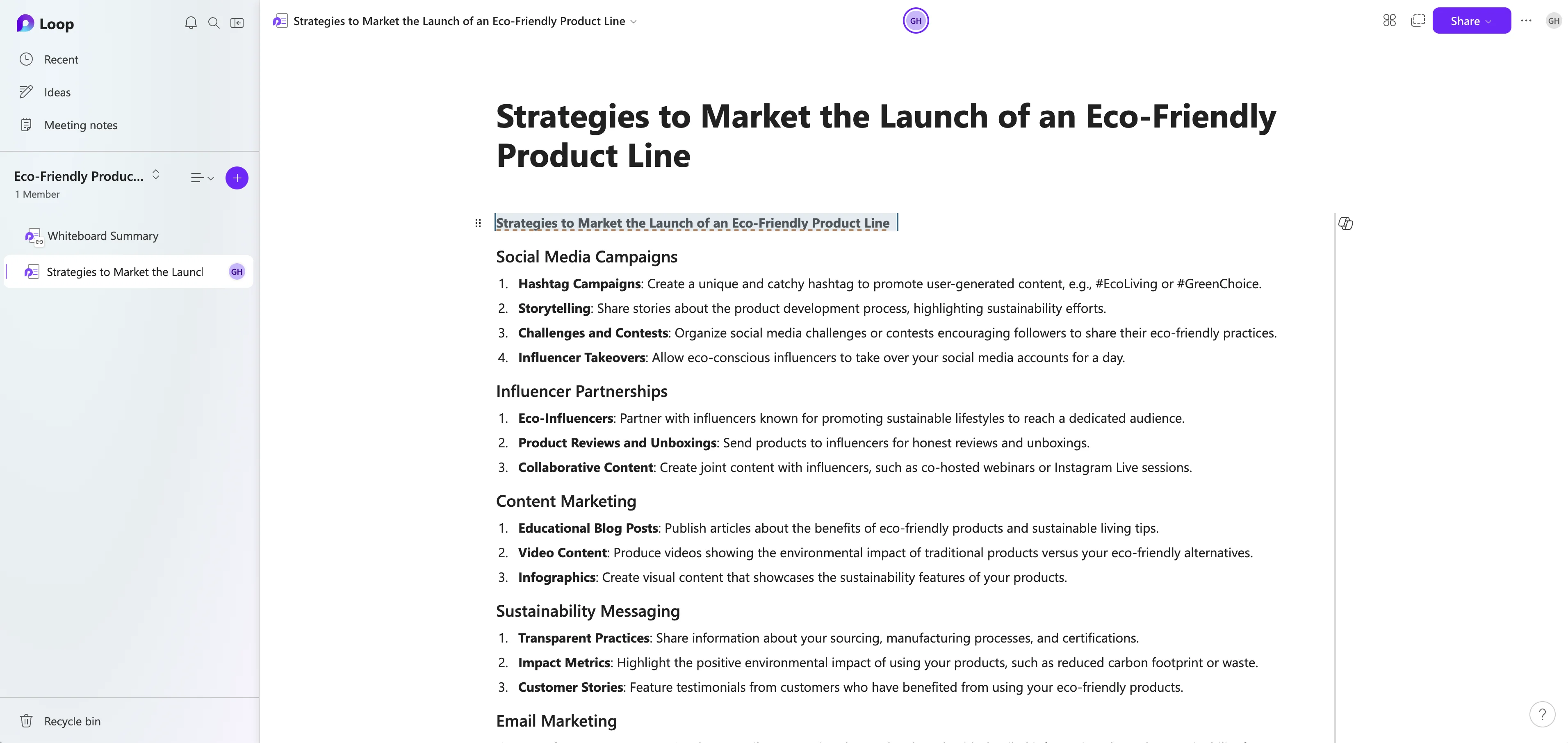
Copilot will create a full Loop document with the brainstormed content.
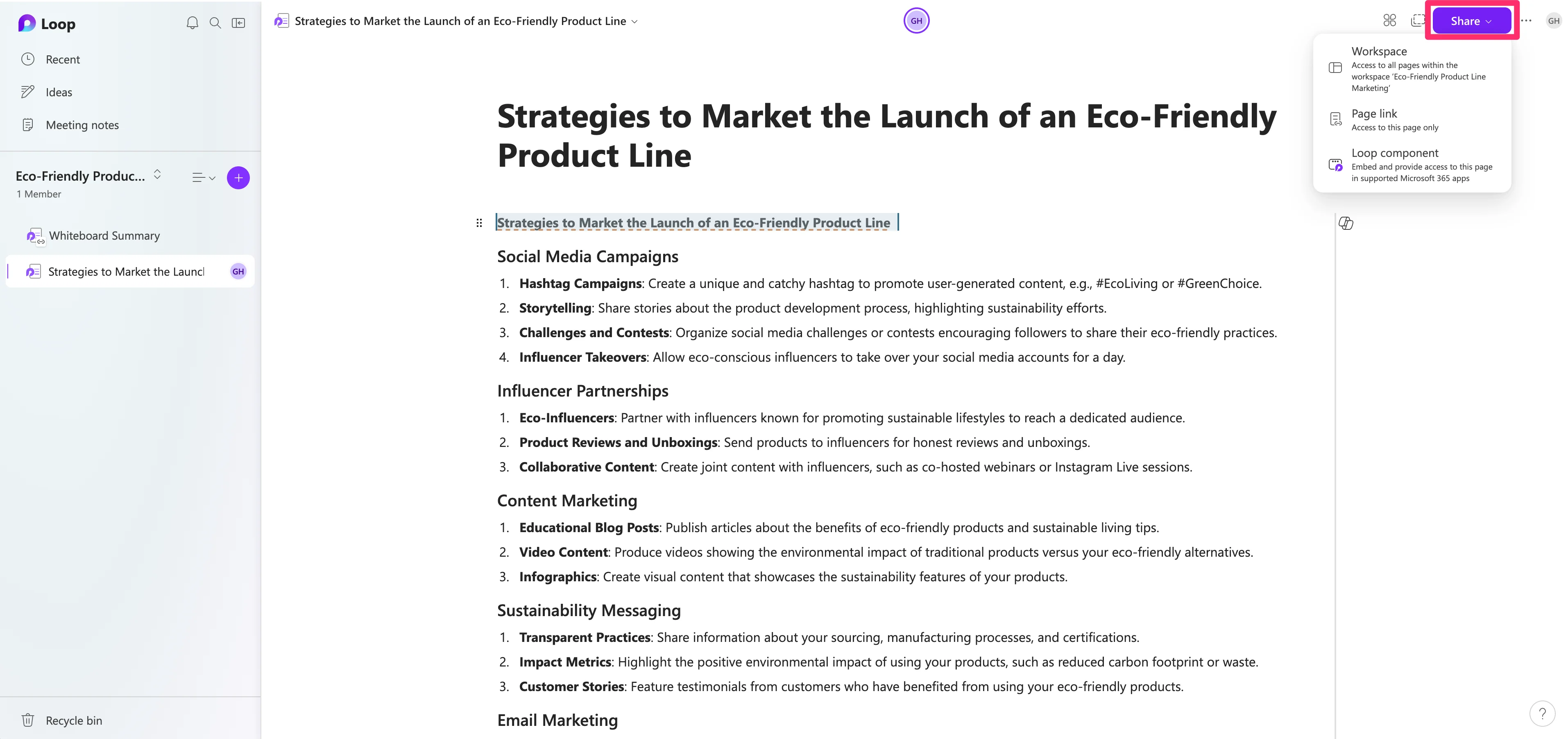
You can share your Loop documents by clicking the “Share” button in the top right corner of the page.
Summarize the content in OneDrive
Now, if you share any of your Loop documents or Whiteboards (or most any Microsoft document types!) with colleagues, they can summarize them in OneDrive without even opening the files. To do this, go to OneDrive, hover over a Loop document or Whiteboard, and click the Copilot icon.
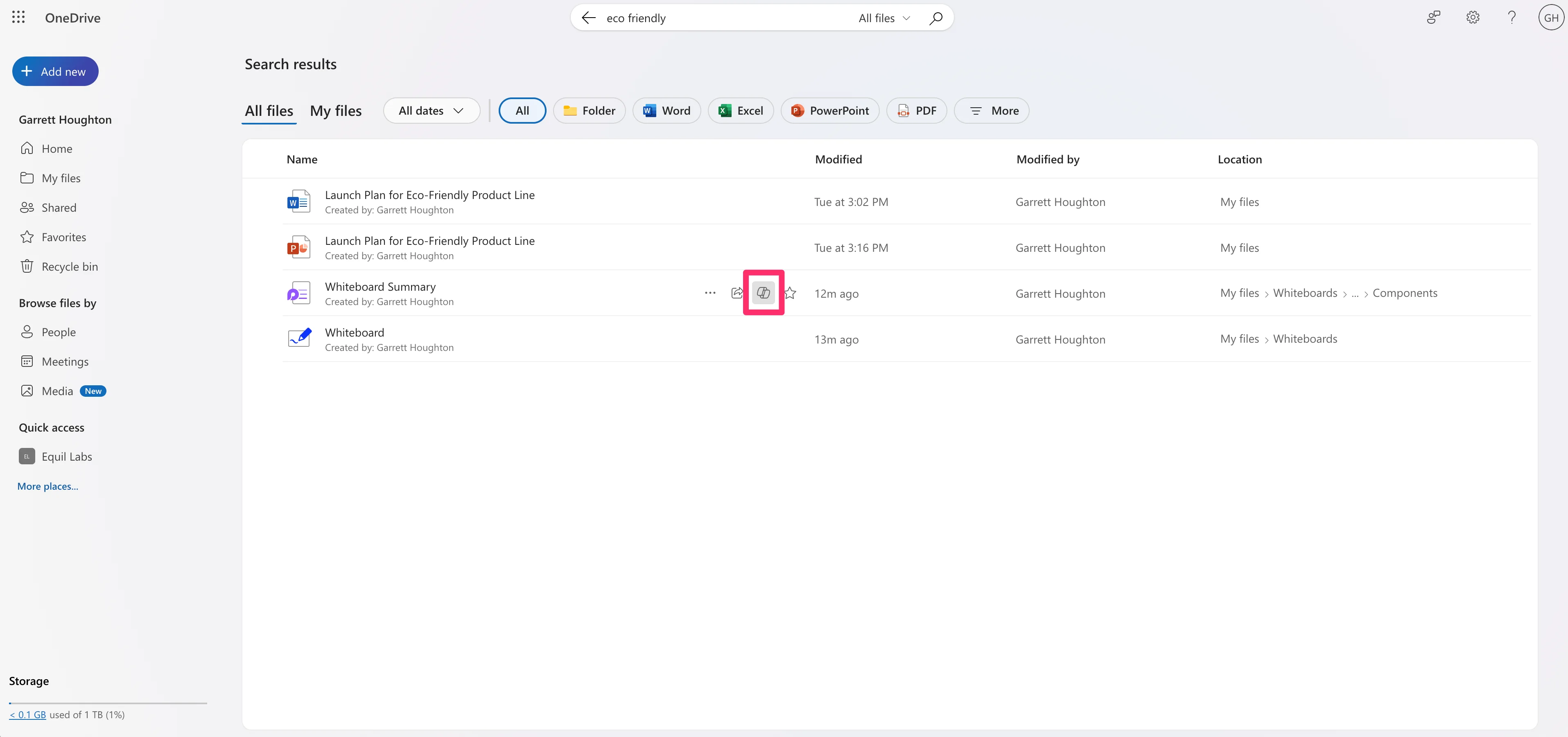
You can summarize the document, create an FAQ, or ask a question about the document right from OneDrive!
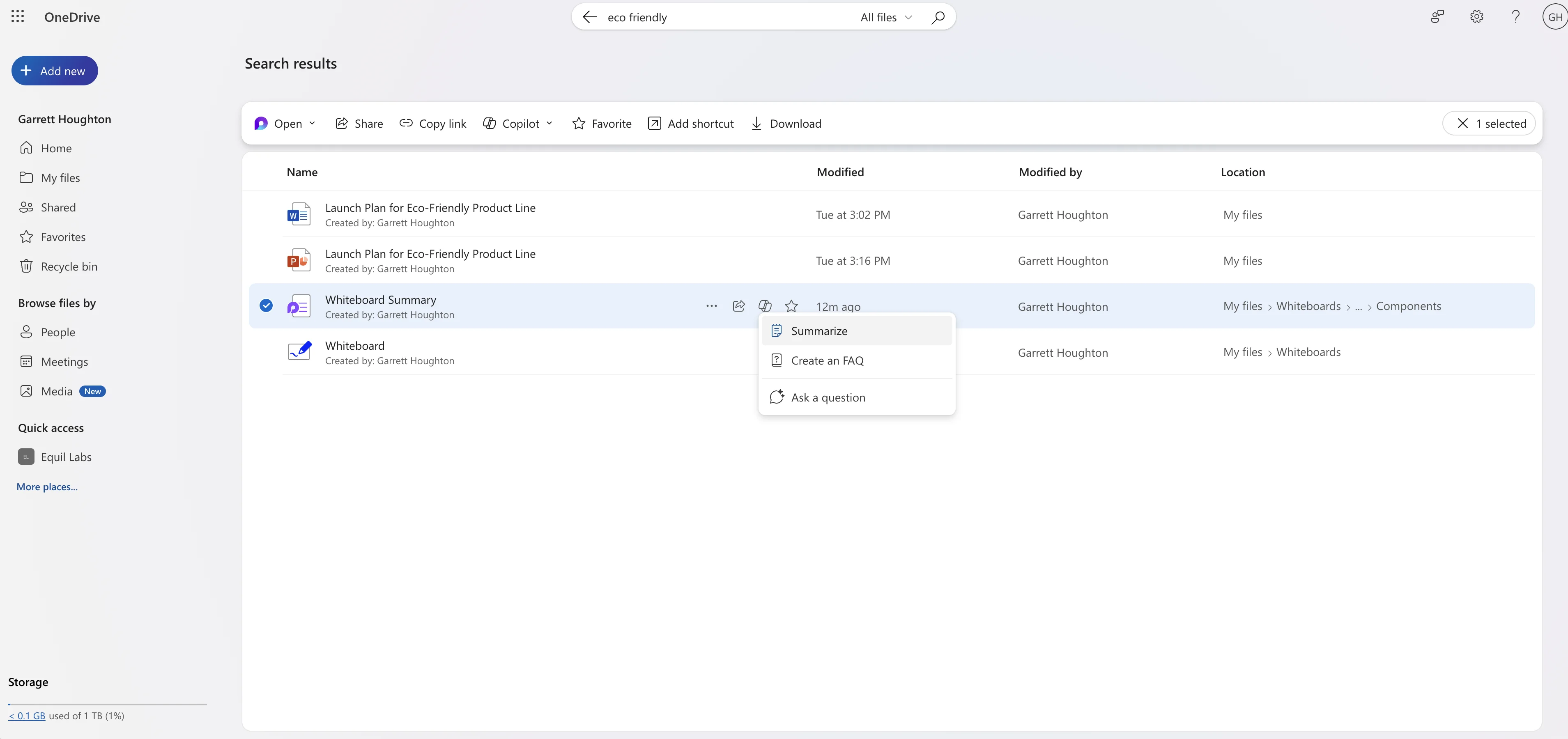
In this example, we’ve asked for a summary of our Whiteboard brainstorm.
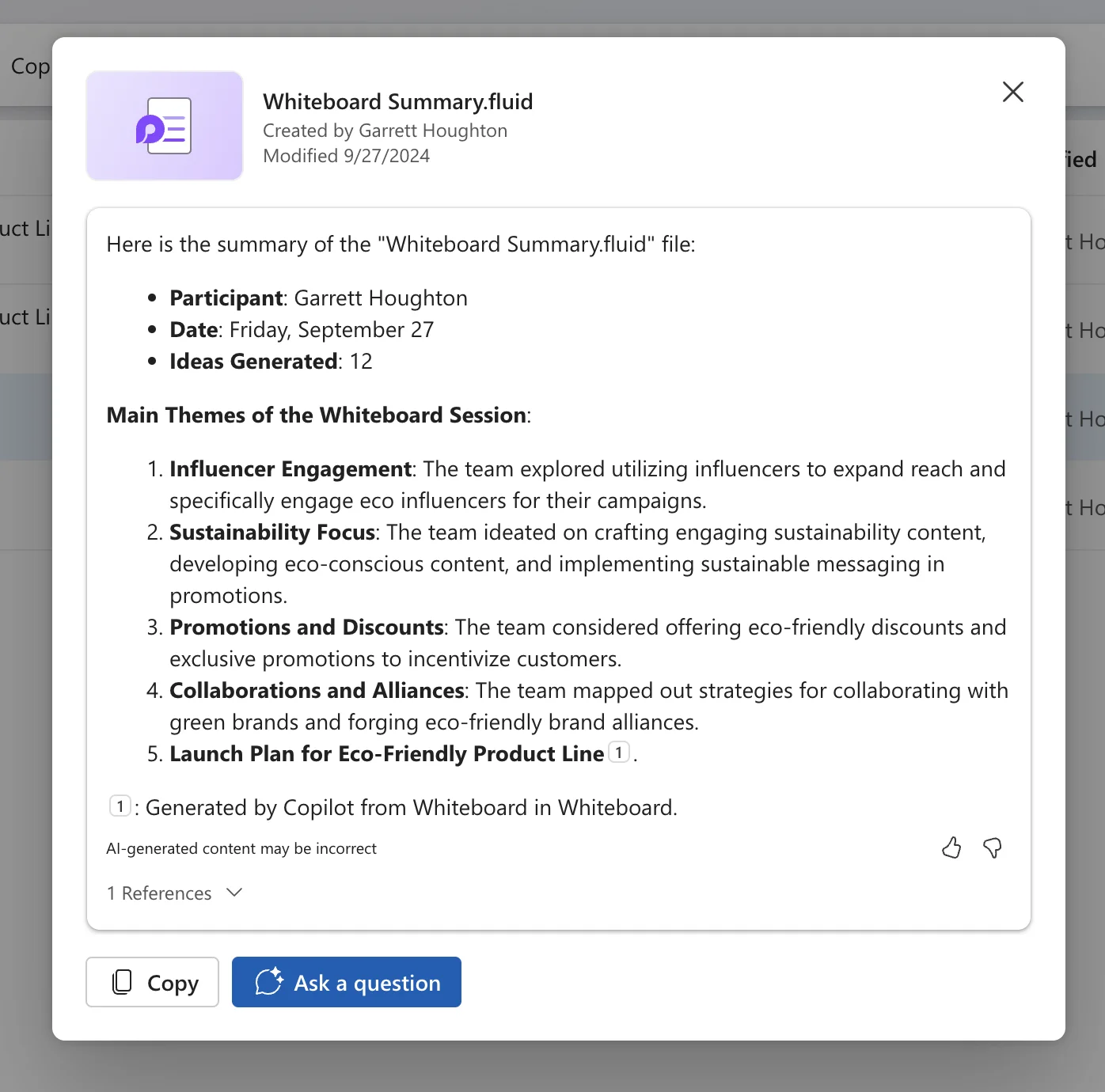
Collaborating on ideas has never been easier! We went from a single prompt to a visualized brainstorm and summarized Loop document — and our colleagues can interact with the content directly from OneDrive with Copilot.
In the next and final lesson of the course, we’ll build a Copilot agent to enable custom AI chatbot experiences within our Microsoft workspace.
This tutorial was created by Garrett.