Generate content across Microsoft apps with Copilot
Quickly create reports and presentations, using existing sources files in Microsoft Word and PowerPoint.
2024-12-09
This tutorial is part three of our Learn advanced Copilot 365 features course.
If you’ve ever stared at a blank page and wondered how to get started, then this tutorial is going to help you out. With Microsoft’s Copilot 365, you can create content across Microsoft applications referencing various source files.
What does that mean? For example, you can create a fully-designed PowerPoint presentation from an existing project plan in a Word document. Or, you could create a report in a Word document from notes in another Word document.
In this lesson, we’ll create a project plan in Word from a single prompt and then transform that project plan into a PowerPoint presentation via another prompt.
Steps we’ll cover in this tutorial:
- Create a Word document from a prompt and reference files
- Refine the Word document with Copilot
- Create a PowerPoint presentation from a Word document
- Re-design slides with PowerPoint designer
You’ll need:
- Microsoft 365 Business Account
- Copilot 365 Subscription
Let’s dive in!
Create a Word document from a prompt and reference files
To get started, we’ll create a Word document with a project plan from a Copilot prompt. To do this, click the Copilot icon at the top of a blank Word document.
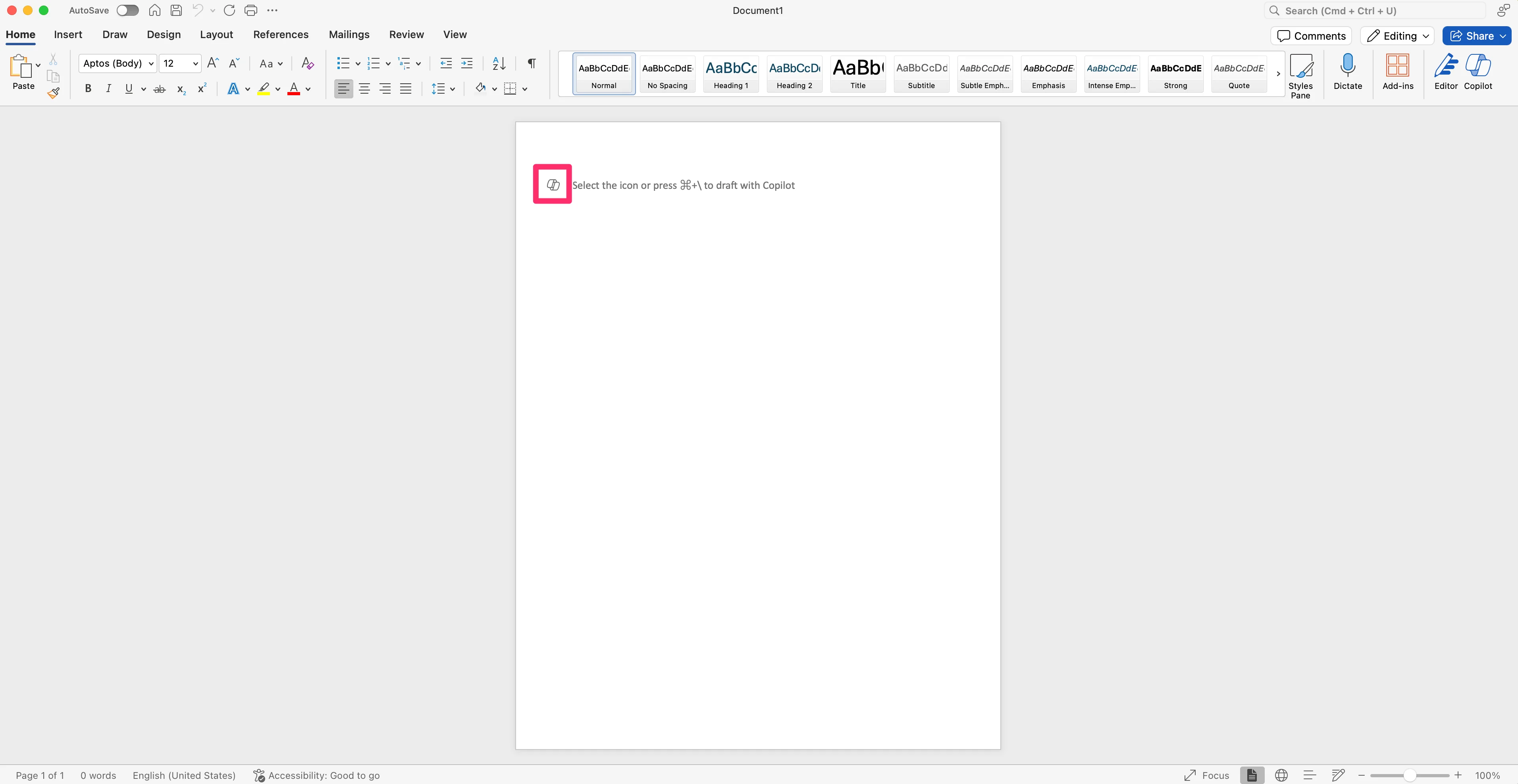
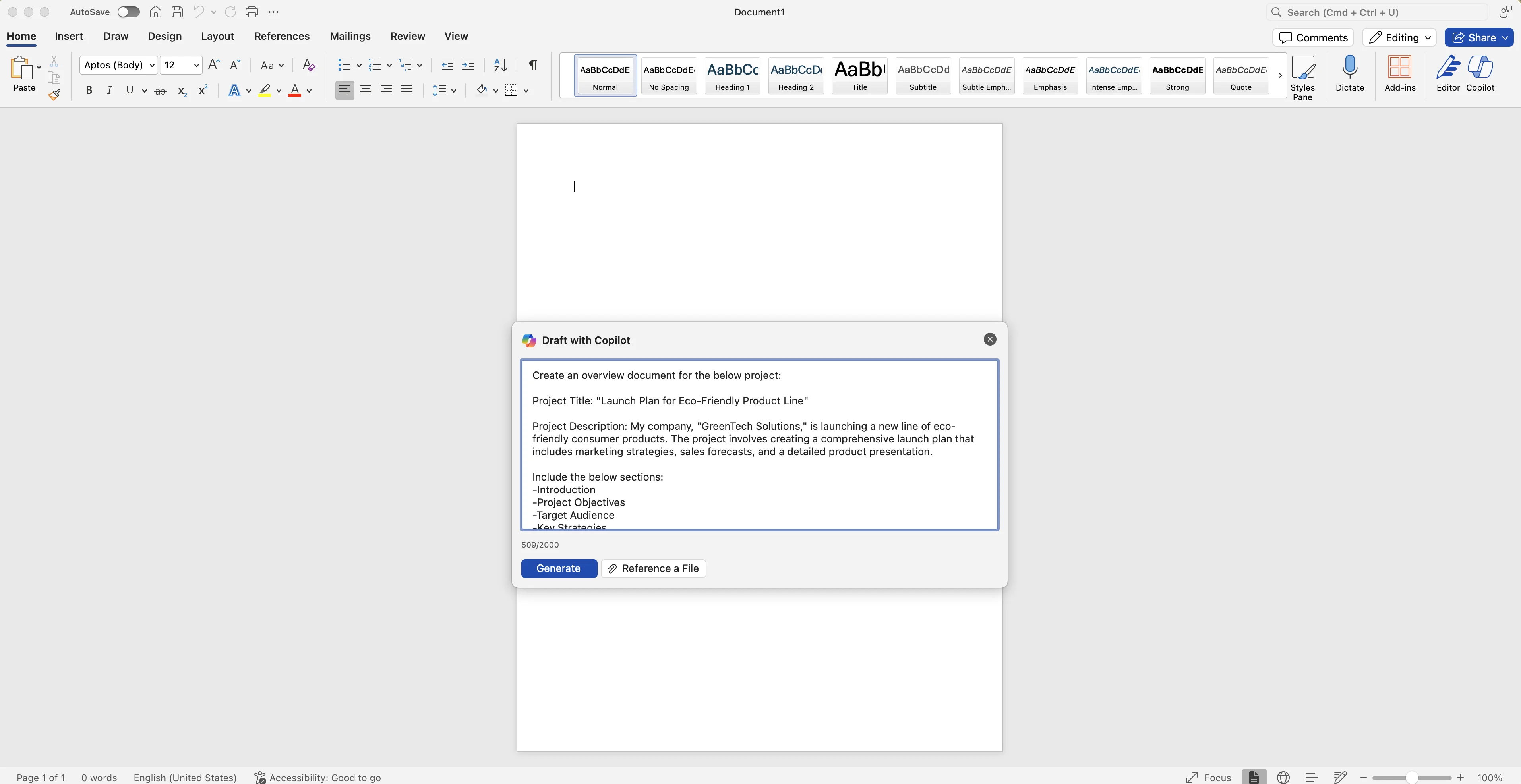
We’ll enter a brief prompt in the dialog window with an outline of the document we want to create. For this example, we’re going to create a project plan for an eco-friendly product line launch.
Sample Prompt:
Create an overview document for the below project:
Project Title: [Insert Project Title]
Project Description: [Insert Project Description]Include the below sections:
-Introduction
-Project Objectives
-Target Audience
-Key Strategies
-Timeline
-Budget Overview
-Conclusion
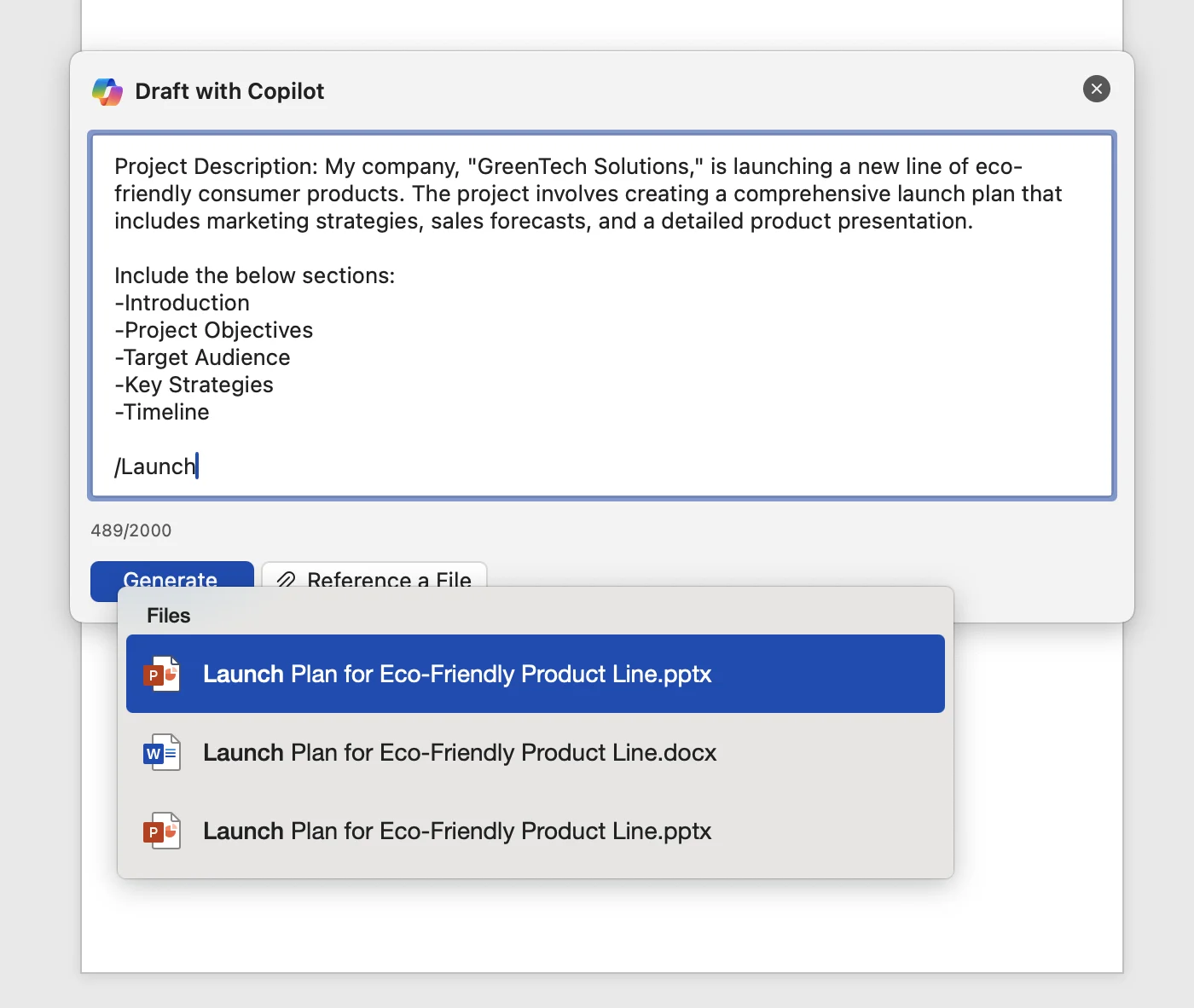
You can reference other files across your OneDrive via the “Reference a File” button in the Copilot window. Within a Word document, PowerPoint and Word files are the main, referenceable files. We weren’t able to reference Excel data from this feature yet.
To generate the Word document content, click the “Generate” button and your document will be generated and formatted to your prompt specifications.

Refine the Word document with Copilot
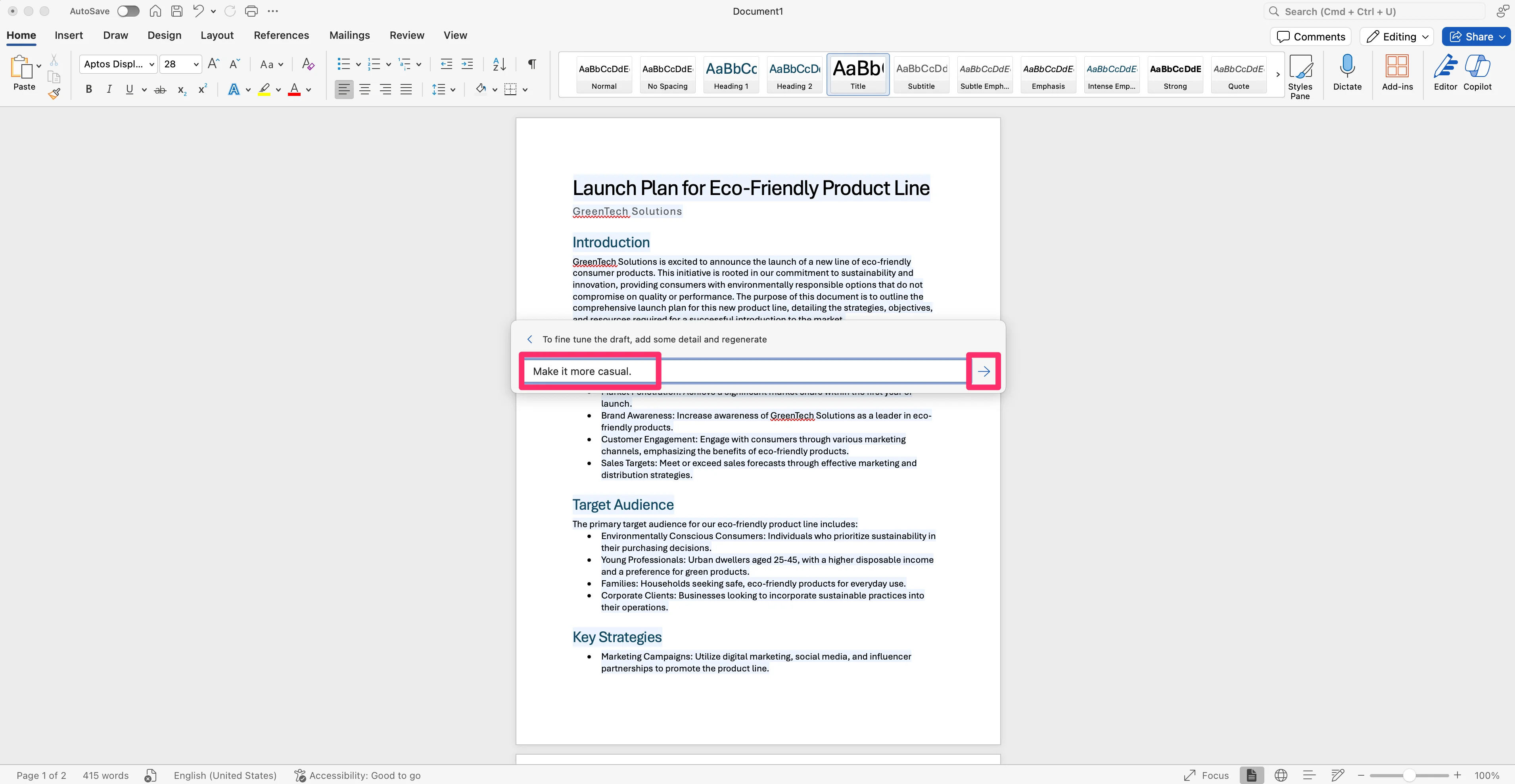
After the content is initially generated, Copilot will prompt you with the option to make document-wide changes.
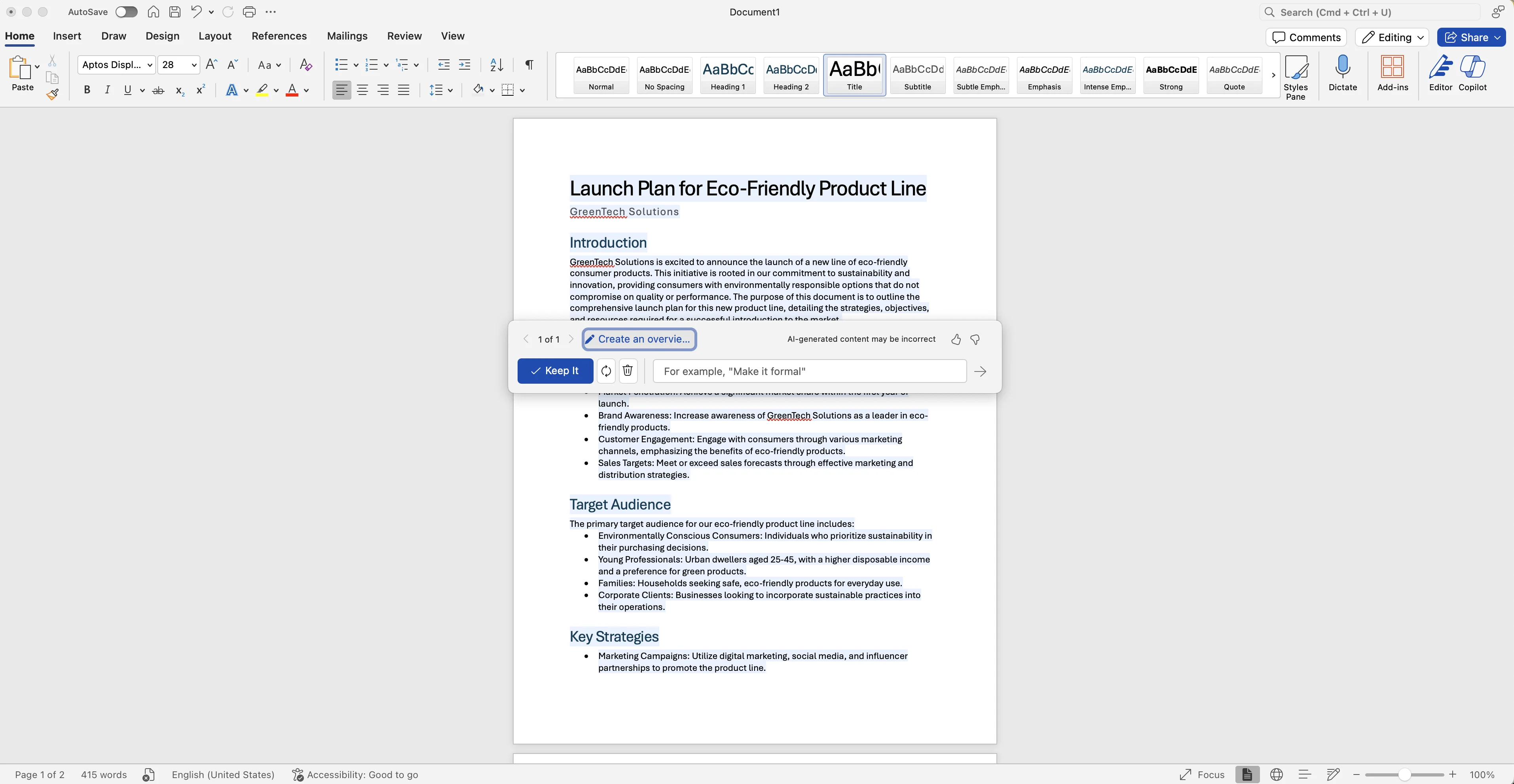
In this example, we’re going to ask to make the project plan content more casual in tone.
Sample Prompt:
Make it more casual.
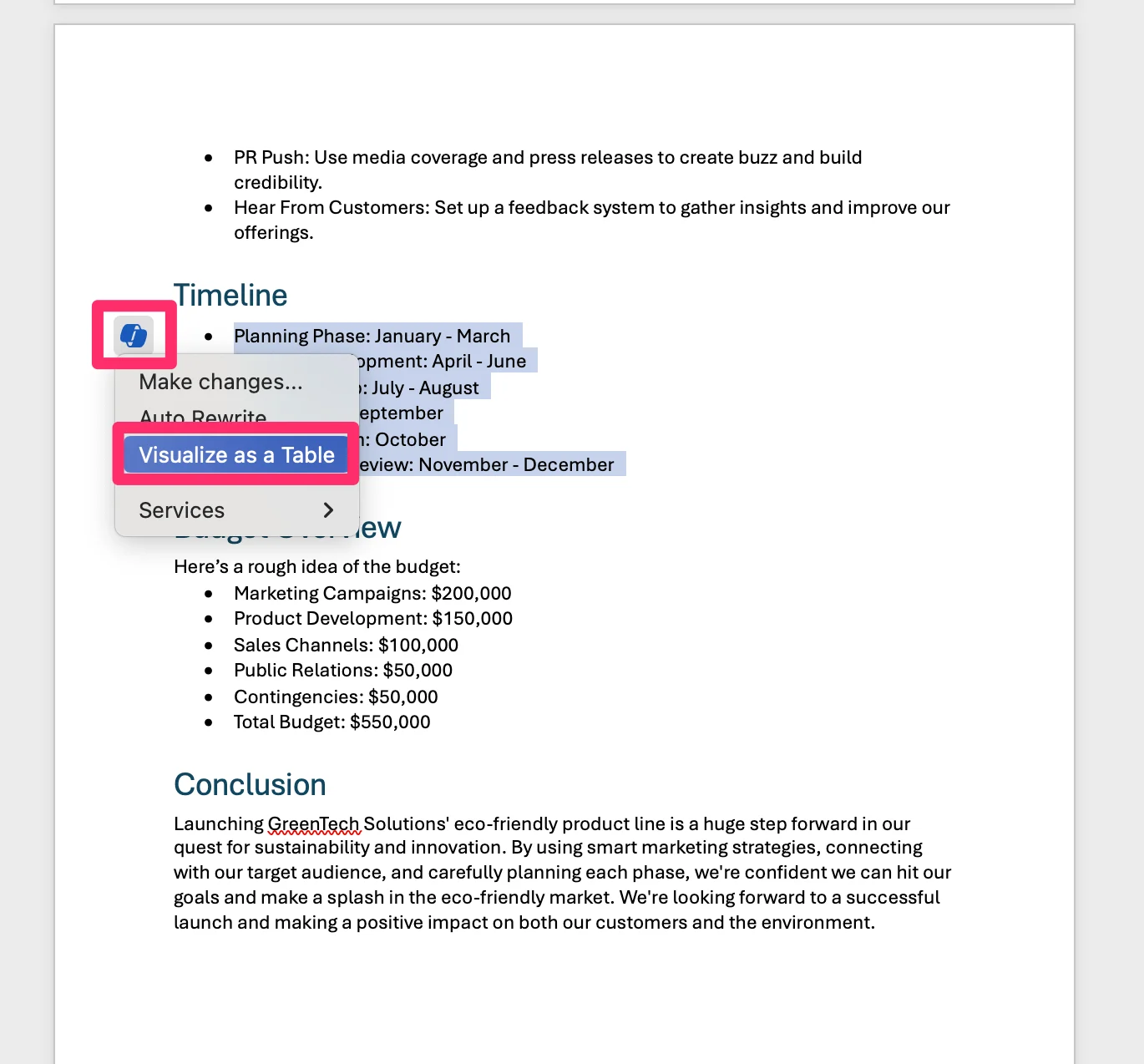
In addition to making changes across the whole document, you can highlight specific sections and change the content with Copilot. For instance, we’ll change our Timeline section from bullets to a table.
To do this, highlight a section, click the Copilot icon, and select the “Visualize as a Table” option.
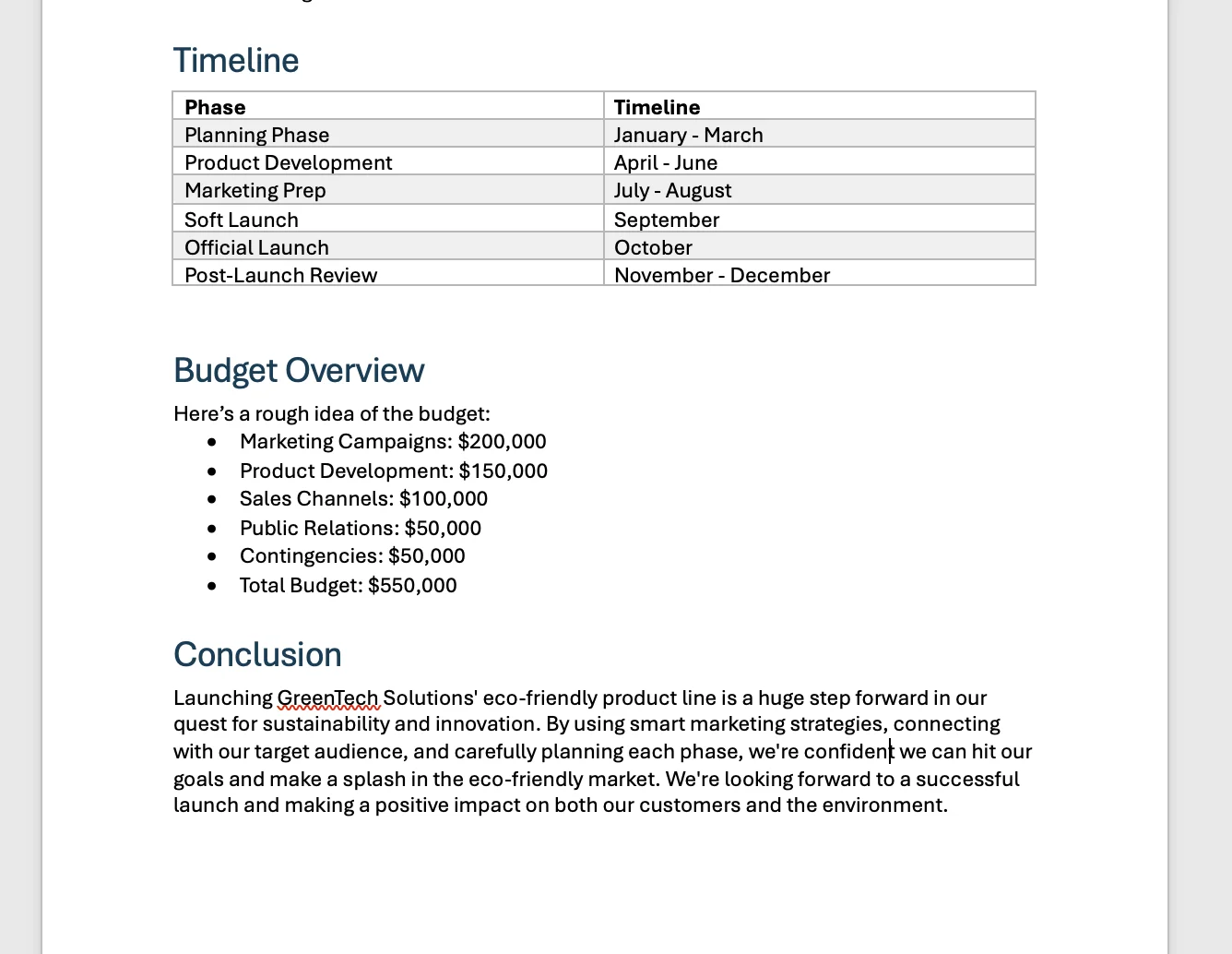
And just like that, our text content will be transformed into a table.
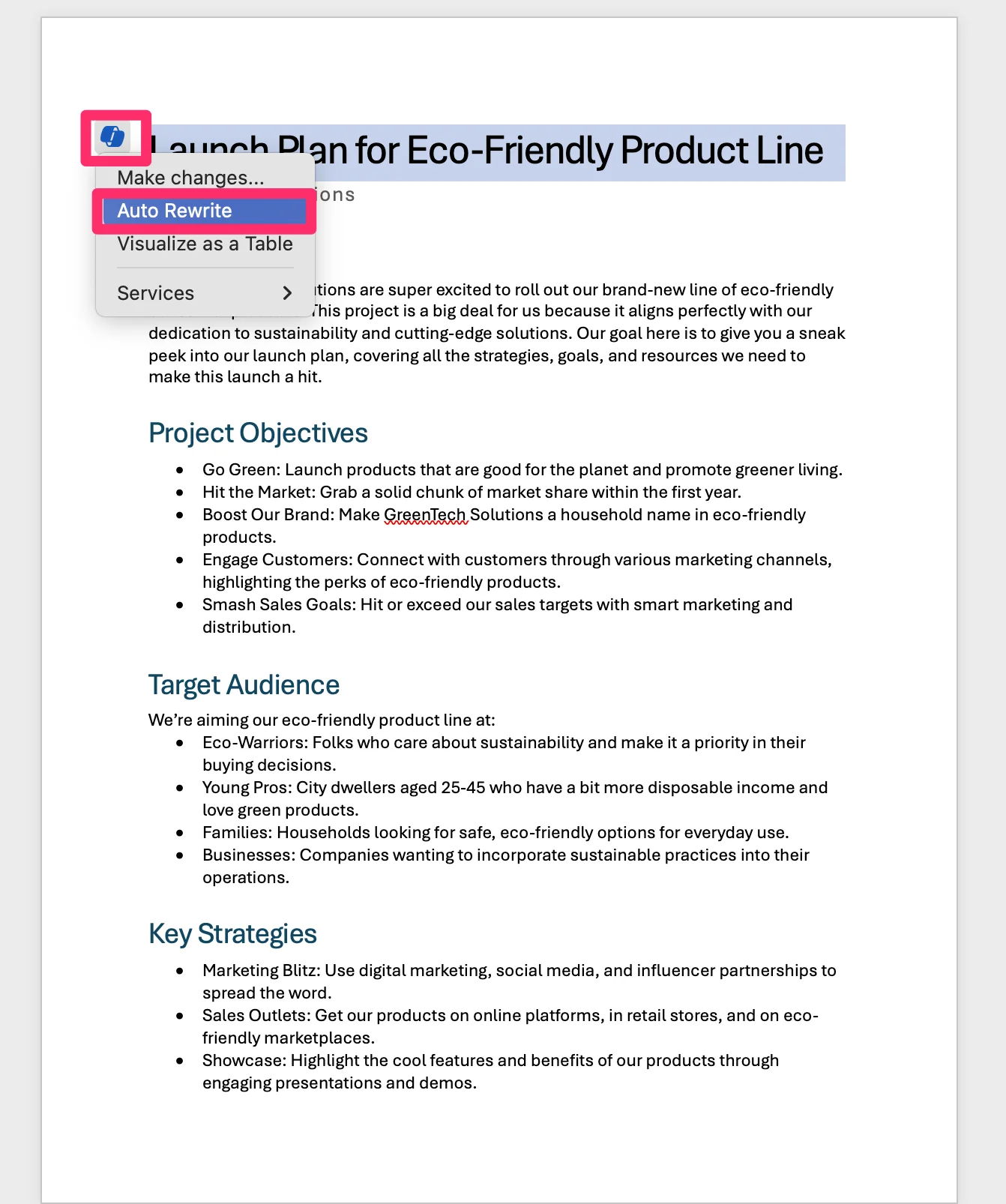
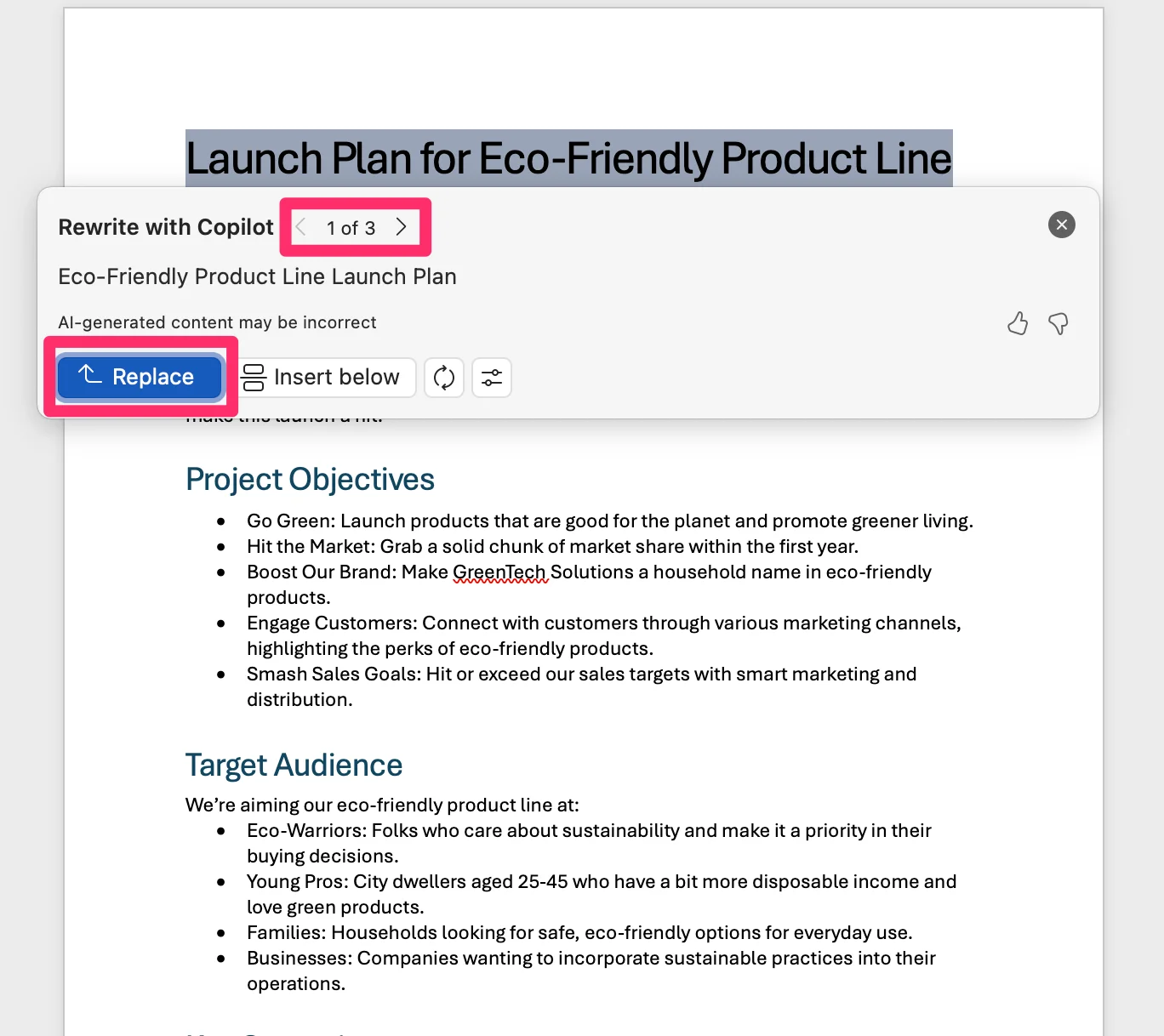
We can also have Copilot rewrite content by highlighting the content, selecting the Copilot icon, and clicking the “Auto Rewrite” option in the dropdown.
Copilot will generate multiple versions we can scroll through, and when we like one, we can click the “Replace” button to insert the new copy into our document.
Create a PowerPoint presentation from a Word document
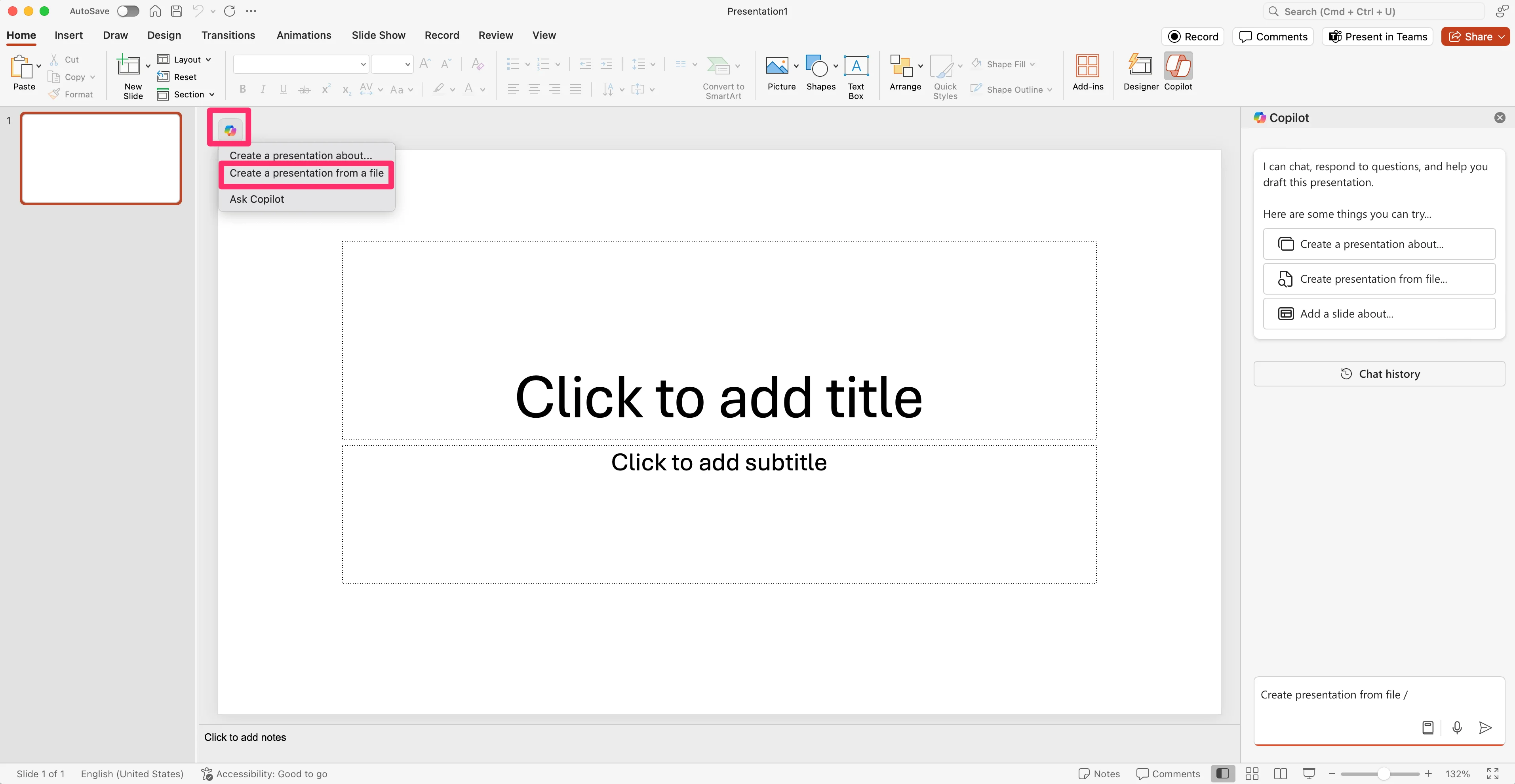
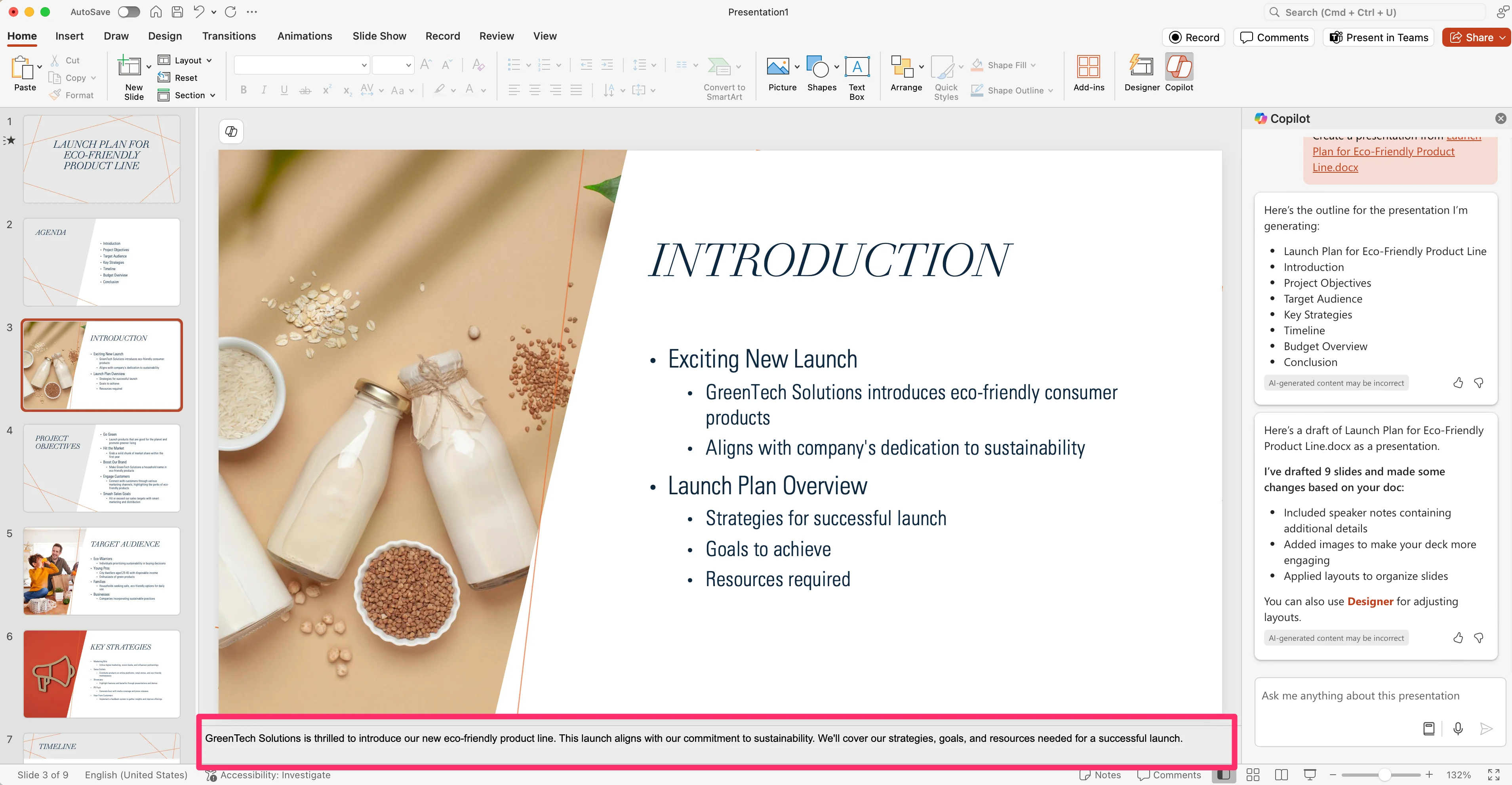
Now, we can take that Word document project plan and turn it into a professional-looking presentation with a single prompt. To do this, open a new PowerPoint file, click the Copilot icon in the top left corner of the first slide, and select “Create a presentation from a file”.
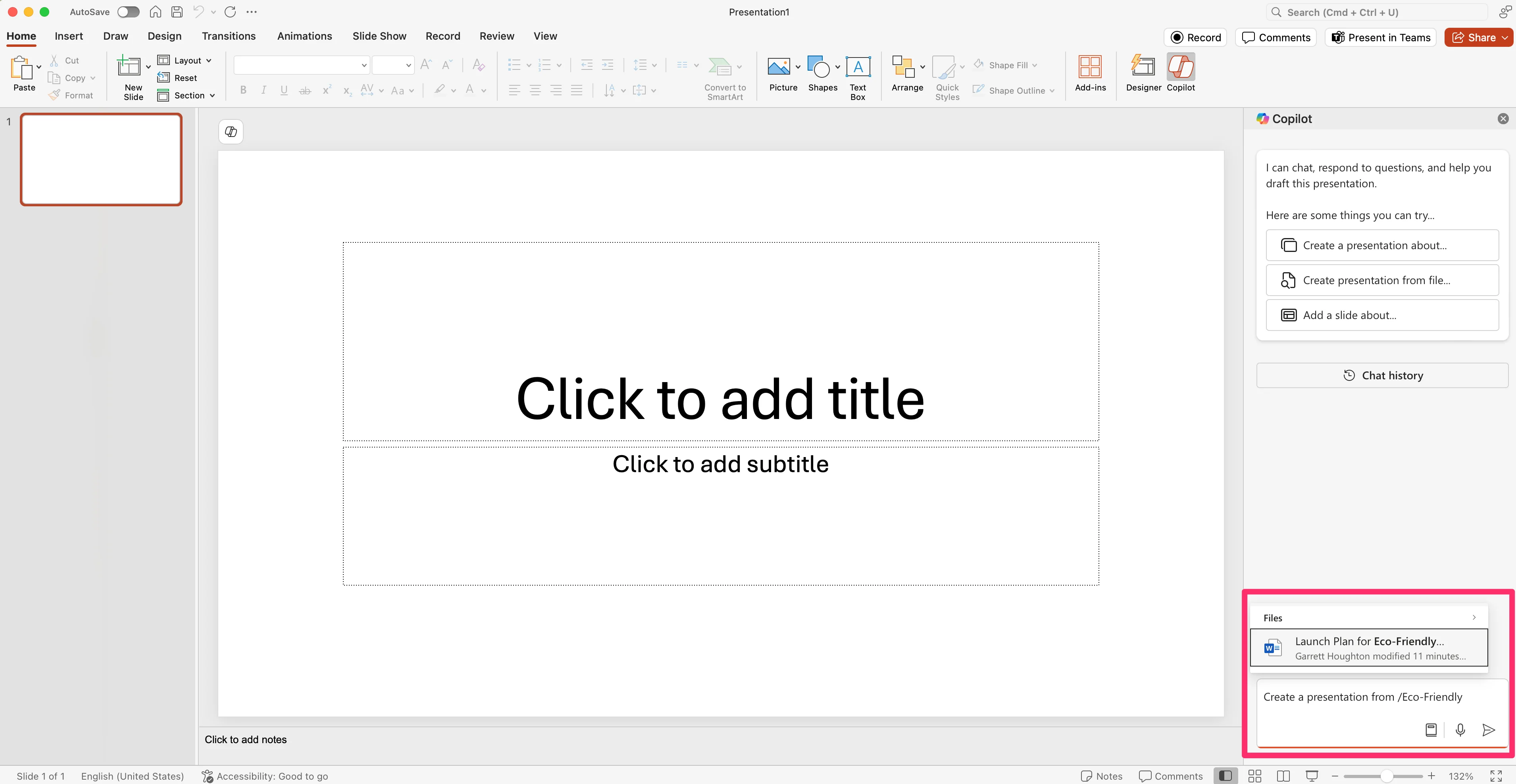
The Copilot side panel will open. Select the file you want to be the source data of your presentation. In this example, we’ll select the Word document we just created.
And that’s it! It’s mind-blowing how well this works. Copilot has created a 9-slide presentation from our project plan, with speaker notes, images, and varied slide designs.
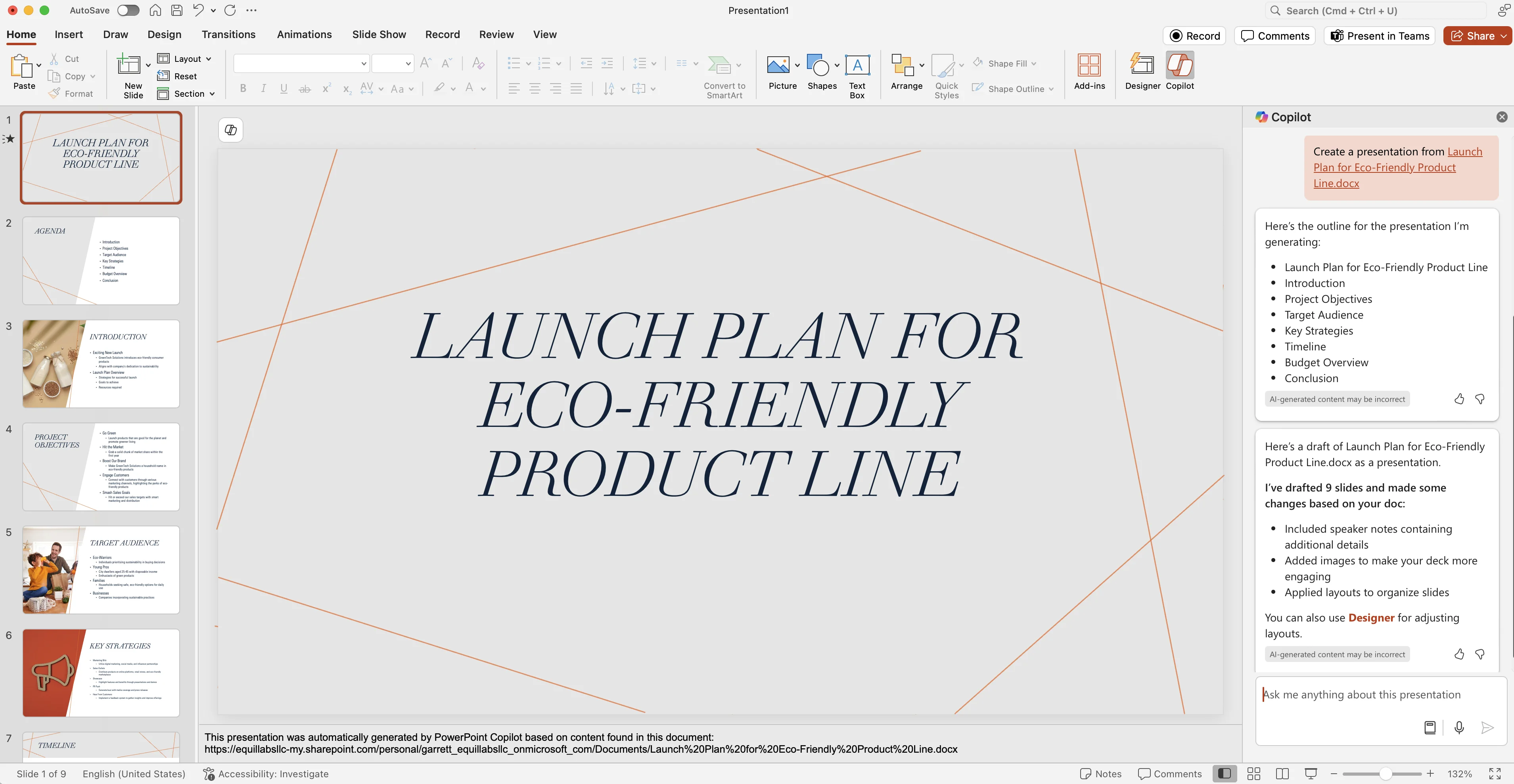
You can see the speaker notes added at the bottom of the page.
Re-design slides with PowerPoint designer
We can refine the slides by using the Designer feature. To do this, click the “Designer” option in the top ribbon, and on the slide you want to update, select a new design layout.
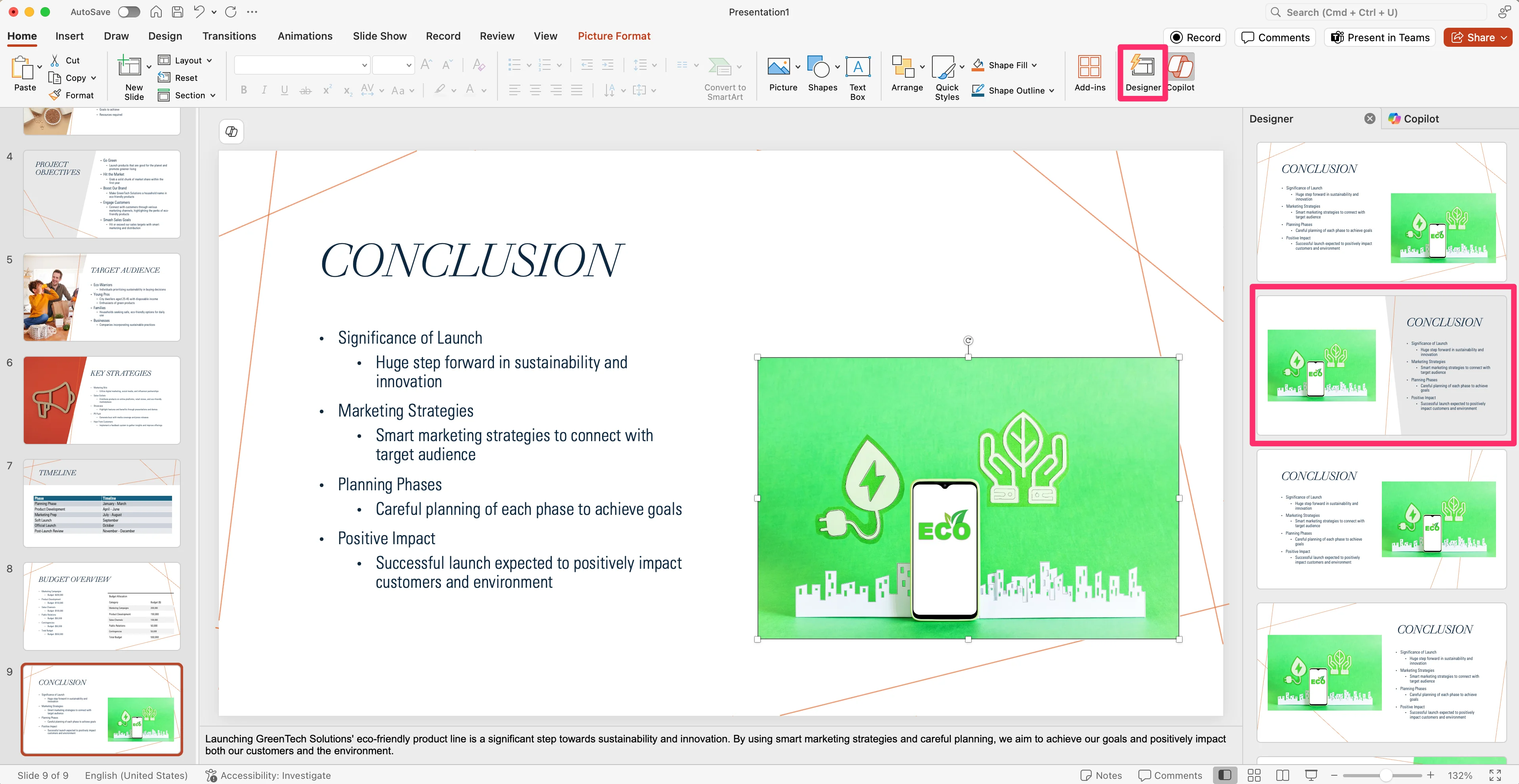
And instantly, your slide will be updated with the new design.
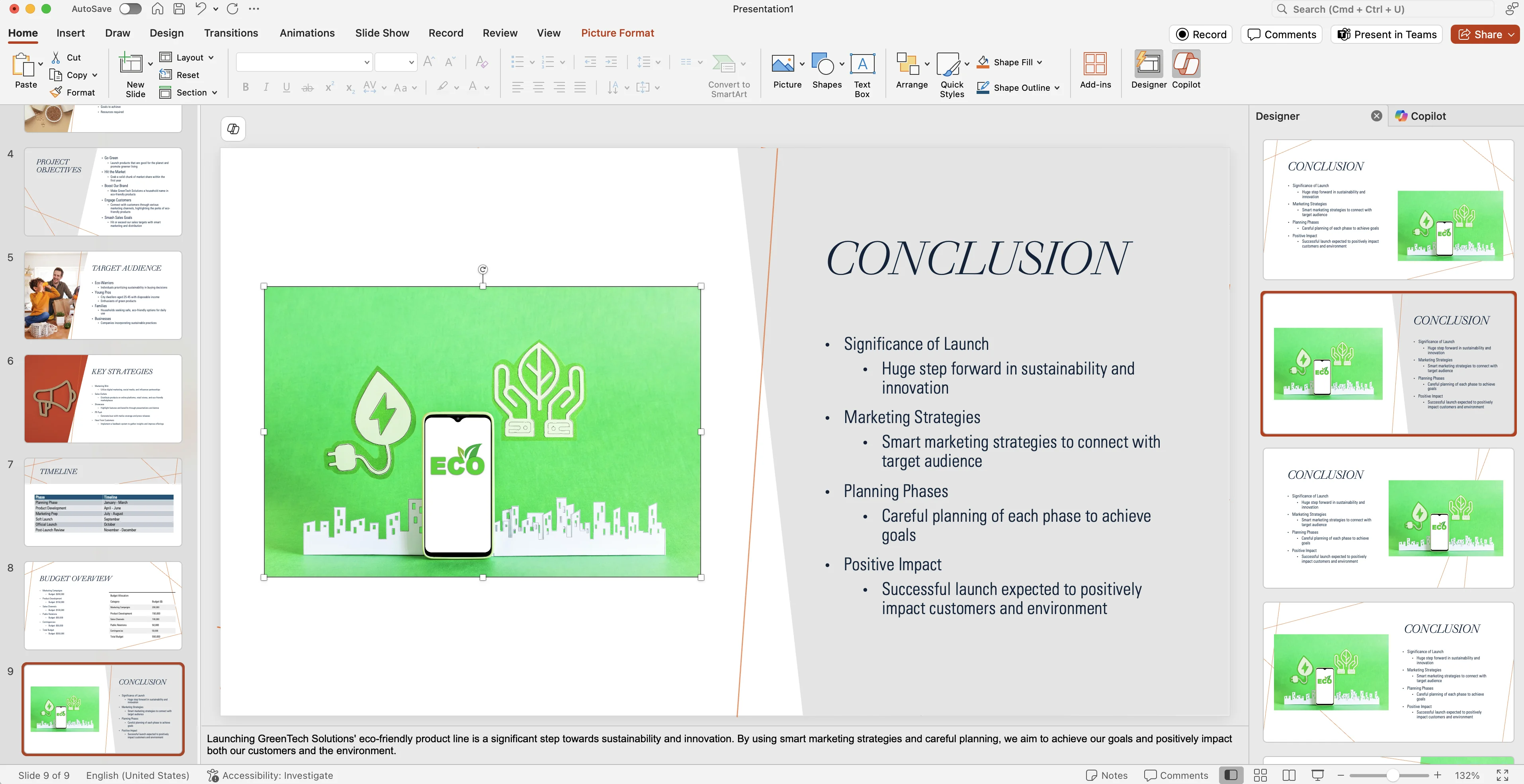
That’s it! Repurposing content across different applications has never been easier. You can imagine a project manager being able to turn a weekly notes document into a project summary presentation in minutes instead of days.
In the next lesson, we’ll go a bit deeper with Copilot in PowerPoint and create a presentation from a shared design template.
This tutorial was created by Garrett.