Use Copilot to create PowerPoint decks from templates
How to create branded PowerPoint presentations with Microsoft Copilot, using a shared design template.
2024-12-09
Welcome to part four of our Learn advanced Copilot 365 features course!
In the previous lesson, you learned how to create presentations from various source files across your Microsoft workspace. But what about creating presentations in your company’s brand colors and design? Well, in this tutorial, you’re going to learn how to do just that—partnering with Copilot to create a PowerPoint presentation in the branding of your company.
Steps we’ll cover in this tutorial:
- Create a design template
- Generate a presentation with the template design
- Quickly understand the key points from a presentation
You’ll need:
- Microsoft 365 Business Account
- Copilot 365 Subscription
Let’s get started!
Create a design template
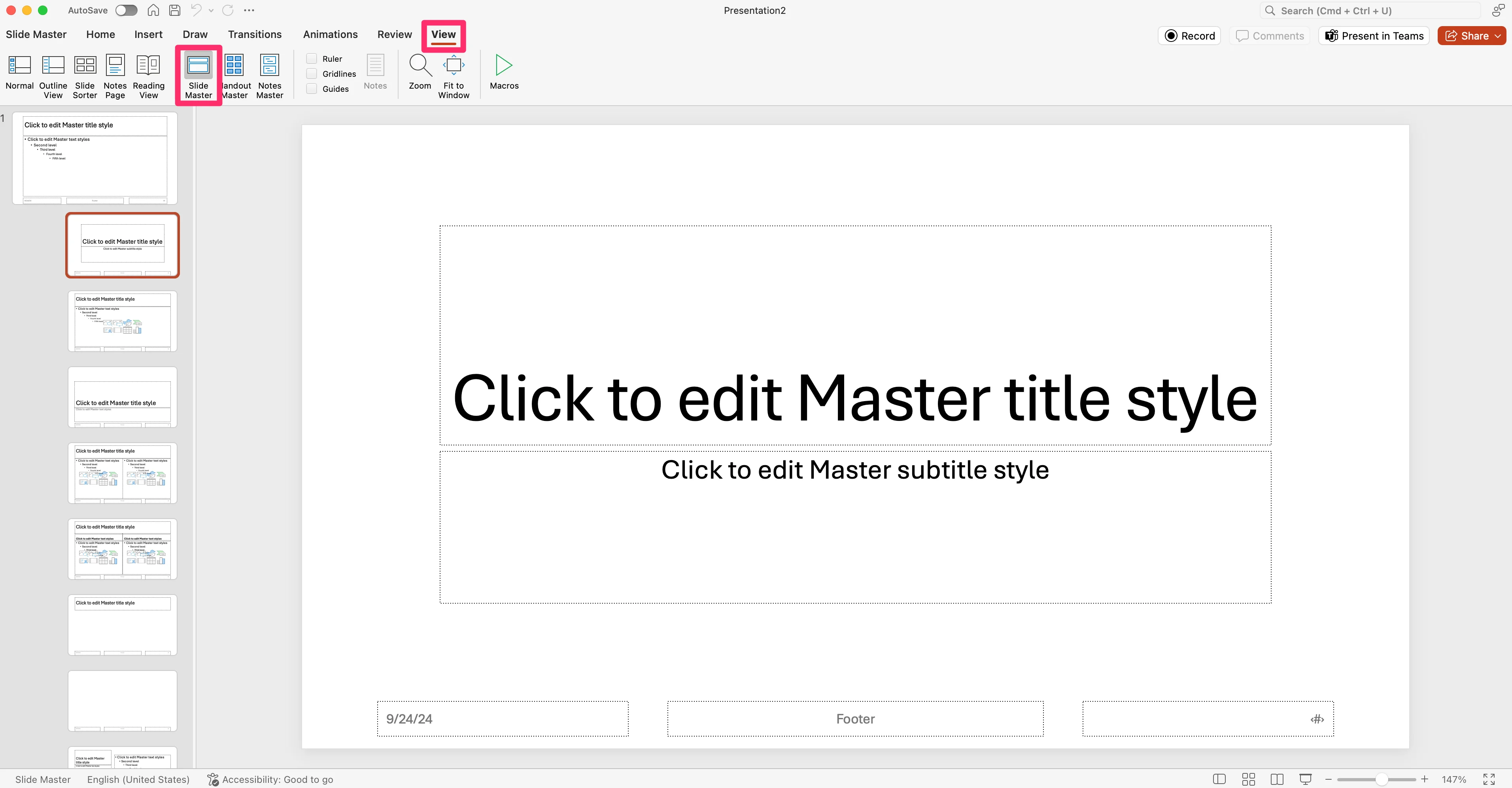
To get started, you’ll need a PowerPoint design template that can be shared across your company. To do this, open a blank PowerPoint presentation, click the “View” tab, and select the “Slide Master” option.
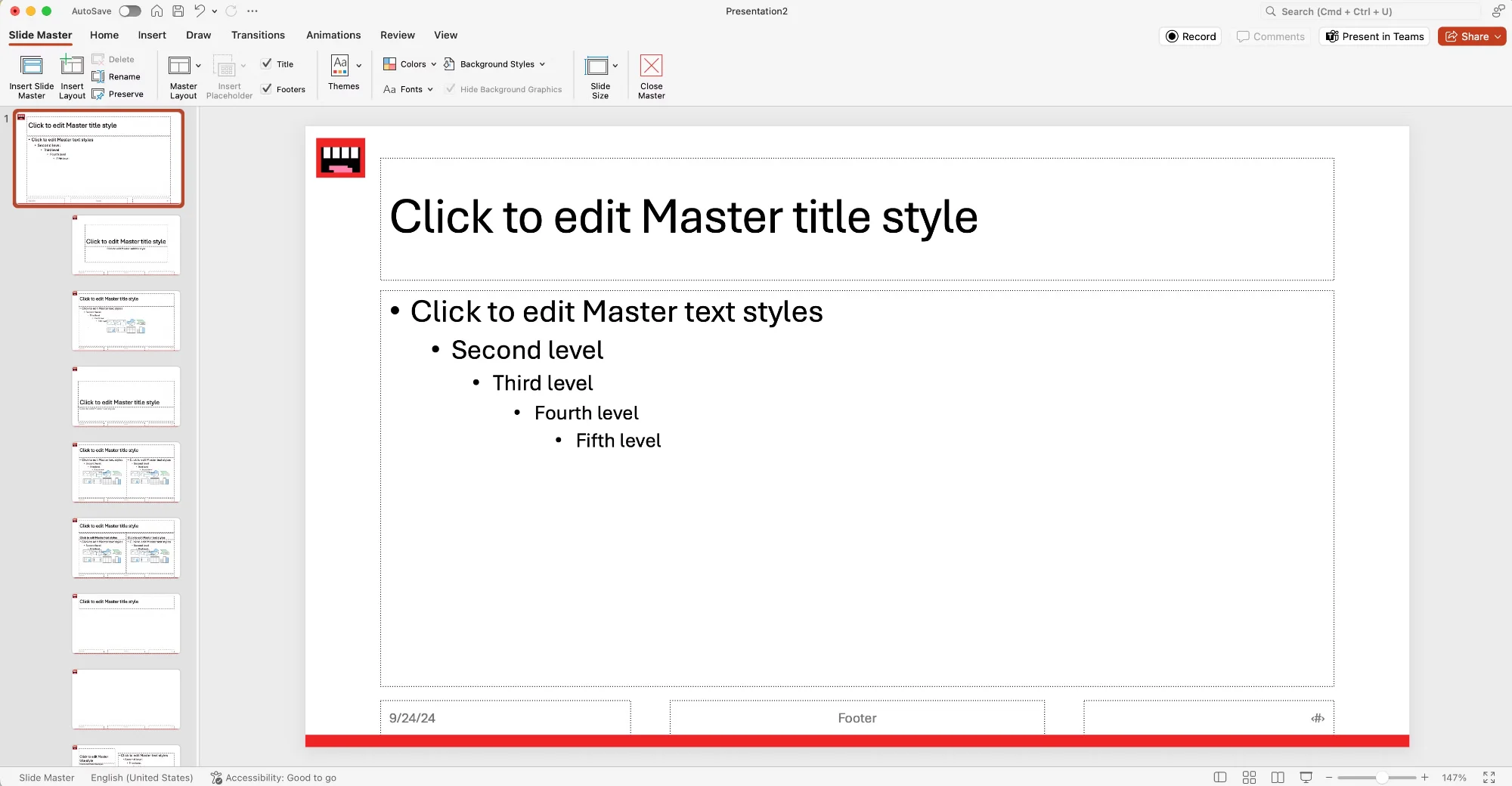
In the Slide Master view, we’ll create a global design template. We’re going to add a Ben’s Bites logo and a red bar at the bottom of each slide.
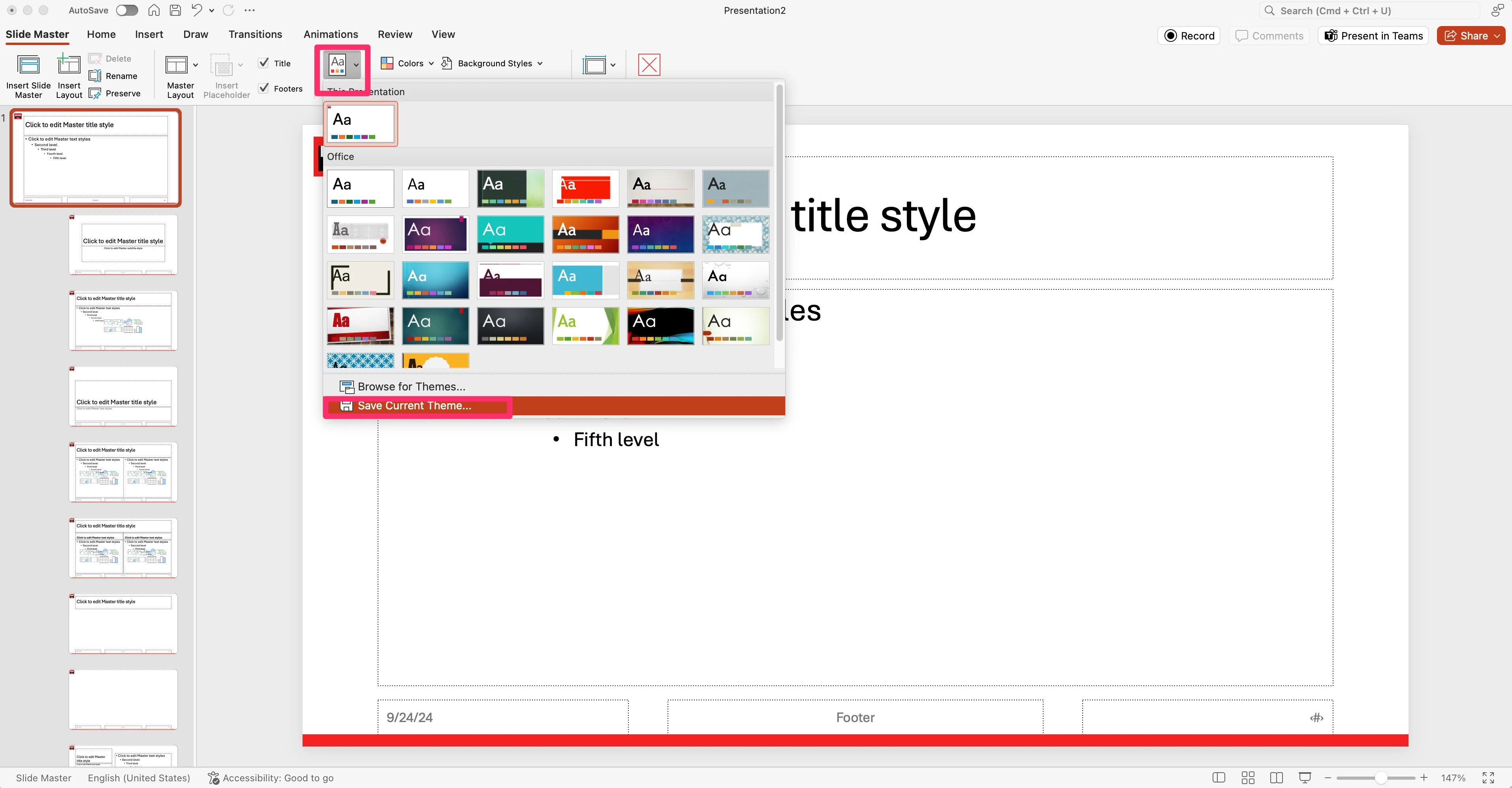
When you’ve completed your design, click the “Themes” option in the top ribbon and select the “Save Current Theme…” in the dropdown. This will save the theme globally.
Generate a presentation with the template design
Now, we can create a presentation with Copilot in the design of our template. To do this, create a new blank PowerPoint presentation (or use the one where you created the design template), select the “Design” tab, and select the new Custom theme you created (or an existing theme).
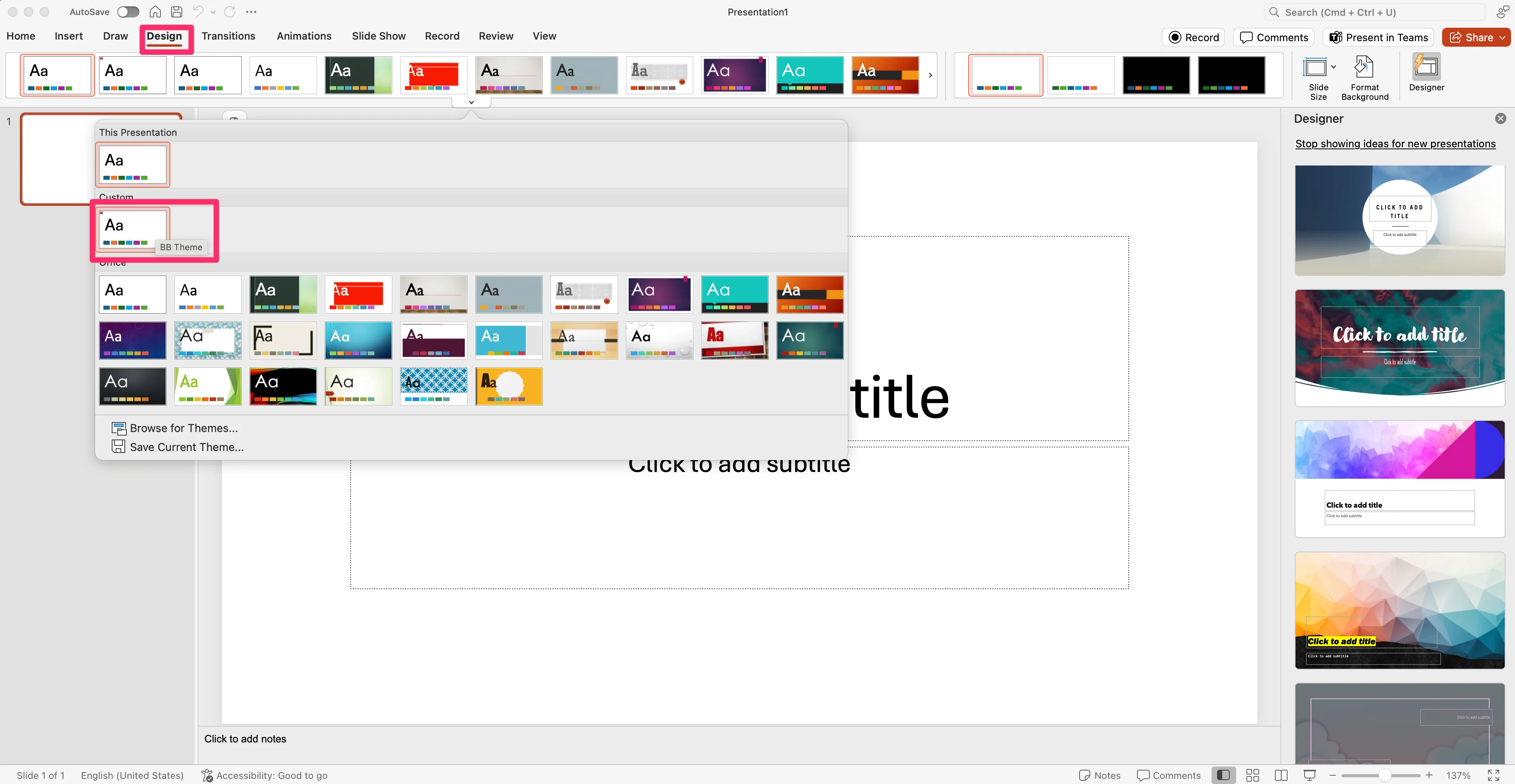
This will apply the design theme to the presentation. On the first slide, click the Copilot icon and select the “Create a presentation about…” option in the dropdown.
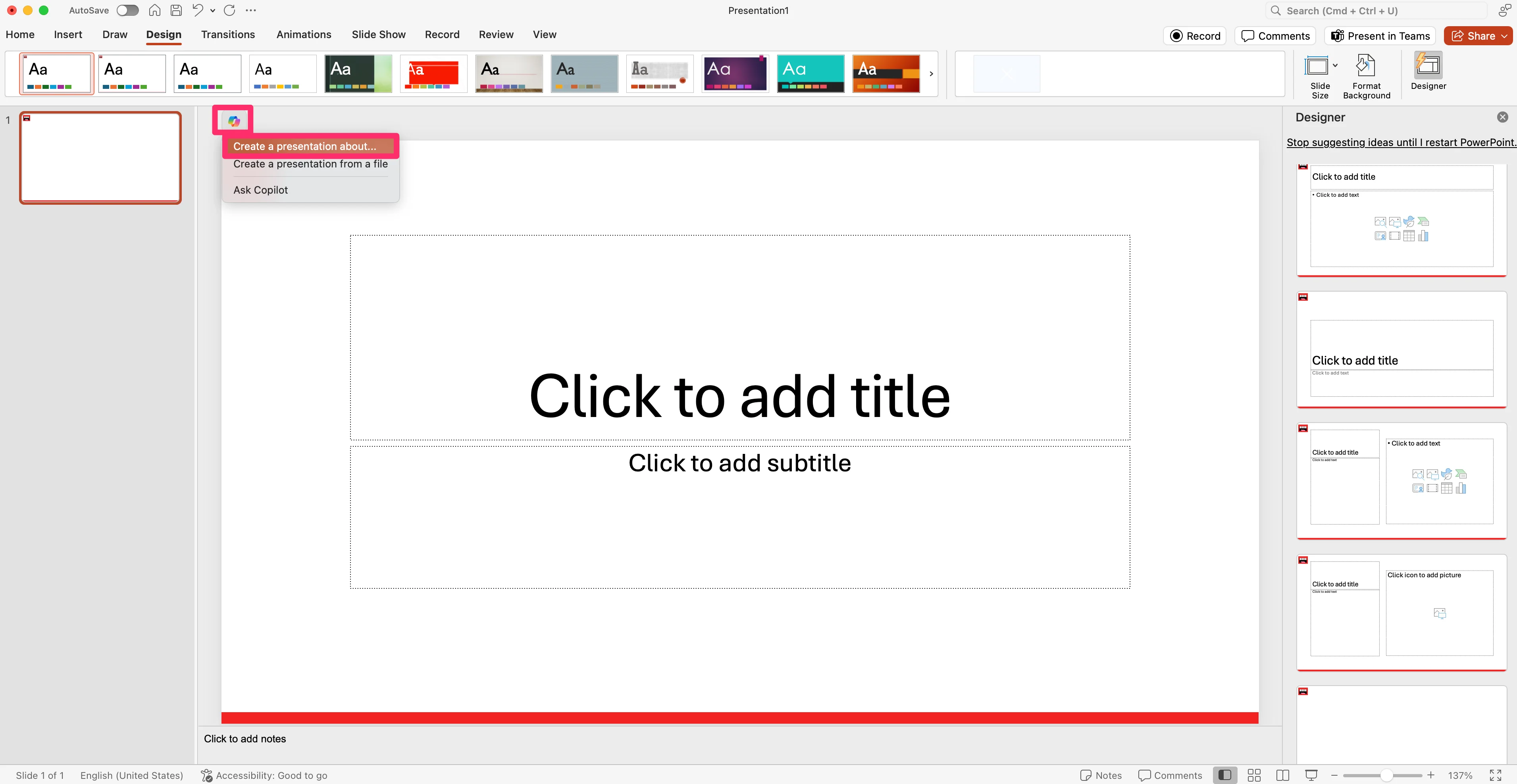
The Copilot side panel will open and we can ask for a presentation on a certain topic.
Sample Prompt:
Create a presentation about how to use AI at work.
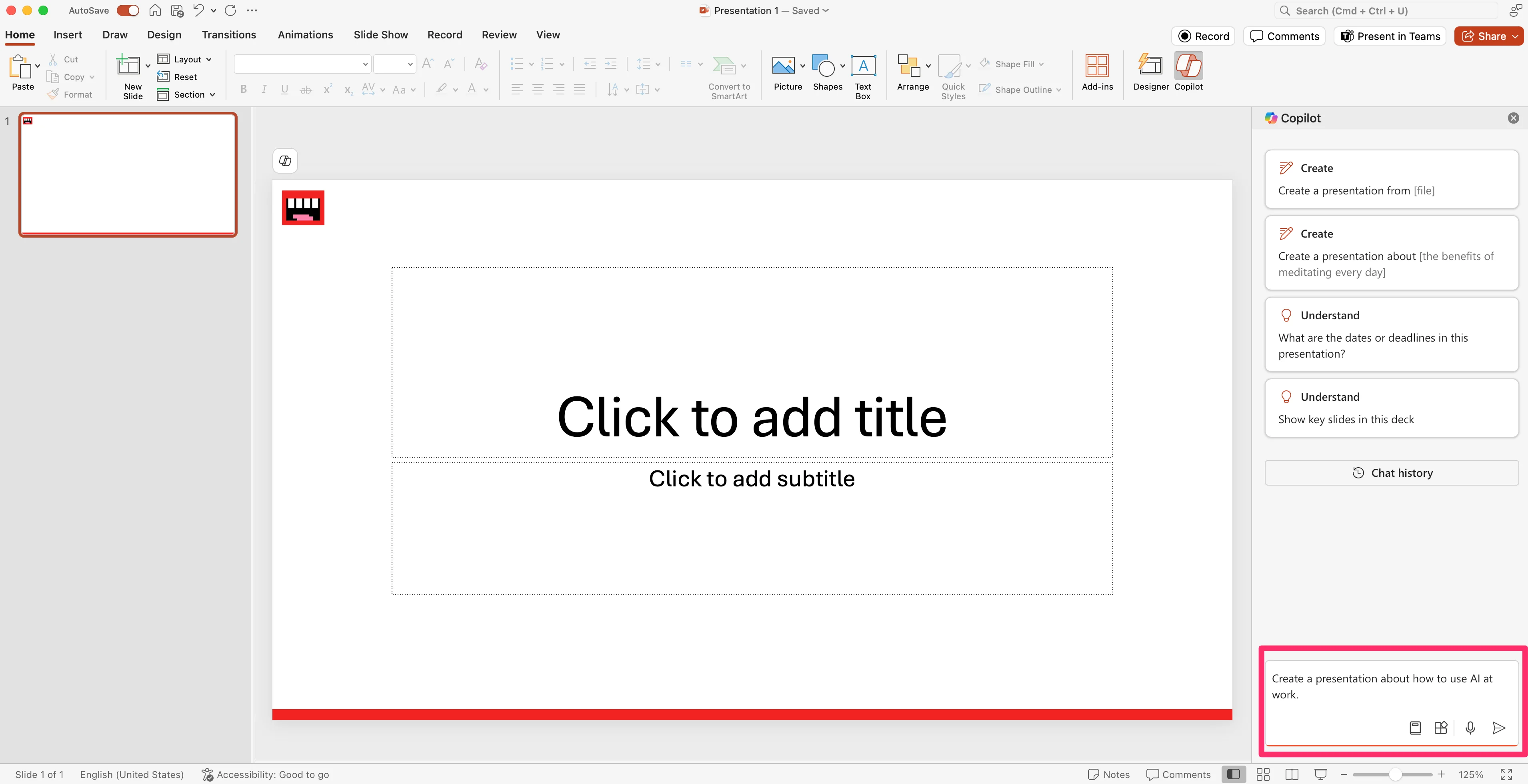
And voila! Copilot will create the entire presentation in your design template.
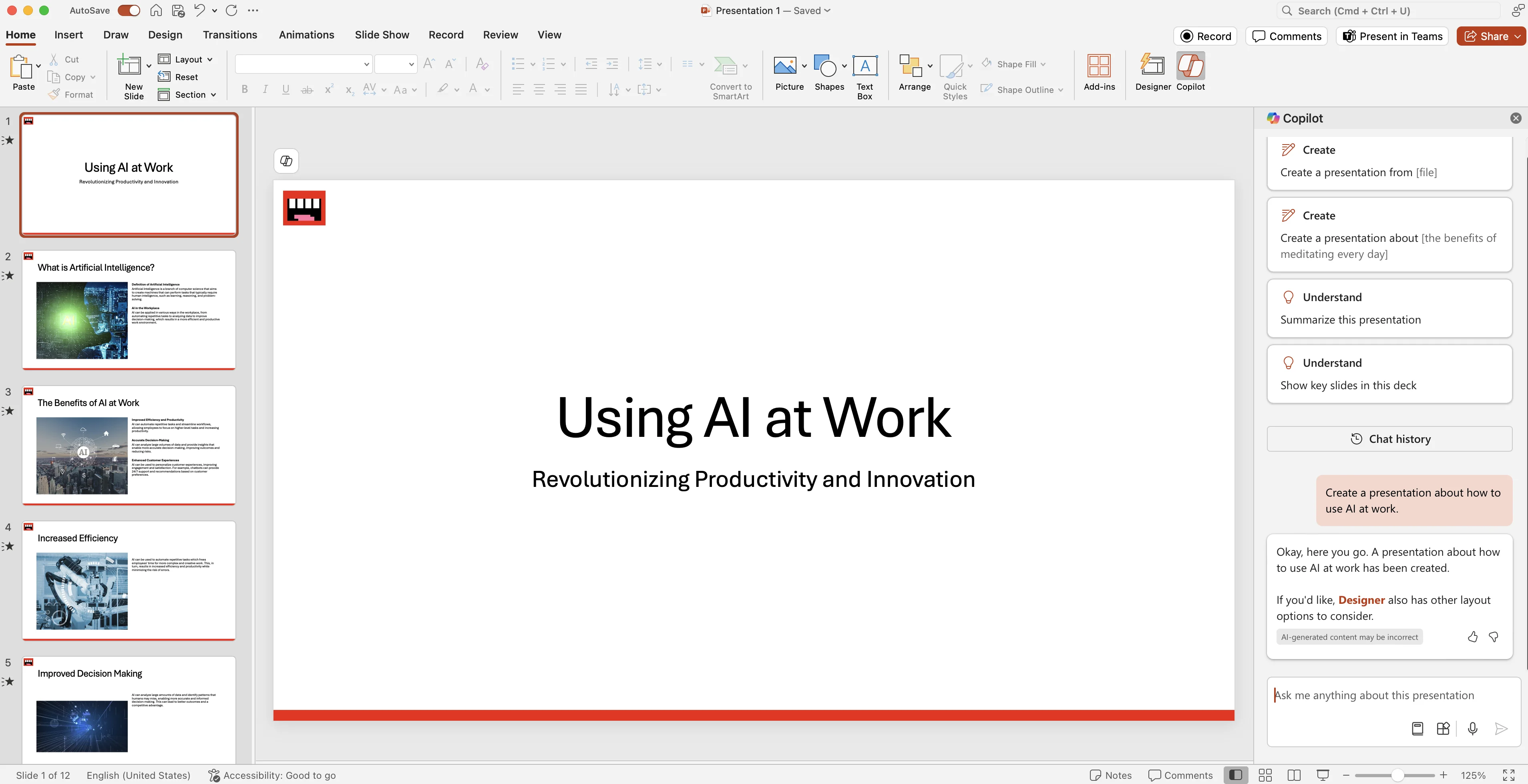
Quickly understand the key points from a presentation
As a bonus, you can use Copilot in PowerPoint to quickly understand the content in a presentation. For instance, if a colleague sends you a PowerPoint presentation, rather than reading through the whole thing, you can open Copilot and ask it to summarize the presentation.
Sample Prompt:
Summarize this presentation.
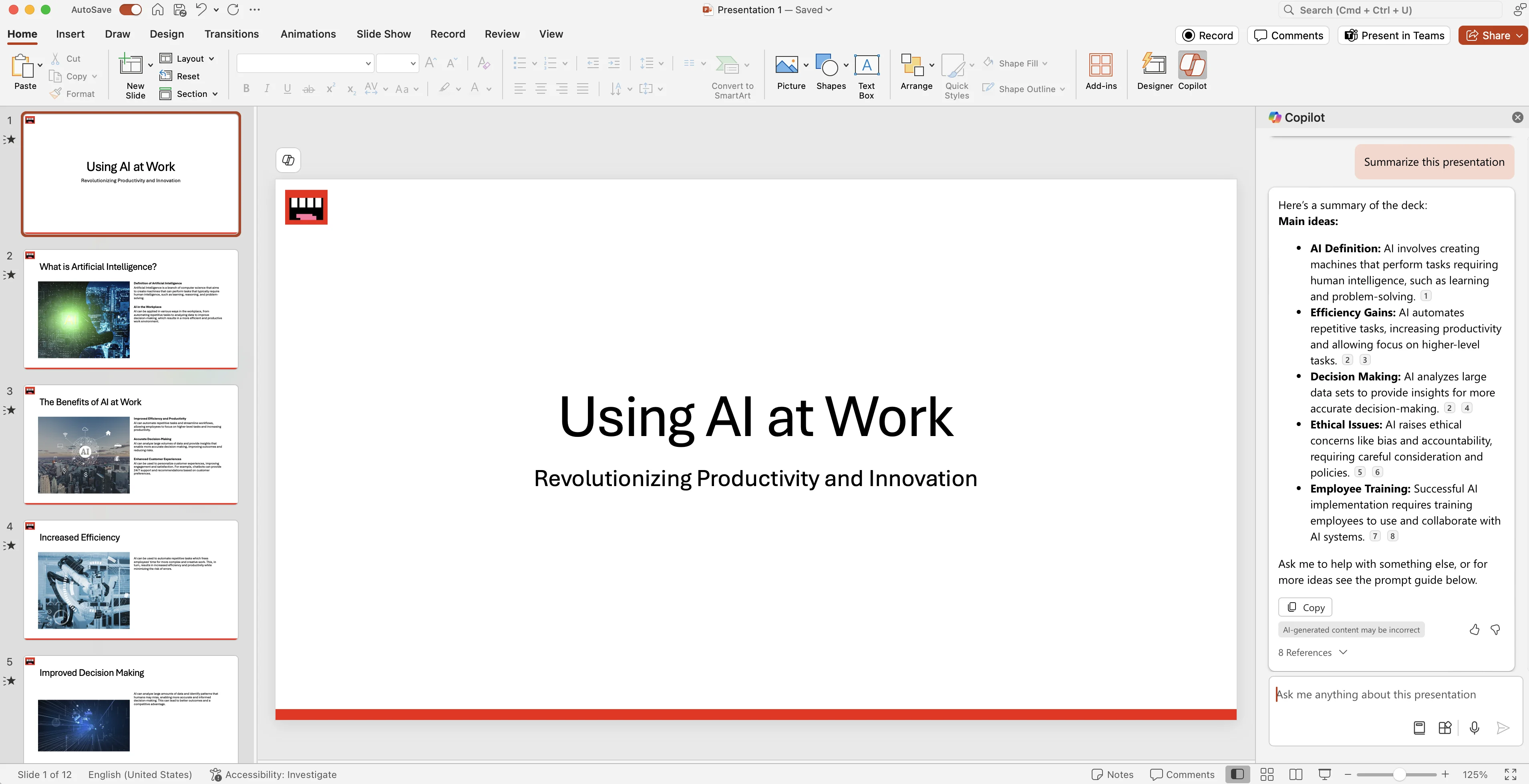
You can also ask Copilot to show you important slides in the deck.
Sample Prompt:
Show key slides in this deck.
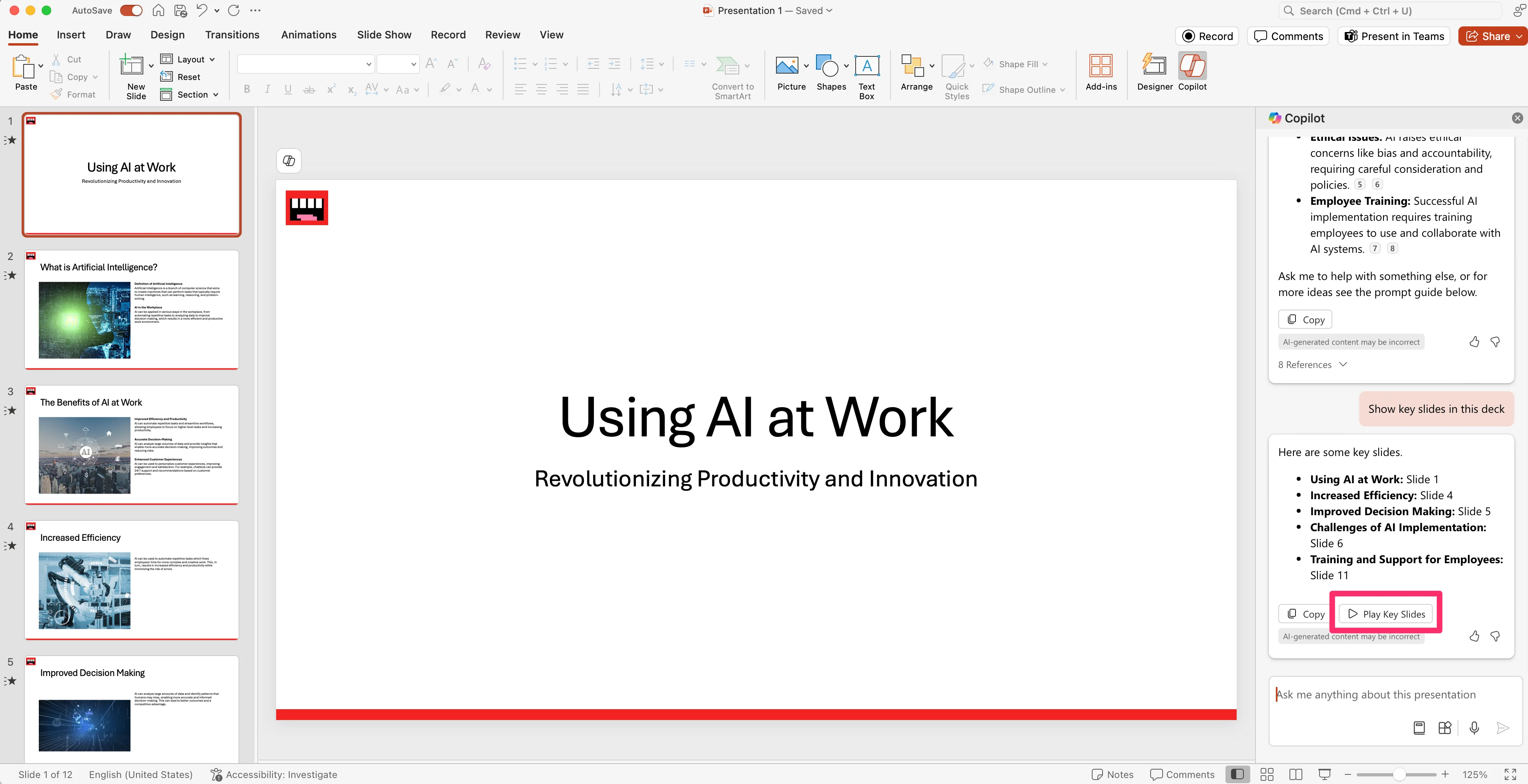
Nice! You’re a Copilot PowerPoint pro now. You can create presentations quickly in your company’s branded slides, and easily get up to speed on presentation content across your company’s PowerPoint files with Copilot.
In the next lesson, we’ll jump into Microsoft Whiteboard and Loop to start working with Copilot to brainstorm and collaborate on content.
This tutorial was created by Garrett.