Use Copilot to chat with your work
Learn how to use Microsoft Copilot chat as a central hub for everything happening at your company.
2024-12-09
Welcome to the second lesson of the Learn advanced Copilot 365 features course.
In this lesson, we’re going to cover using Copilot chat as a central resource for keeping up to date on anything happening across your organization.
Microsoft has turned Copilot for Microsoft 365 into a central brain for accessing anything across your company. You can summarize documents across your workspace, catch up on meetings, chats, and emails, and perform web research — all in one chat space.
Steps we’ll cover in this tutorial:
- Use Copilot for web research
- Summarize documents across your company workspace
- Chat with meetings and catch up on Teams chats
- Chat with your email
You’ll need:
- Microsoft 365 Enterprise, Academic or SMB subscription
- Copilot 365 subscription (included with the subscription plans detailed above)
Let’s get into it!
Use Copilot for web research
To get started, make sure you’re logged in with your work or school account on the web version of Copilot via this specific URL: https://www.microsoft365.com/chat. These features do not work on Copilot Pro.
Copilot 365 offers two tabs in their chat experience: You can chat with knowledge from your work via the “Work” tab and chat with information across the web using the “Web” tab.

We’re going to start with web research marketing strategies for an eco-friendly product line we’re going to launch, so we’ll click on the “Web” tab and prompt Copilot with the query.
Sample Prompt:
Research [insert project description]. Look for successful marketing strategies, sales performance data, and consumer trends that influenced the launch outcomes.
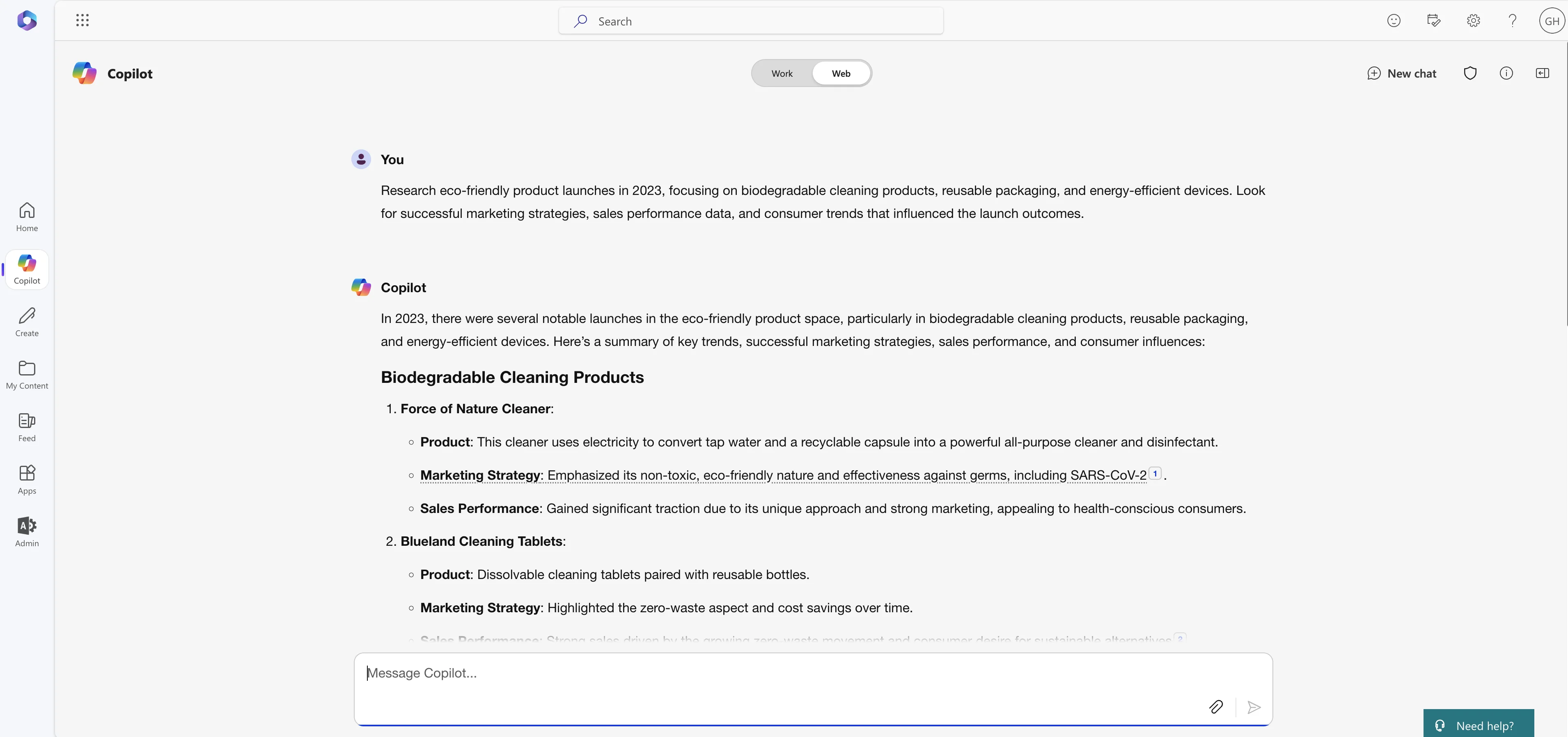
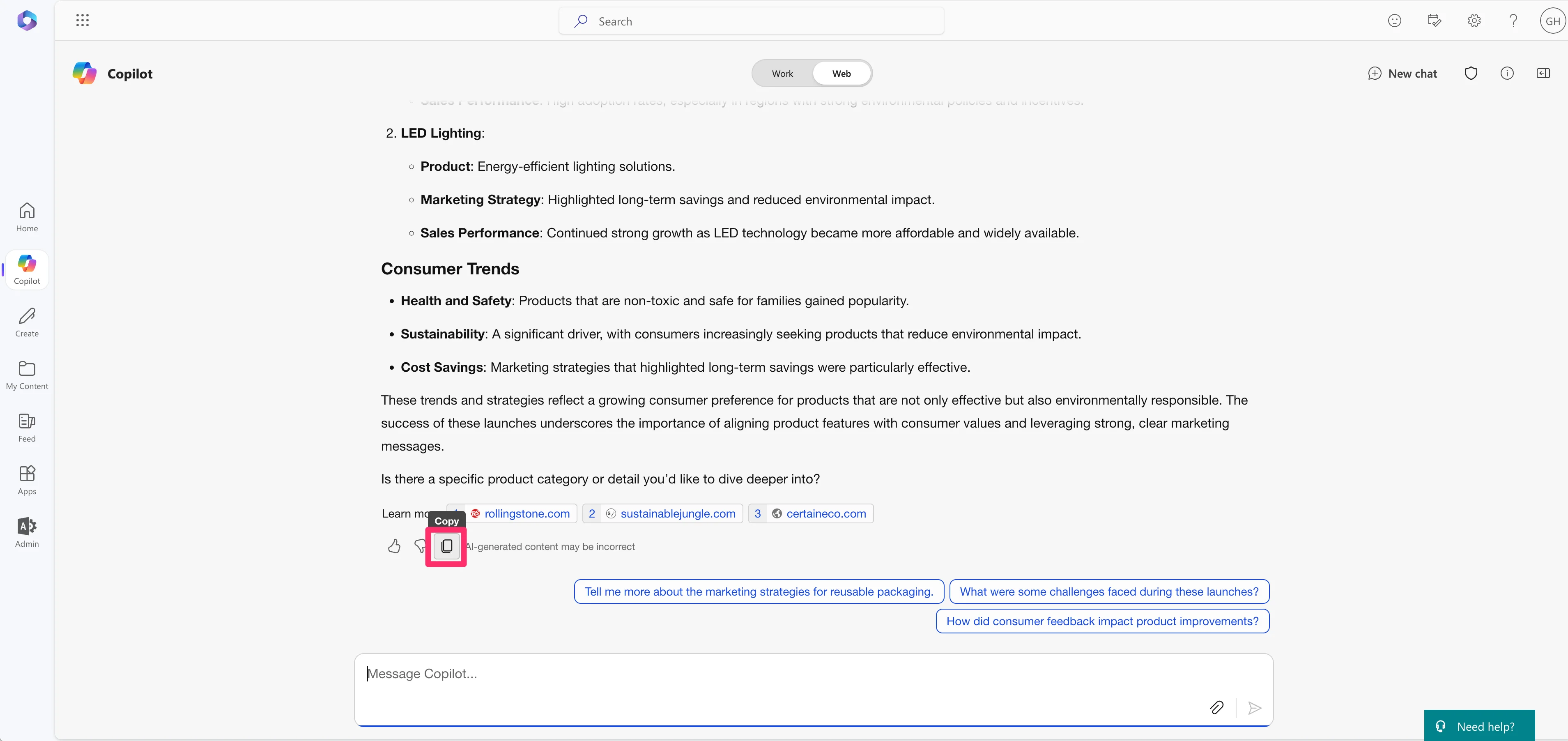
Copilot will come back with research for your query, citing all of its sources across the web. You can copy the content into a document using the “Copy” button at the bottom of the generation.
Copilot 365 has integrated Loop pages in the Microsoft ecosystem to enable you to turn any content in Copilot into Loop pages. Unfortunately, as of this time of writing, it doesn’t appear anyone has access to this feature in production. But, look out for this feature soon — more details in the below video:
Summarize documents across your company workspace
Now, we’ll hop over to the “Work” tab in Copilot to start chatting with documents across our company. To access files across your Microsoft instance, all you have to do is enter a backslash “/” in the chat, and a pop-up will appear where you can reference your files.
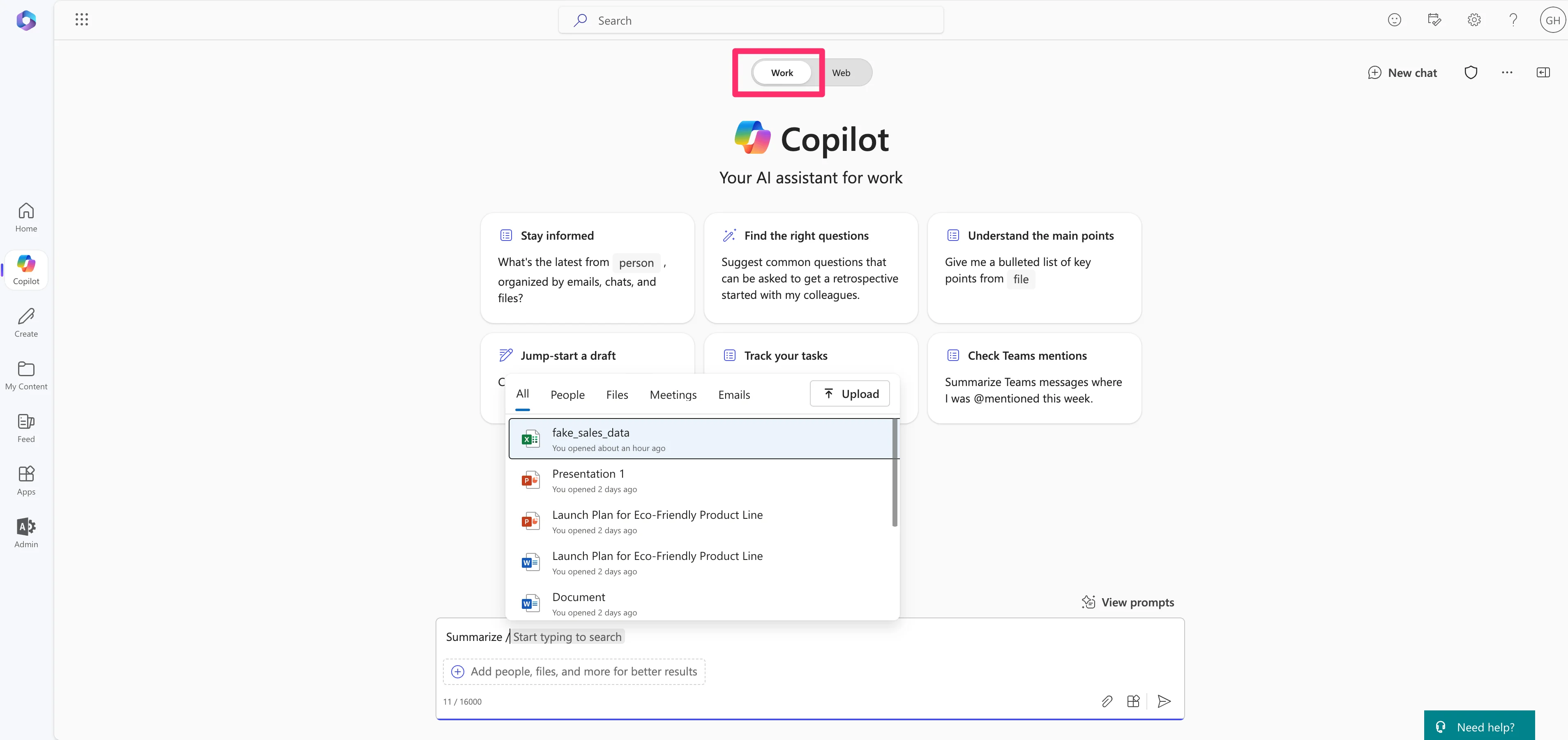
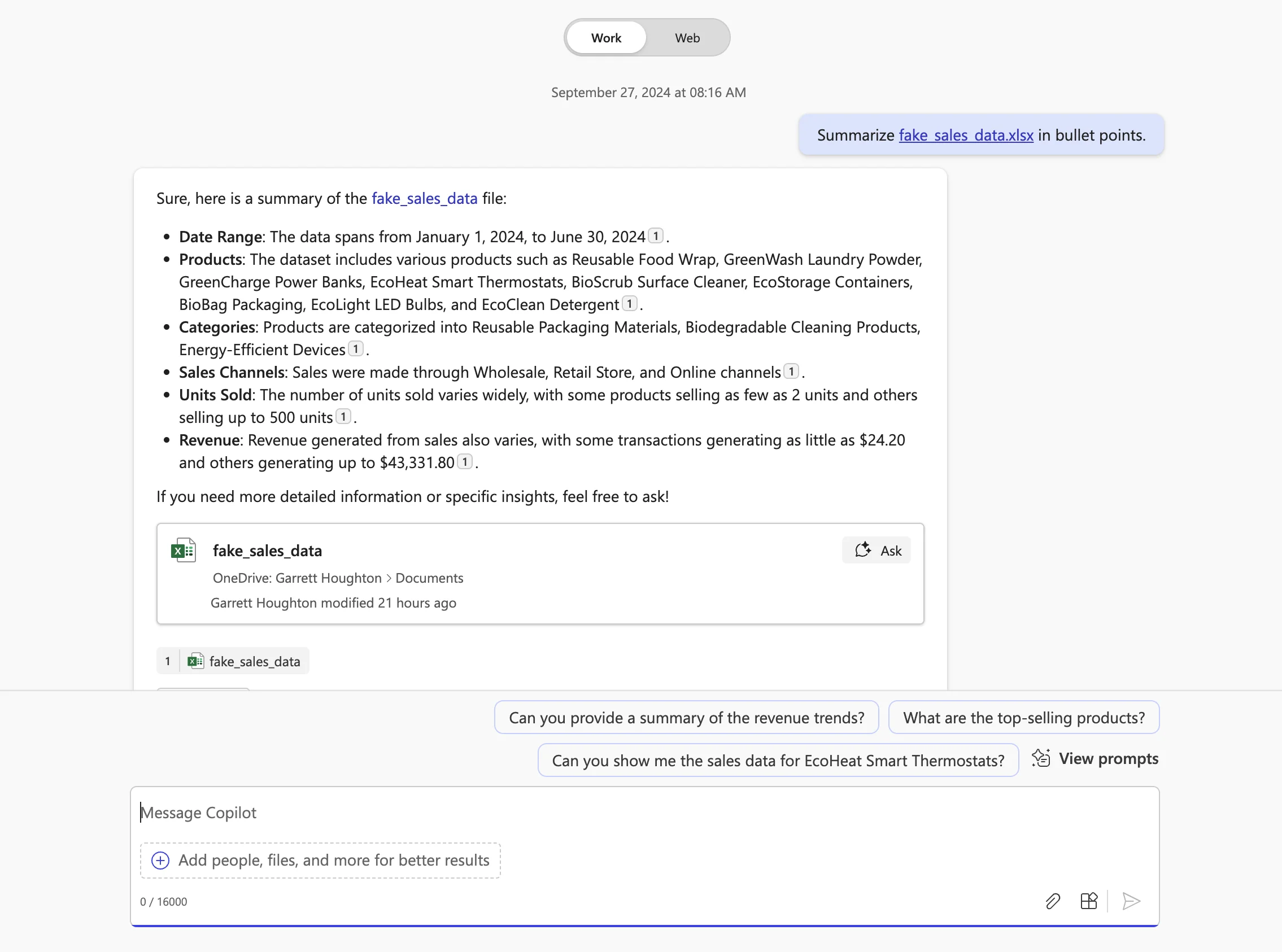
We’ll summarize an Excel document with sales data.
Sample Prompt:
Summarize /[select file] in bullet points.
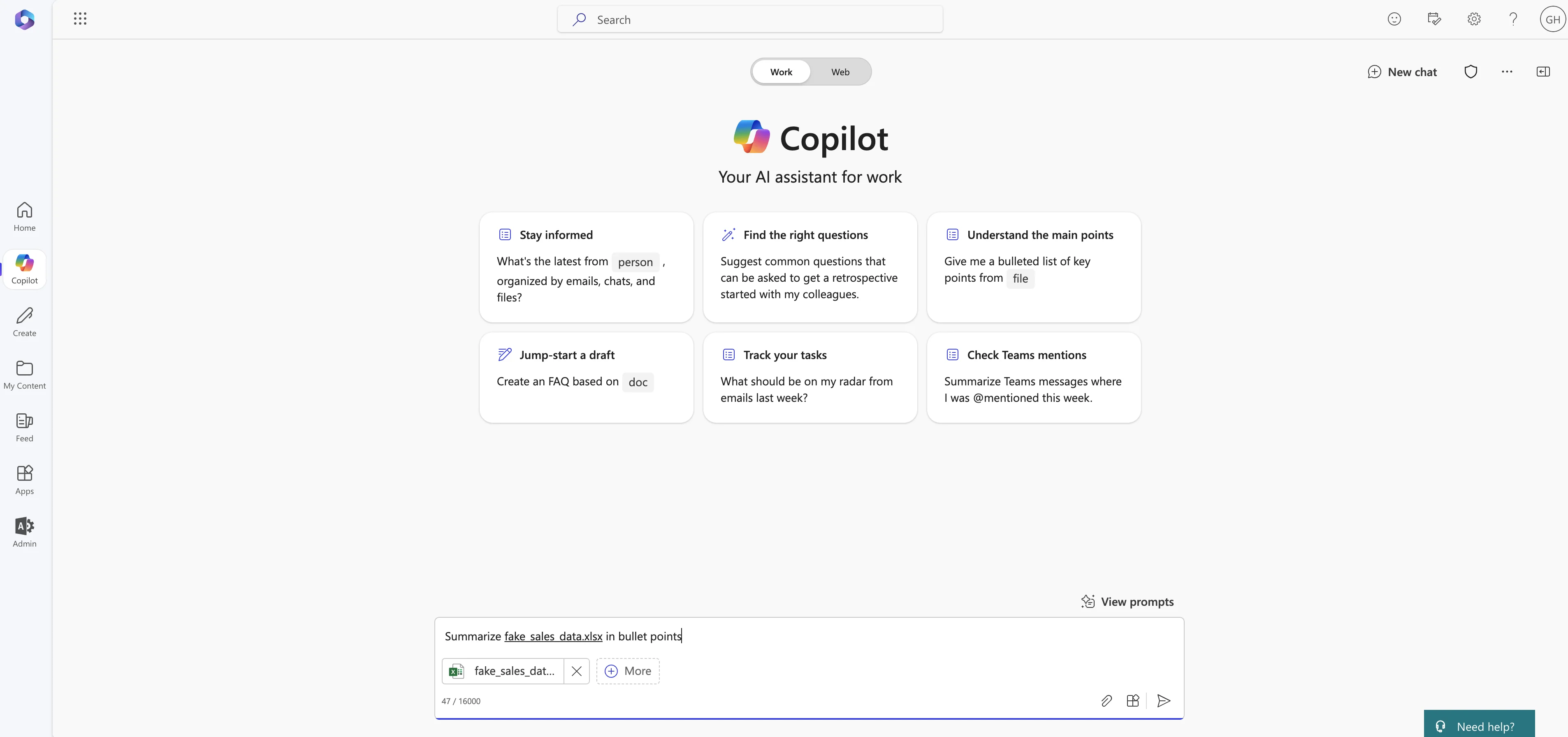
Copilot will come back with a succinct summary of the Excel file. You can follow up with additional questions, and Copilot will even suggest follow-up questions at the bottom of the screen.
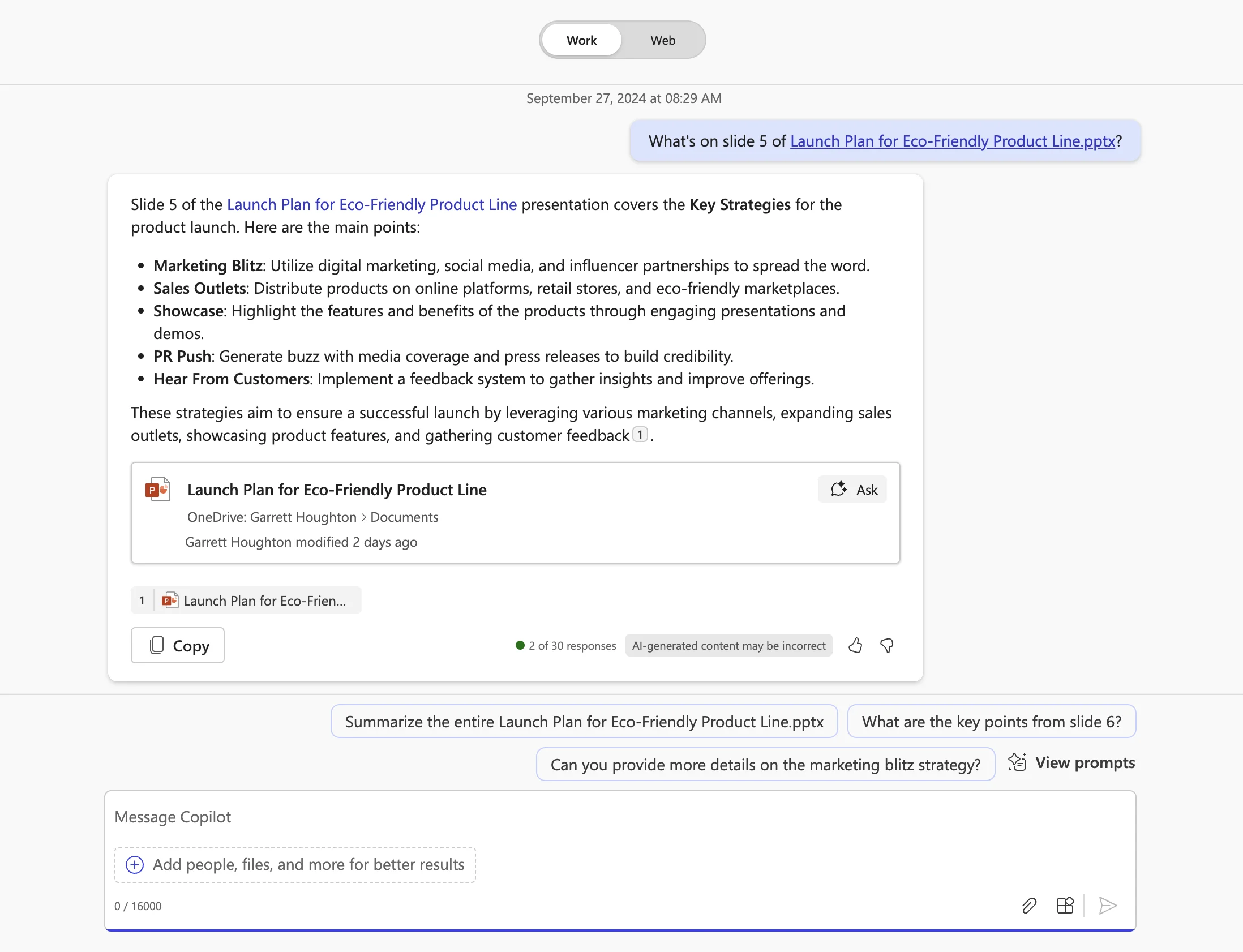
You can even ask specific questions on slides within a PowerPoint presentation.
Sample Prompt:
What’s on [insert slide number] of /[insert file name].
Chat with meetings and catch up on Teams chats
You can chat with Teams meetings and Teams messages with Copilot as well. You’ll never need to dig through meeting transcripts or reach out to colleagues on what you missed again.
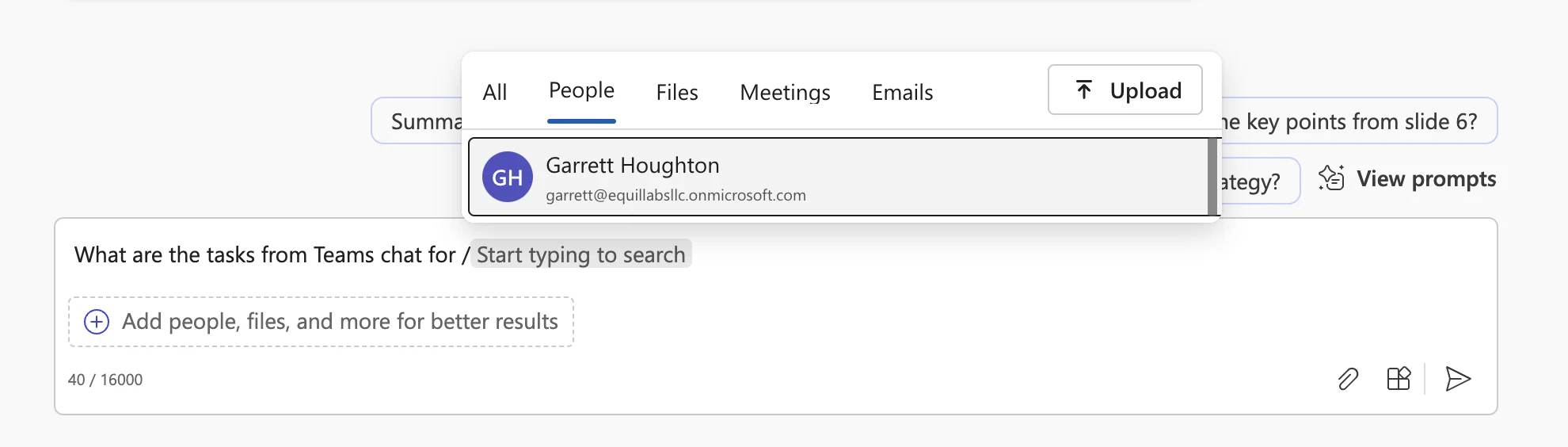
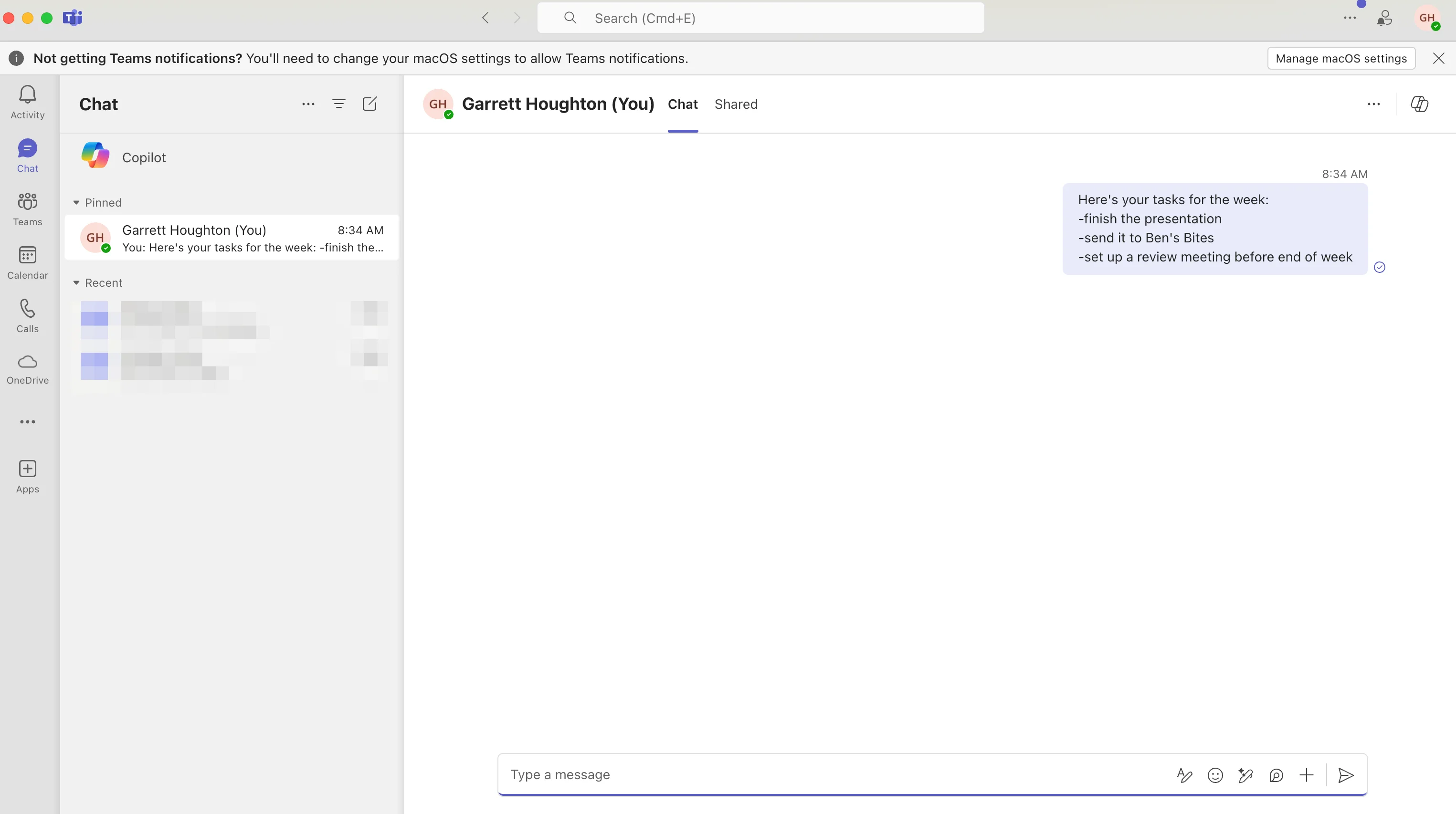
We’ll start with catching up on messages from Teams chat. Similarly to chatting with files, you can use the backslash “/” and toggle to the “People” tab to reference people. In this case, I’m going to reference myself to see what tasks were assigned to me in Teams chat.
Sample Prompt:
What are the tasks from Teams chat for /[select person].
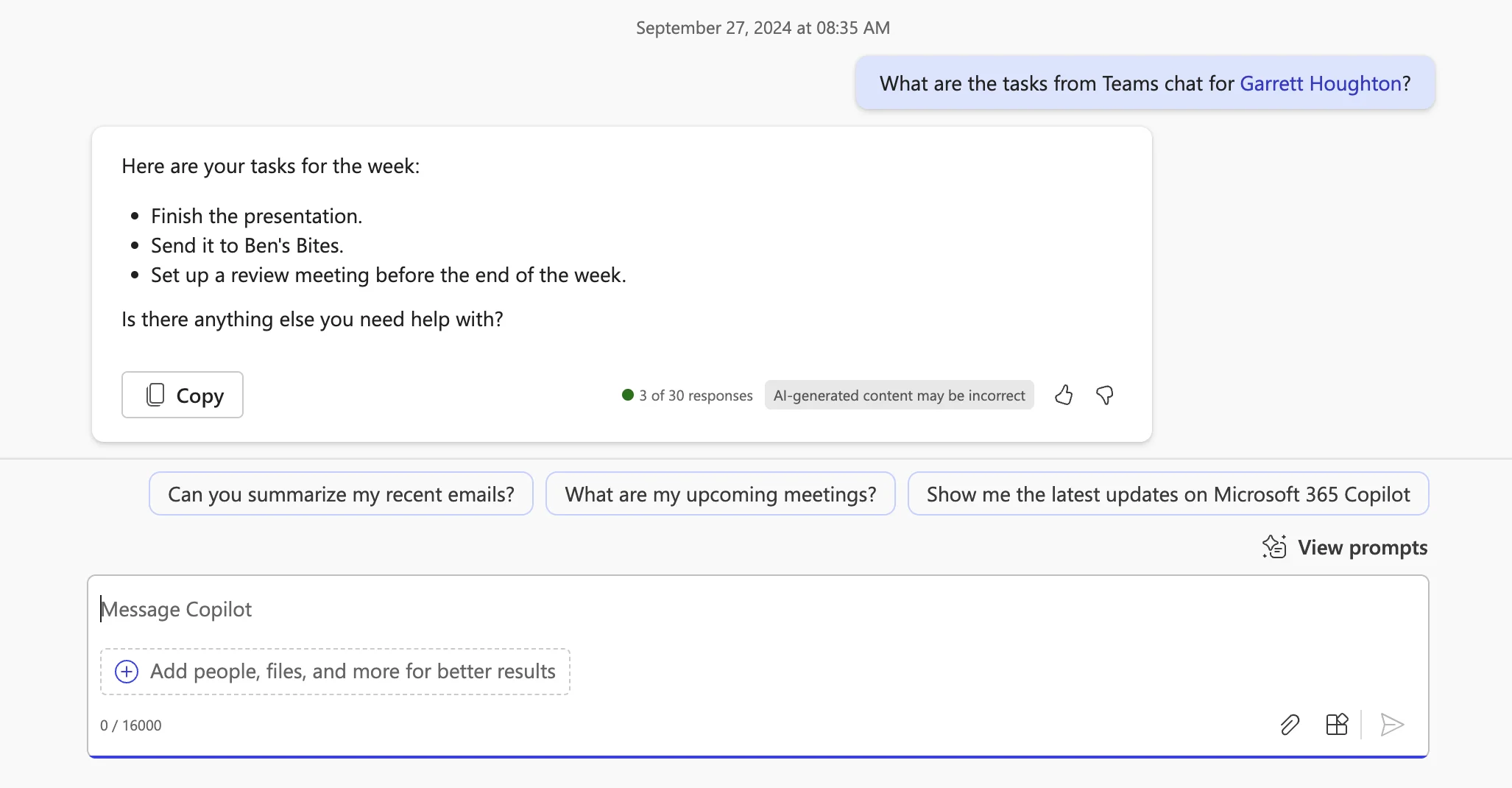
Copilot will come back with a summary from across all my Teams chats.
Here’s the chat it was referencing:
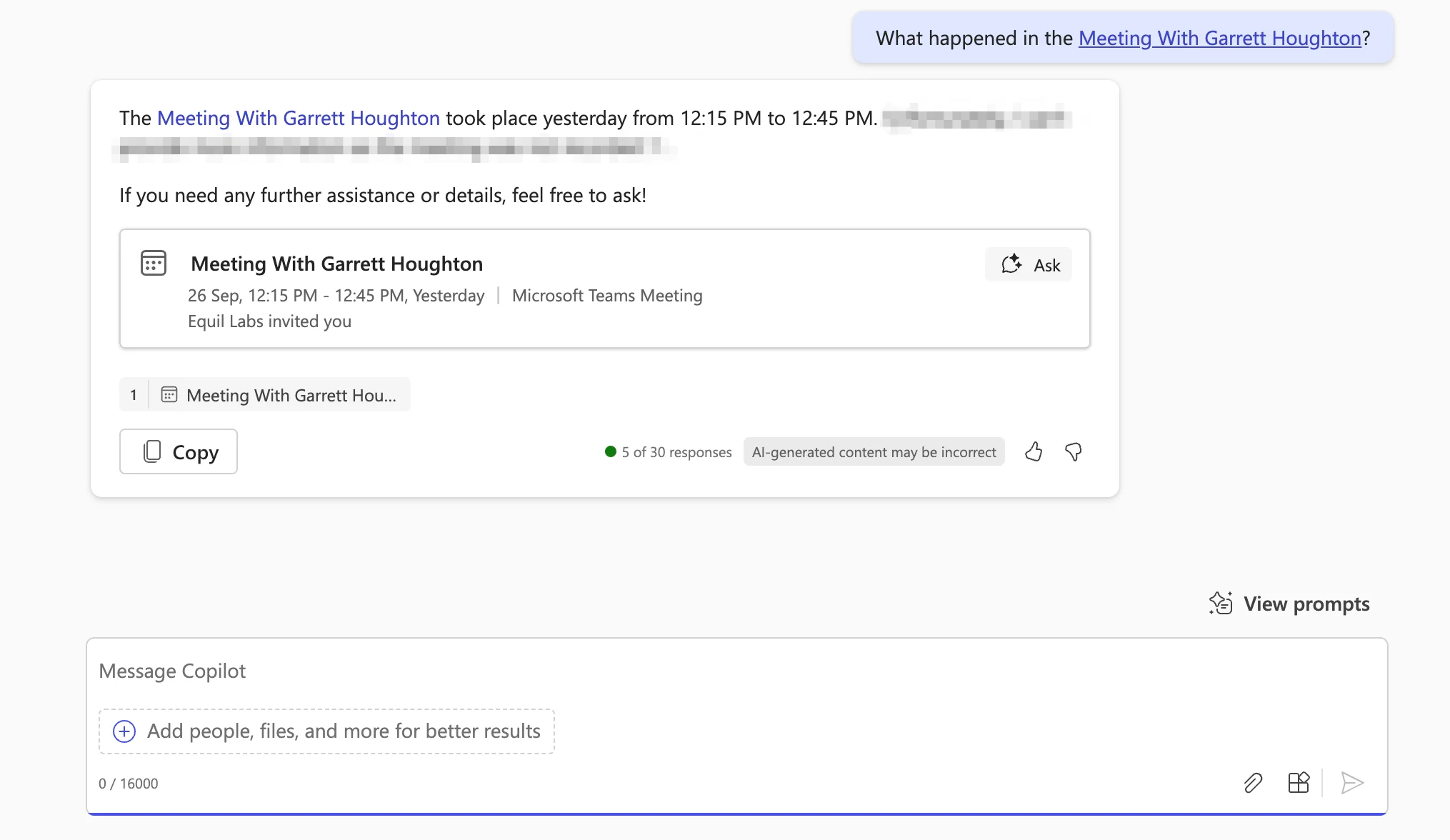
For meeting insights, you can reference a meeting directly within Copilot Chat as well. For example, you can ask for a recap of a recent meeting.
Sample Prompt:
What happened in the /[select meeting]?
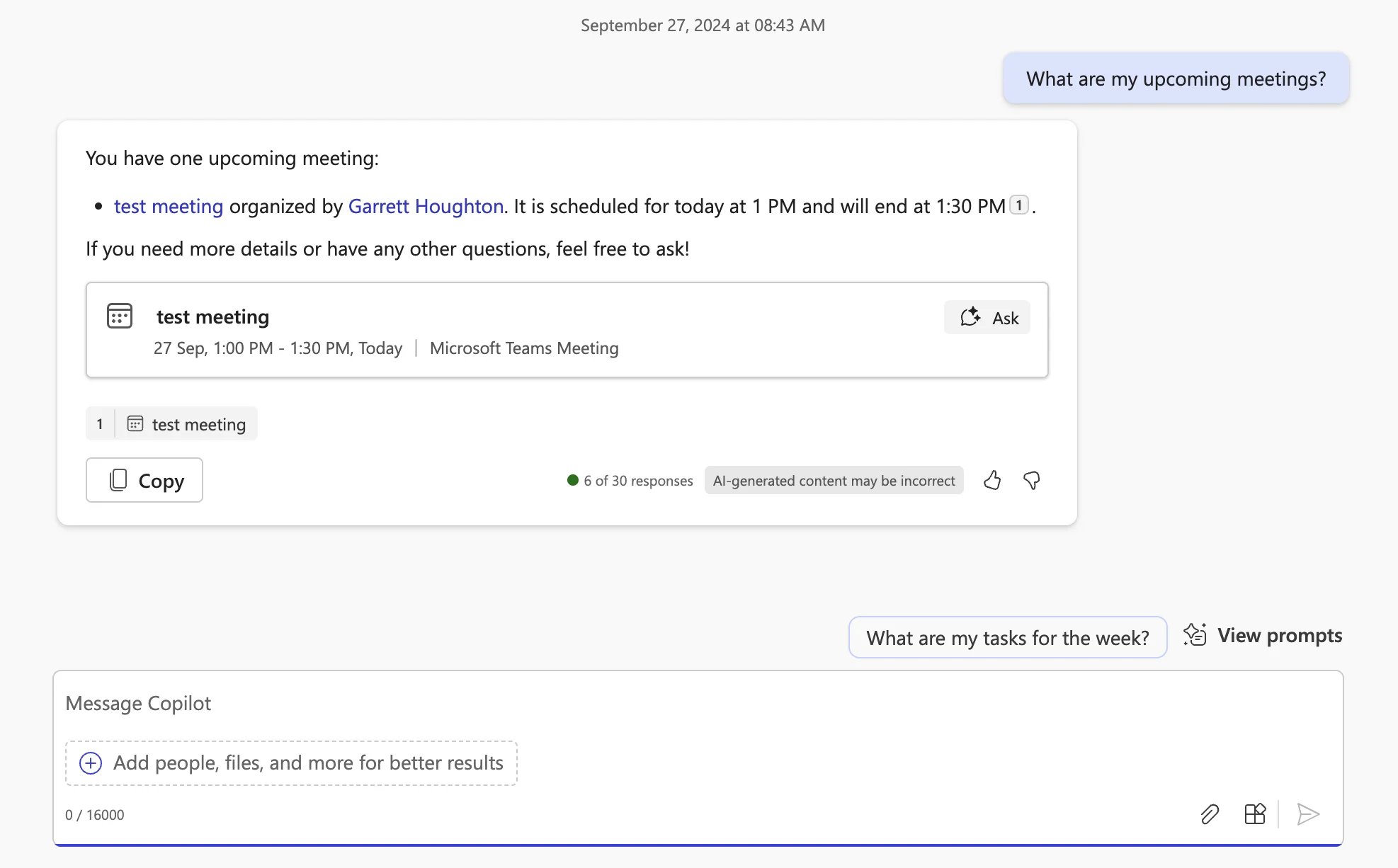
Or, you can have Copilot give you insight into your upcoming schedule.
Sample Prompt:
What are my upcoming meetings?
Chat with Email
You can also chat with your Outlook email. In this example, I’m going to ask for a summary of all the emails in my inbox from this week.
Sample Prompt:
Can you summarize my email for the week?
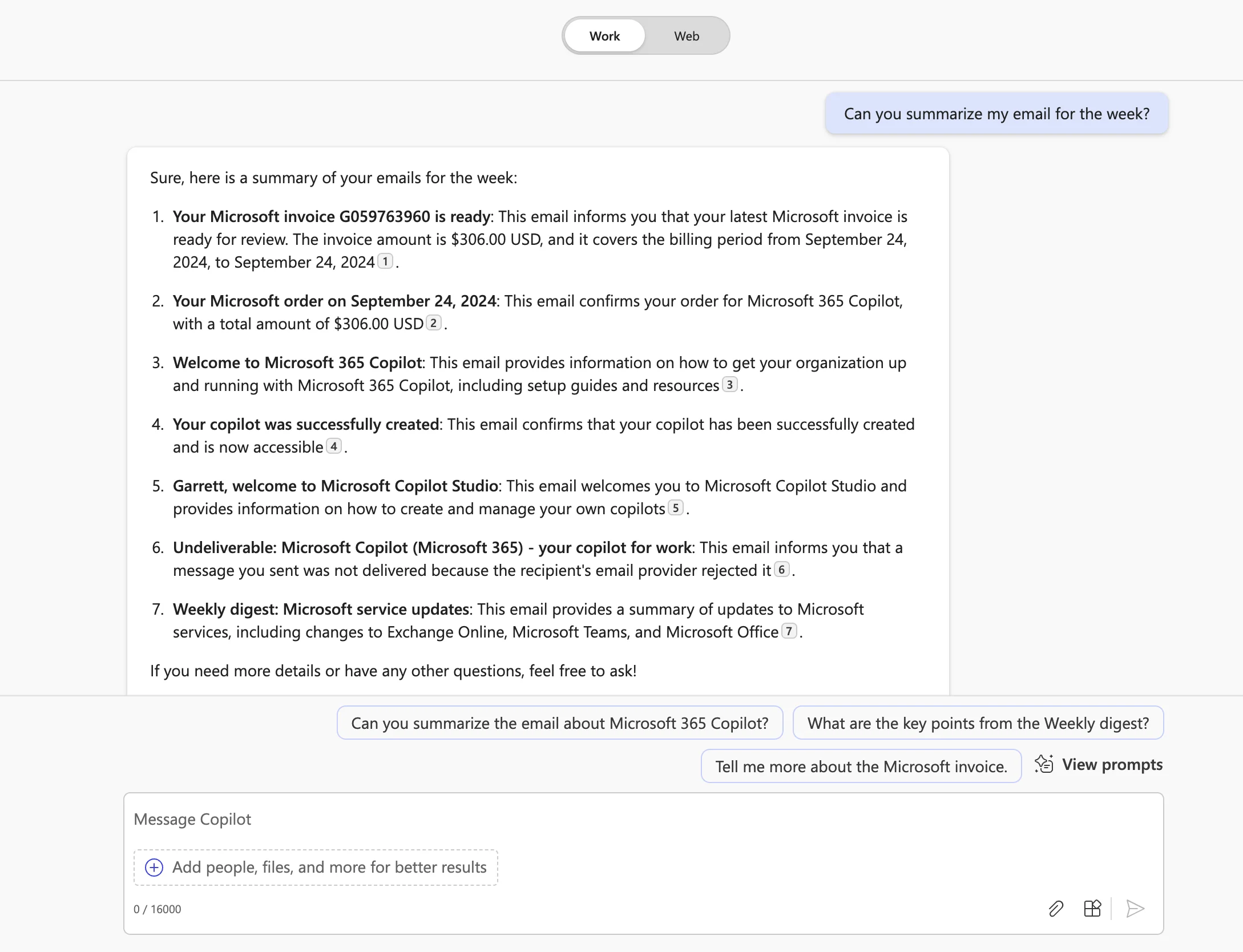
Pretty incredible power in one place! You’ll never be digging across your various Microsoft applications to get information now. Make sure to explore all the content you have available to you in your “Work” tab by using the backslash “/” command and experiment with different prompts.
In our next lesson, we’ll use Copilot across some of the most popular Microsoft apps, including Word and PowerPoint, to create content across applications.
This tutorial was created by Garrett.